Template Library
The Template is your central hub for managing WhatsApp message templates that have been created and approved through Meta's WhatsApp Business Platform. This interface allows you to view and sync all your message templates in one place.
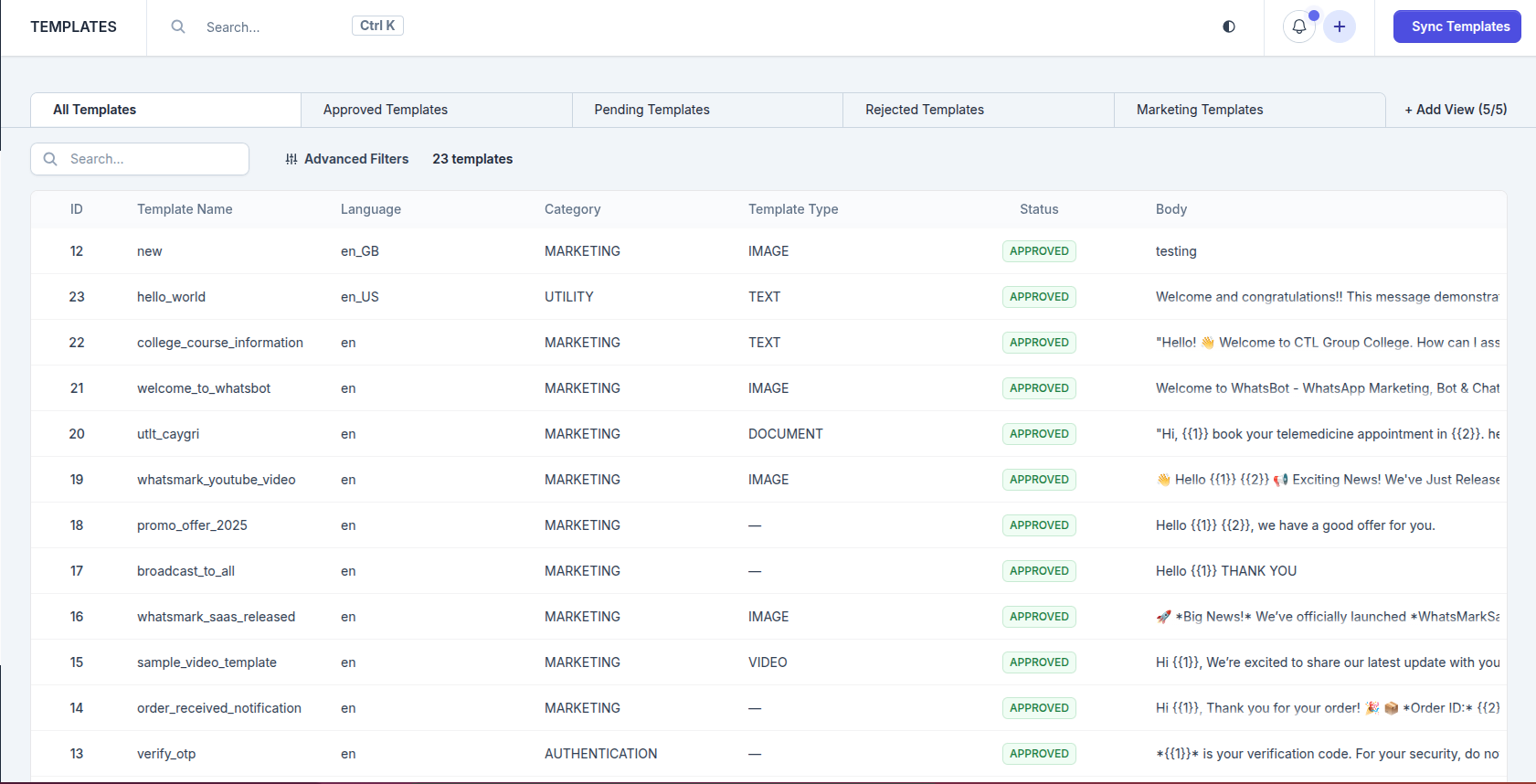
Overview
WhatsApp message templates are predefined message formats that businesses use to initiate conversations with customers who have opted in. All templates must be approved by Meta before they can be used for sending messages.
Accessing Template
Navigate to Templates to access the template interface.
You'll see three main action buttons:
- Sync Template - Sync templates from Meta
Load Template Feature
The Sync Template button synchronizes all your approved templates from Meta's WhatsApp Cloud API directly into Concord.
When to Use Load Template
Use the Load Template function in these scenarios:
- Initial Setup: When you first connect your WhatsApp Business Account and need to import existing templates
- After Creating Templates in Meta: When you've created new templates through Meta Business Manager and want to sync them
- Status Updates: When template approval statuses have changed (from
PENDINGtoAPPROVEDorREJECTED) - Template Modifications: After editing templates in Meta Business Manager
- Missing Templates: If templates were deleted or renamed and need to be sync again
How Load Template Works
- Click the Sync Template button on the Template page
- Concord makes an API call to Meta's WhatsApp Cloud API endpoint
- Retrieves all templates associated with your WhatsApp Business Account
- Syncs template details including:
- Template names and IDs
- Approval status
- Message content and variables
- Media components (images, videos, documents)
- Button configurations
- Language and category
- Updates the Template with the latest data
API SYNC
Templates are fetched directly from Meta's Cloud API using the Get Message Templates endpoint. This ensures your templates is always up-to-date with Meta's records.
SYNC TEMPLATES REGULARLY
If you create or edit templates frequently in Meta Business Manager, remember to click Sync Template to keep your WhatsApp Cloud API synchronized.
TEMPLATE CREATION OPTIONS
If you need to create templates
Create in Meta Business Manager - Full feature support, then use Sync Template
Working with Templates
Once templates are synced, you can:
- View template details including message body, variables, and media
- Check approval status before using templates in campaigns
- Filter templates by language, category, or status
- Search templates by name or content
Creating Templates from Meta Dashboard
If you prefer using Meta's Business Manager to create templates:
- Go to Meta Business Manager
- Navigate to WhatsApp Manager → Message Templates
- Click Create Template and fill in the required details
- Submit for approval (usually takes 24-48 hours)
- Once approved, return to WhatsMarkSaaS
- Click Sync Template to sync the new templates
This method gives you access to all template types and features supported by Meta, without any API limitations.
Additional Resources
Learn more about WhatsApp message templates: