Campaigns
A campaign sends one WhatsApp template to many contacts at once, for example a special offer to all your customers.
The Campaigns tab lists every campaign in your workspace, with the newest at the top.
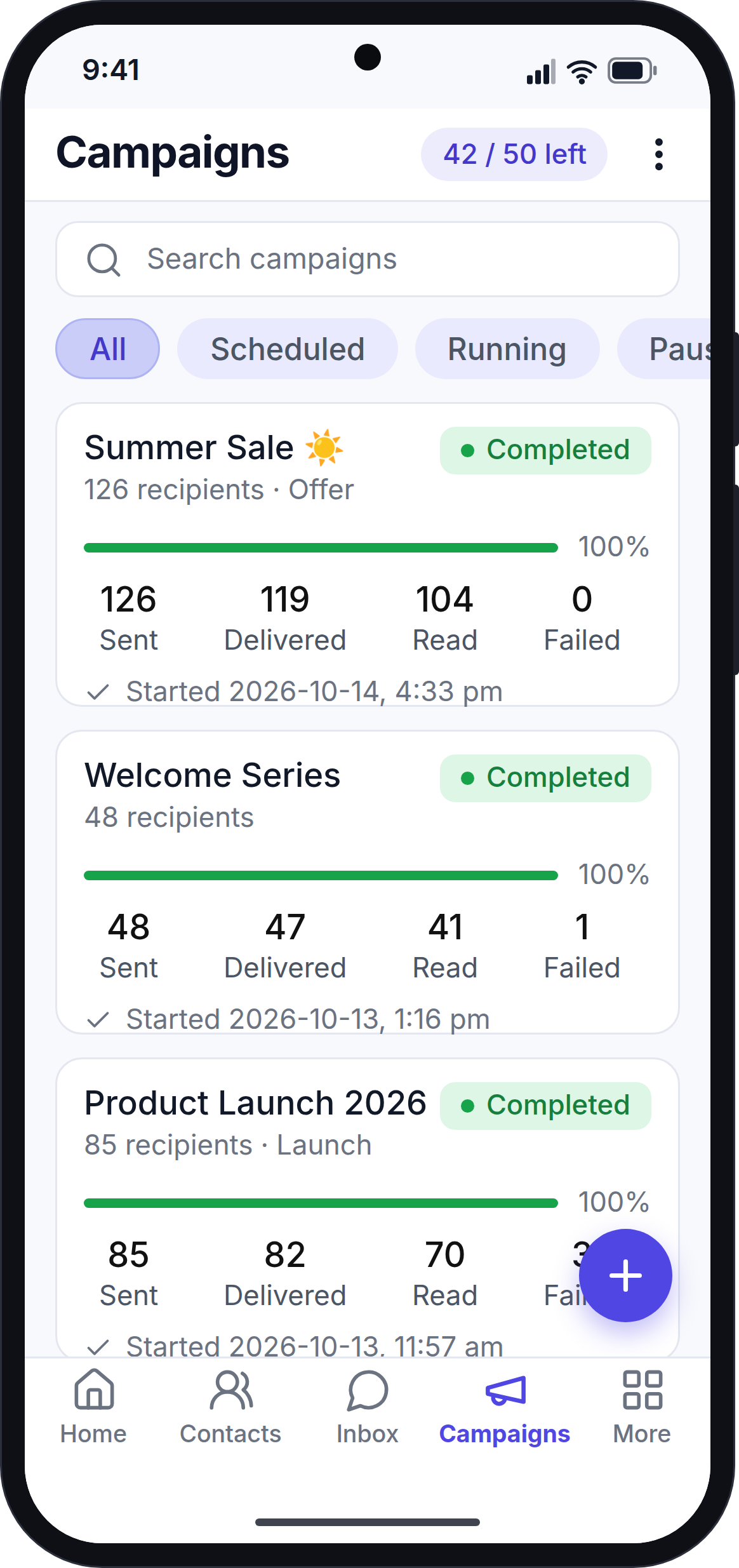
The Campaign List
Next to the Campaigns title, a label shows how many campaigns your plan still allows, for example "42 / 50 left".
At the top of the screen:
- 🔍 searches campaigns by name. Tap Cancel to close the search.
- + creates a new campaign. See Create a New Campaign.
Under the title, tap a tab to see campaigns with one status: All, Scheduled, Running, Paused, Completed or Failed.
Each campaign card shows:
- The campaign name.
- The number of recipients and the template used.
- The status.
- A progress bar of how many messages have gone out.
- The number of messages Sent, Delivered, Read and Failed.
- When the campaign started, or when it is scheduled to send.
If you have no campaigns yet, the tab says "No campaigns yet." and shows a Create campaign button.
Campaign Statuses
| Status | Meaning |
|---|---|
| Scheduled | The campaign will send at a set time in the future. |
| Running | The campaign is sending, or waiting in line to send. |
| Paused | The campaign was paused. Some messages have not been sent yet. |
| Completed | All messages went out. Some may have failed. |
| Failed | Every message failed. |
| No recipients | No contact matched the campaign's audience, so nothing was sent. |
Campaign Details
Tap a campaign card to see its details.
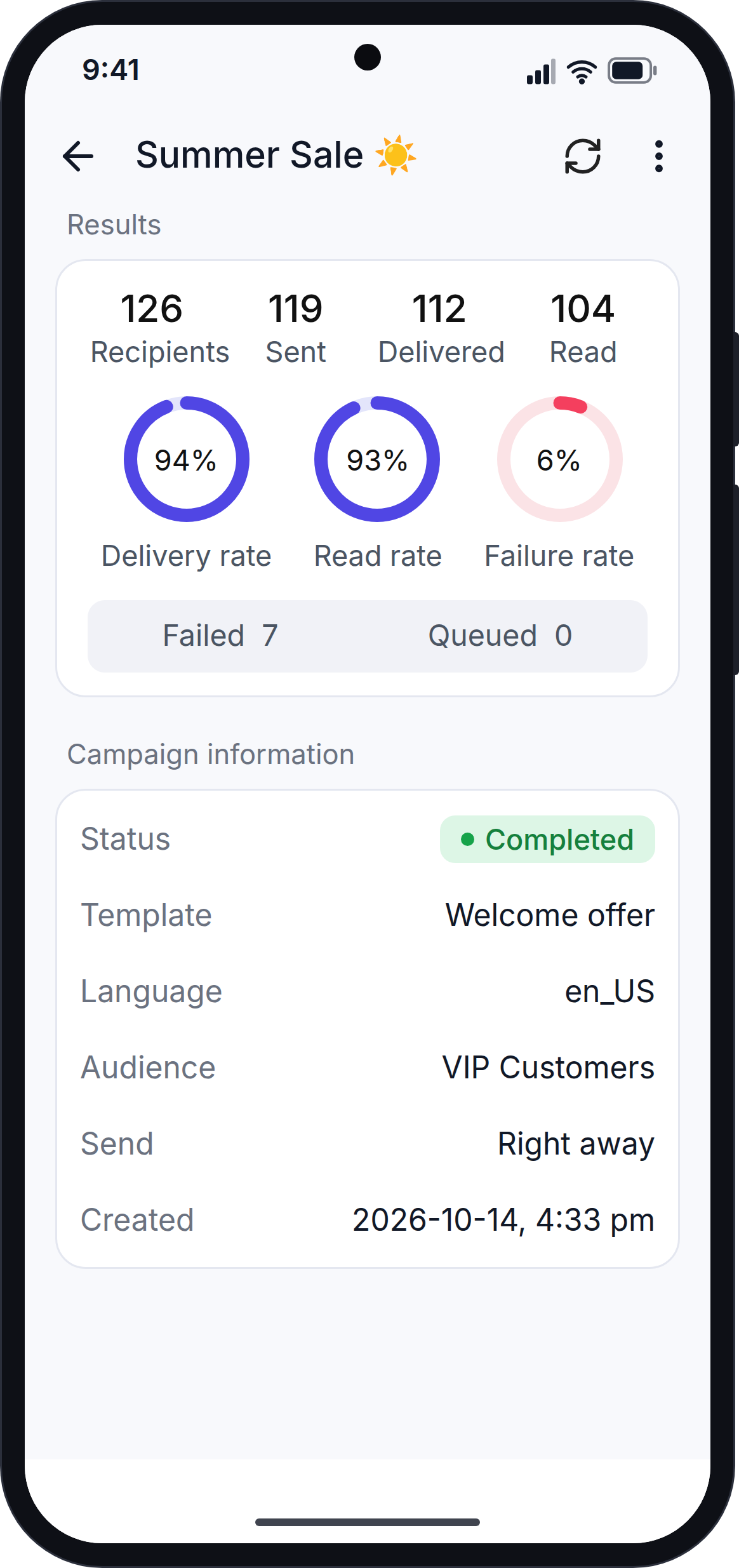
- Results: the number of Recipients, and how many messages were Sent (accepted by WhatsApp), Delivered and Read. Circles show the delivery rate, read rate and failure rate. Below, you see how many messages Failed and how many are still Queued (waiting to send).
- Campaign information: the status, template, audience, send time and the date the campaign was created.
- For a scheduled campaign, a card shows when it will send. For a campaign with no recipients, a card explains why nothing will be sent.
Pause, Resume and Retry
At the bottom of the campaign details:
- Pause: stops sending the messages that are still waiting. You only see this button while messages are waiting to send.
- Resume: continues a paused campaign.
- Retry failed: sends the failed messages again. The app tells you how many messages are being sent again.
Resume and Retry failed only work while your WhatsApp account is connected.
Delete a Campaign
- Open the campaign.
- Tap ⋮ → Delete.
- Confirm.
The campaign is deleted from the app and the website. You only see Delete if your role allows you to delete campaigns.
Numbers Update on Their Own
While the campaign list or a campaign's details are open, the numbers update every 15 seconds. You can watch a campaign as it sends. Pull down to update right away.
Staff Without Campaign Access
- Staff members without permission to create campaigns see the + button greyed out with a lock. Tapping it explains why.
- Staff members without permission to view campaign details cannot open a campaign card.
- Staff members without any campaign access do not see the Campaigns tab.
Next Step
Continue with Create a New Campaign.