Troubleshooting
This page explains the screens and messages that can stop you from using the app, and what to do about each one.
For messages on the connect and sign-in screens, see Welcome and Connect and Sign In.
Under Maintenance
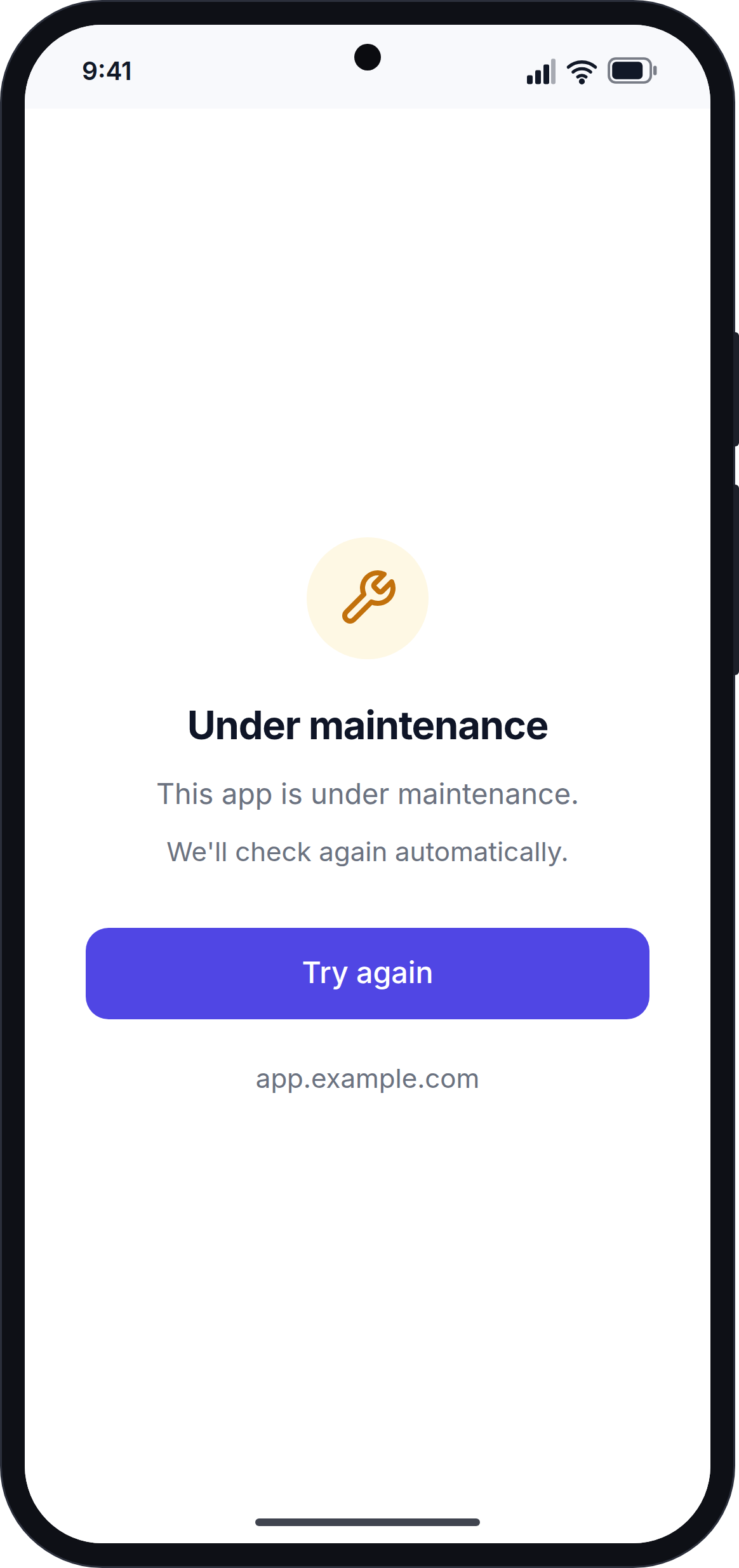
What it means: The platform admin has turned on Maintenance mode in System Settings → Mobile App. The screen shows the admin's maintenance message.
What to do: Wait. The app checks again every 30 seconds and when you return to the app. When maintenance ends, the app opens again on its own. You can also tap Try again.
Mobile App Unavailable
What it means: The platform admin has turned off Enable mobile app in System Settings → Mobile App.
What to do: Ask your platform admin to turn the setting back on. See Before You Start. The app opens again on its own once it is turned on.
Plan or Account Problems
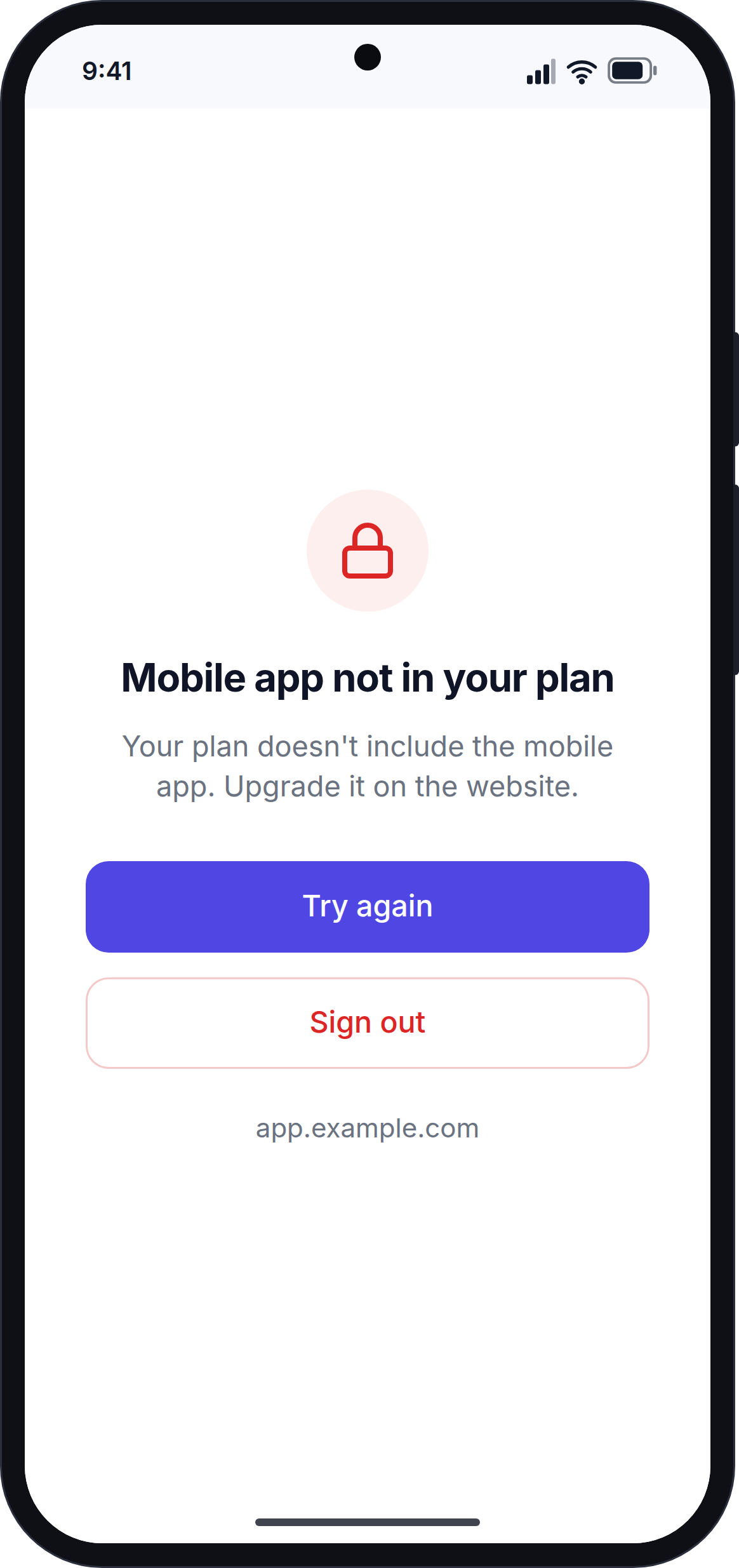
What it means: The website has stopped your account from using the app. The screen names the reason:
| Reason | What to do |
|---|---|
| Your plan isn't active | Renew your plan on the website. |
| Mobile app not in your plan | Upgrade to a plan that includes the mobile app, or ask your platform admin to add the Mobile App feature to your plan. |
| Account deactivated | Ask your workspace owner to turn your account back on. |
| Workspace suspended | Contact your platform admin. |
| Email not verified | Verify your email address from the email the website sent you. |
After you fix the problem, tap Try again. To use a different account, tap Sign out.
WhatsApp Isn't Connected
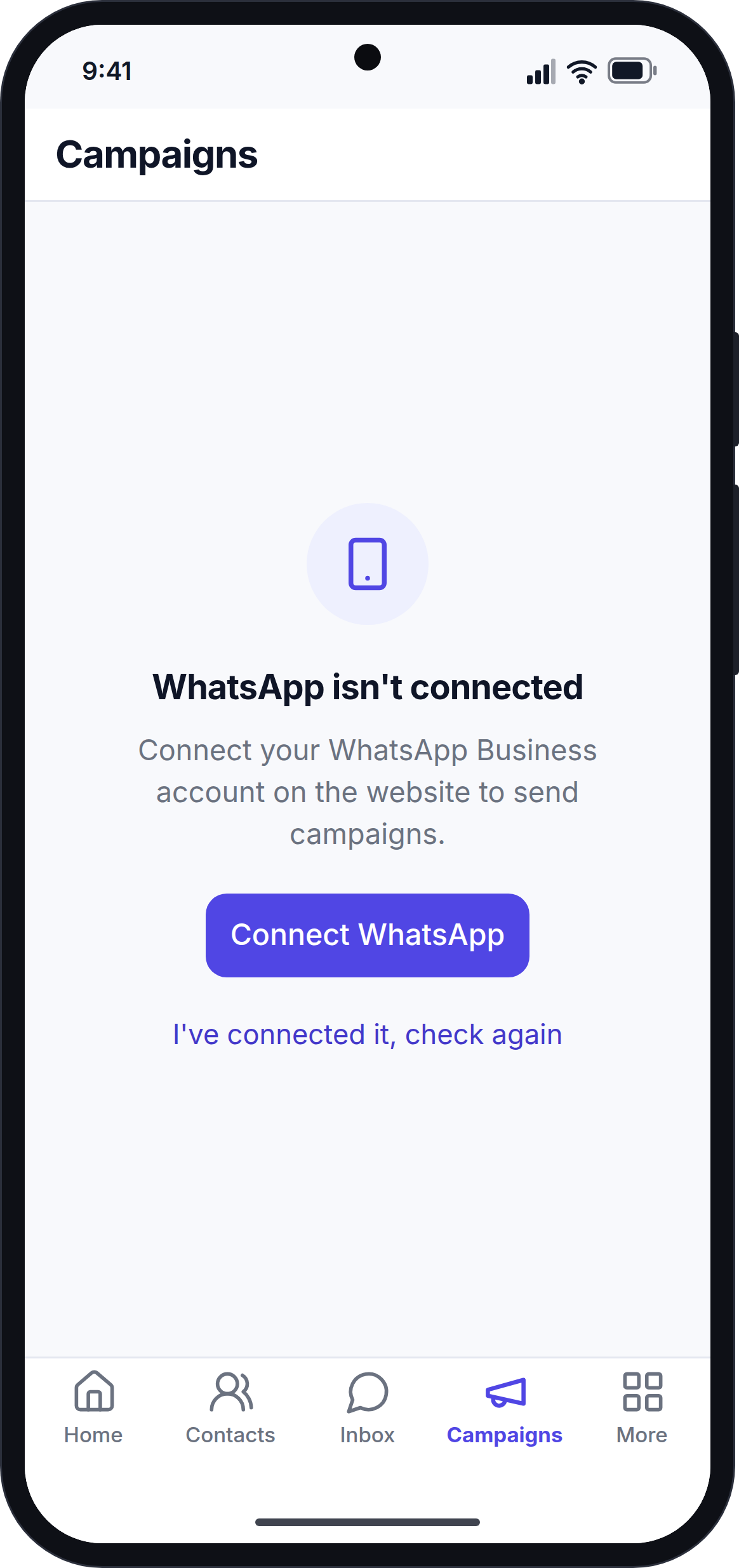
What it means: Your workspace has not connected its WhatsApp Business account. The Inbox, Campaigns and template screens show this card instead of their content.
What to do:
- Tap Connect WhatsApp. The connection page opens on your website in the phone's browser.
- Connect your WhatsApp Business account on the website.
- Go back to the app. The screen updates on its own. You can also tap "I've connected it, check again".
WhatsApp can only be connected on the website, not inside the app.
"You Were Signed Out"
Message: "You were signed out. Your account may be signed in on another phone."
What it means: Each user can be signed in on one phone at a time. This message shows when:
- Someone signed in with your account on another phone, or
- Your sign-in was cancelled on the website, for example after a password change.
What to do: Sign in again. If you did not sign in on another phone, change your password using Forgot password?.
New Messages Do Not Appear
- Check your phone's internet connection. When you are offline, the app shows a "You're offline" banner.
- Pull down on the Inbox or chat to reload it.
- If you use the WhatsApp number filter in the Inbox, make sure the correct number is picked, or pick All chats.
I Do Not Get Notifications
- Go to More → Notifications. If you see "Notifications are off", tap Turn on.
- Check that New messages and Assigned chats are turned on, and that notifications are not muted.
- Check that notifications for the app are allowed in your phone's settings.
- If you still do not get notifications, ask your platform admin to check that Push notifications is turned on and the Firebase file is added in System Settings → Mobile App.
See Notifications.
I Cannot See a Tab or Button
Your role on the website does not allow it. Ask your workspace owner to check your permissions. See Team Roles and Permissions.
Assign Does Not Work
Assign needs the Support Agent setting to be turned on in your website's WhatsMark settings. Ask your workspace owner to turn it on. Assign is also only available to owners and admins.
I Want to Connect to a Different Website
- Open your phone's Settings → Apps, and select the app.
- Tap Storage → Clear storage.
- Open the app and connect the new website address.
Still Need Help?
Email us at [email protected]. Tell us what you see on the screen, and include a screenshot if you can.