Template Sending
A template is a ready-made message that WhatsApp has approved. You create templates on your website. In the app, you pick a template, fill in the details and send it.
When Do I Need a Template?
You need a template in two cases:
- The customer's last message is more than 24 hours old. WhatsApp does not allow normal messages after 24 hours.
- You want to message a contact for the first time. WhatsApp does not allow a normal message to start a new chat.
In all other cases, you can type and send a normal message.
Where to Send a Template From
You can send a template from:
- A chat whose reply window has closed: tap Send template on the notice at the bottom of the chat.
- A contact page: tap Message on a contact who has no chat yet. See Contacts.
- Several contacts at once: select contacts, then tap Message. See Contacts.
- The Templates screen: open an approved template and tap Send this template. See Templates.
Step 1: Choose a Template
The template list shows your approved templates.
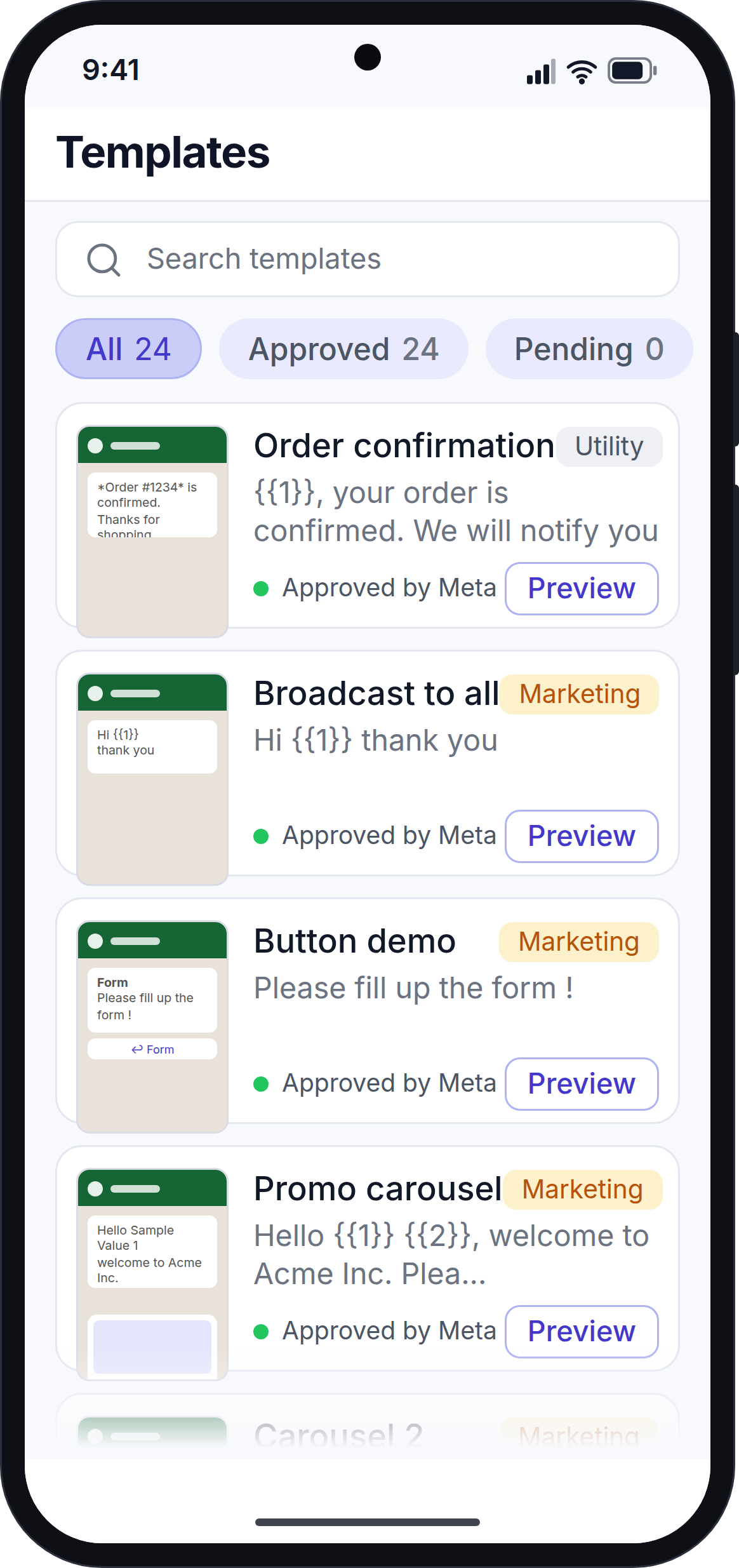
- Use the search box to find a template by name.
- Tap a category chip (for example Marketing or Utility) to narrow the list.
Each card shows a small preview of the message, the template name, its category, the language and the type of header (for example "Image header" or "Carousel · 3 cards").
Tap a template to continue.
Step 2: Fill In the Details
Many templates have empty spaces for details, such as {{1}} for an order number. The send screen shows a box for each space.
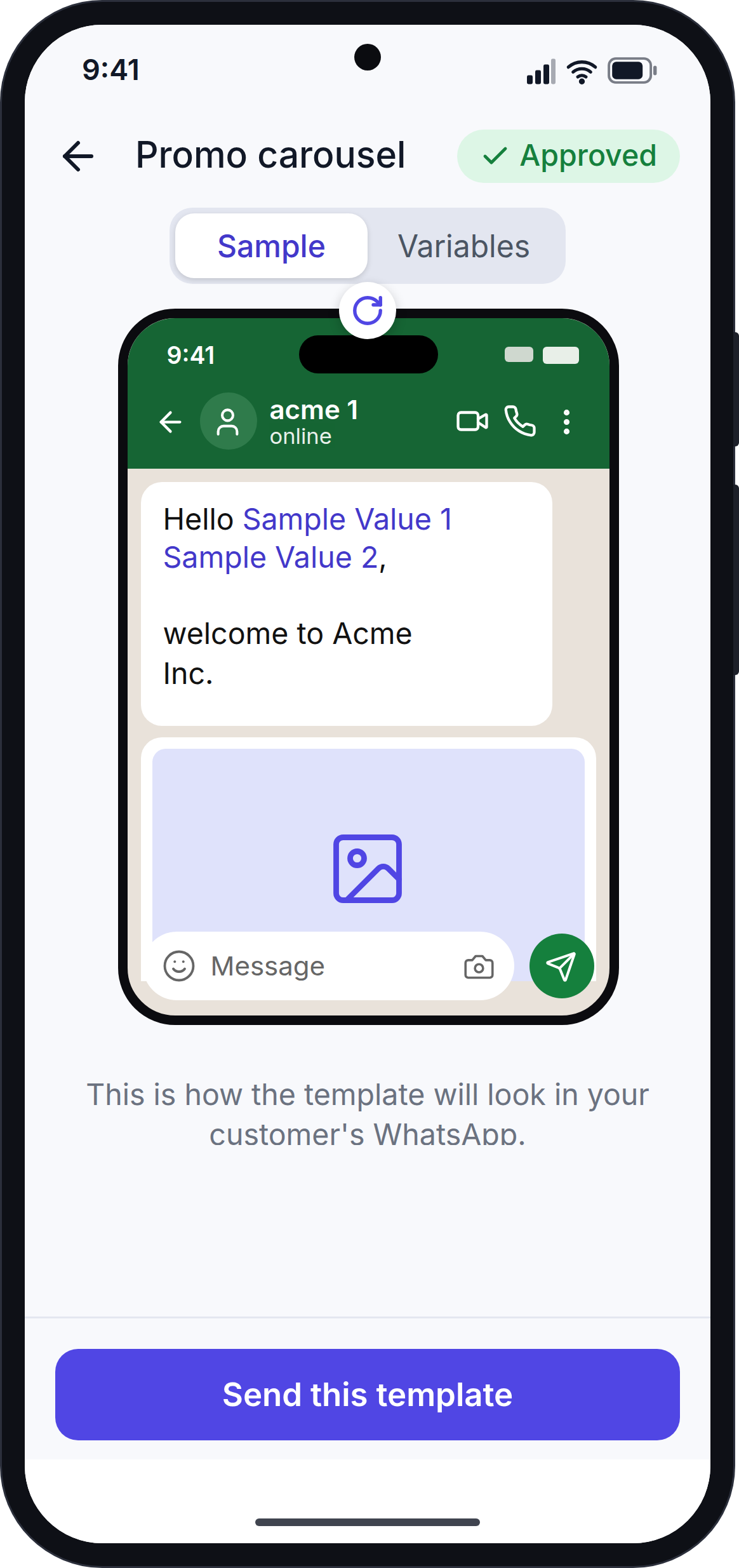
On this screen:
- Preview: shows how the message will look to the customer. Empty spaces show in amber.
- Header file: for templates with a picture, video or document, choose a file from Camera, Gallery or Files.
- Value boxes: type a value for each empty space, or tap Insert field to add a customer detail, such as the first name.
- Carousel cards: for carousel templates, fill in each card. A card's tab turns green when the card is ready.
If a customer detail is empty, the preview shows a note in amber, for example "Email not set".
Step 3: Send
Tap Send template.
- If a value or file is missing, the app shows the problem under the box and does not send anything. For example: "Required: WhatsApp rejects empty variables."
- When everything is filled in, the template is sent. The app goes back to the chat and shows the template there. The chat moves to the top of your Inbox.
When the customer answers, the 24-hour reply window opens again and you can send normal messages.
If the Template Is Not Sent
The app shows the reason in red and keeps you on the send screen, so you do not lose what you typed. Common reasons:
- WhatsApp refused the template.
- Your plan limit is reached.
- WhatsApp is not connected for your workspace.
Next Step
Continue with Contacts.