Home
The Home tab gives you a quick summary of your workspace: your WhatsApp connection, your messages, campaigns and contacts, and how much of your plan you have used.
The Tab Bar
After you sign in, you see a bar at the bottom of the screen with five tabs:
| Tab | What it shows |
|---|---|
| Home | A summary of your workspace (this page). This tab opens first after you sign in. |
| Contacts | Your saved contacts. See Contacts. |
| Inbox | Your WhatsApp chats. See Inbox. |
| Campaigns | Your WhatsApp campaigns. See Campaigns. |
| More | Your profile, templates, settings and sign out. See More. |
Staff members only see the tabs their role allows. For example, a staff member without access to campaigns does not see the Campaigns tab. See Team Roles and Permissions.
What the Home Tab Shows
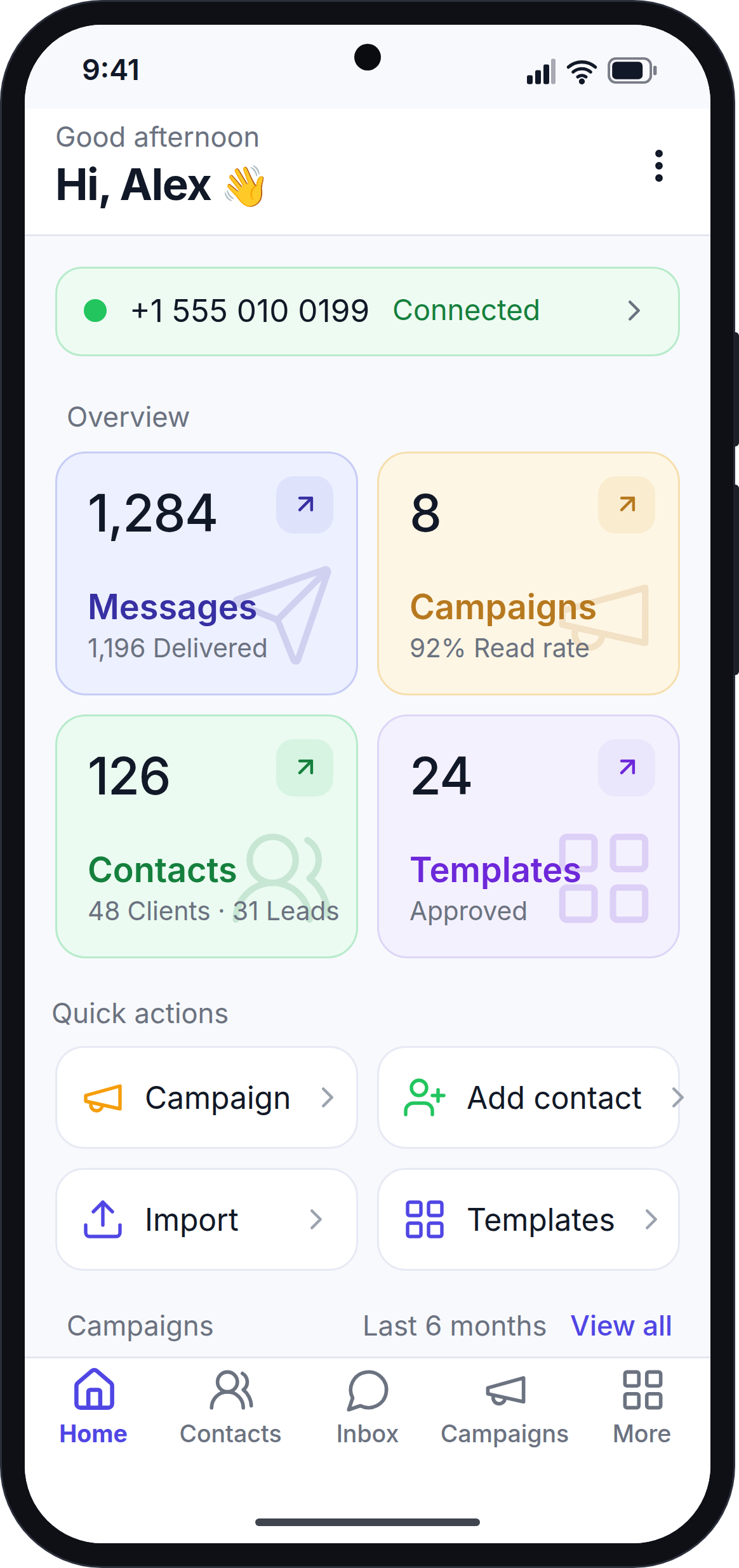
From top to bottom:
Greeting
The top of the screen says Good morning, Good afternoon or Good evening, followed by Hi, (your first name) 👋.
WhatsApp Connection
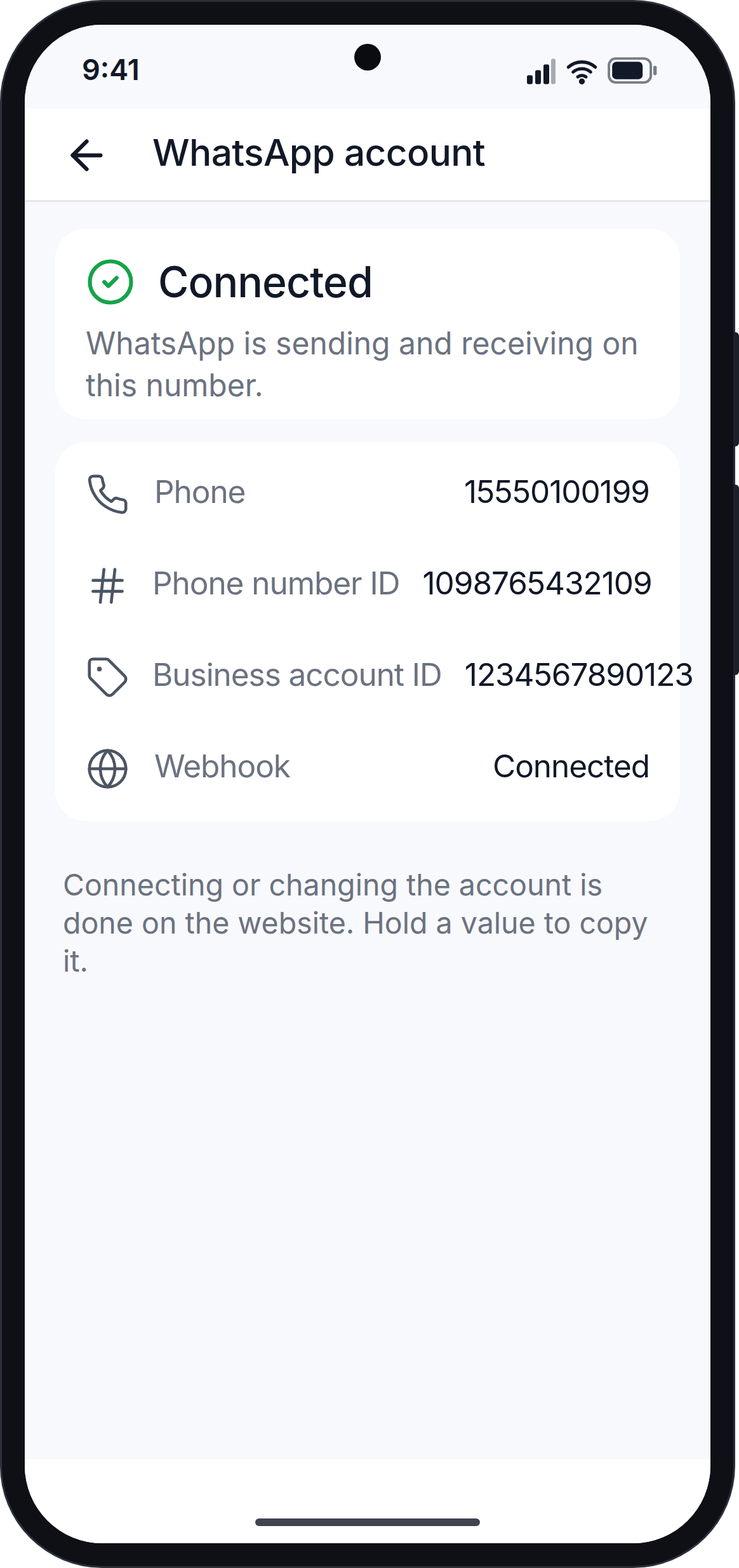
When WhatsApp is connected, the first line shows your workspace's WhatsApp number in light green with "Connected". Tap the line to open the WhatsApp account screen. This screen shows your WhatsApp number and the account details that support teams may ask for. Press and hold a value to copy it.
If WhatsApp Is Not Connected
When WhatsApp is not connected, the Home tab shows only the greeting and the message "Not enough data yet. Analytics will appear once your WhatsApp activity starts." The overview tiles, quick actions and charts appear after you connect WhatsApp on the website and start sending or receiving messages.
Overview
| Tile | Shows | Tap to open |
|---|---|---|
| Messages | Messages sent, and how many were delivered | Inbox |
| Campaigns | Campaigns created, and the read rate | Campaigns |
| Contacts | Total contacts, split into customers and leads | Contacts |
| Templates | Approved WhatsApp templates | Templates |
Quick Actions
Four shortcuts let you start common tasks in one tap:
- Campaign: create a new campaign.
- Add contact: add a new contact.
- Import: import contacts from a CSV file.
- Templates: open your WhatsApp templates.
You only see the shortcuts that your role allows.
Charts
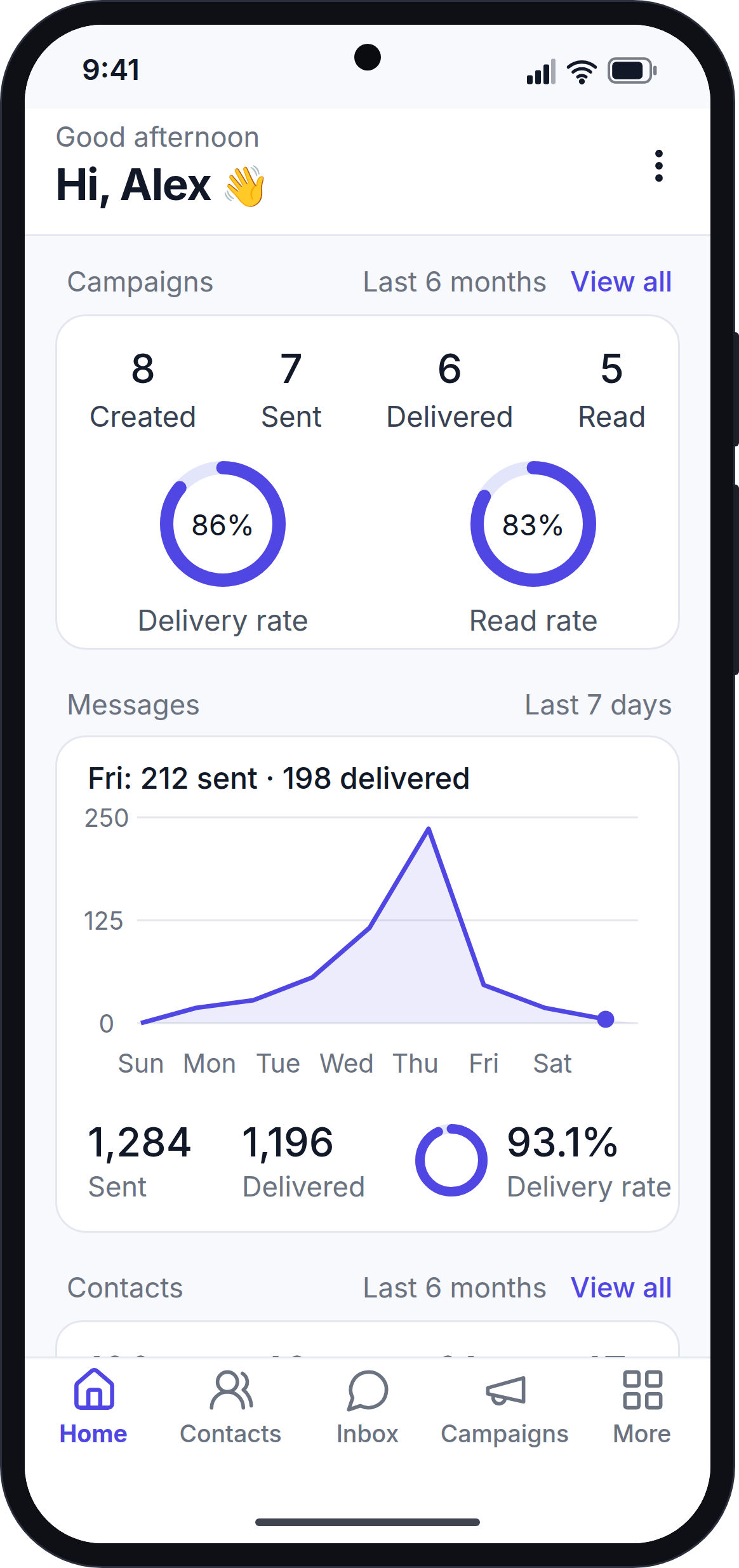
- Campaigns: how many campaign messages were created, sent, delivered and read, with the delivery rate and read rate. Tap View all to open the Campaigns tab.
- Messages: a line chart of messages per day. Tap a day to see how many messages were sent and delivered on that day.
- Contacts: total contacts, new contacts, customers and leads. A chart shows new contacts per month (tap a month to see its number) and where your contacts came from.
Plan Usage
This section shows each limit of your plan, for example contacts, campaigns or staff members. Each limit shows how much you have used and a bar:
- Almost full (amber): you have used 80% or more of the limit.
- Limit reached (red): you cannot add more until you upgrade your plan.
- Unlimited: your plan has no limit for this item.
Change the Date Range
Tap the ⋮ menu at the top right and choose Last 7 days or Last 30 days. The numbers and charts update. The monthly charts show the last 6 months or the last 12 months.
Next Step
Continue with Inbox.