Message Sending
You can reply to a customer from the message box at the bottom of an open chat. The message box works like the one in WhatsApp.
When can I send a message?
You can send normal messages while the 24-hour reply window is open. After it closes, you can only send an approved WhatsApp template. See Template Sending.
The Message Box
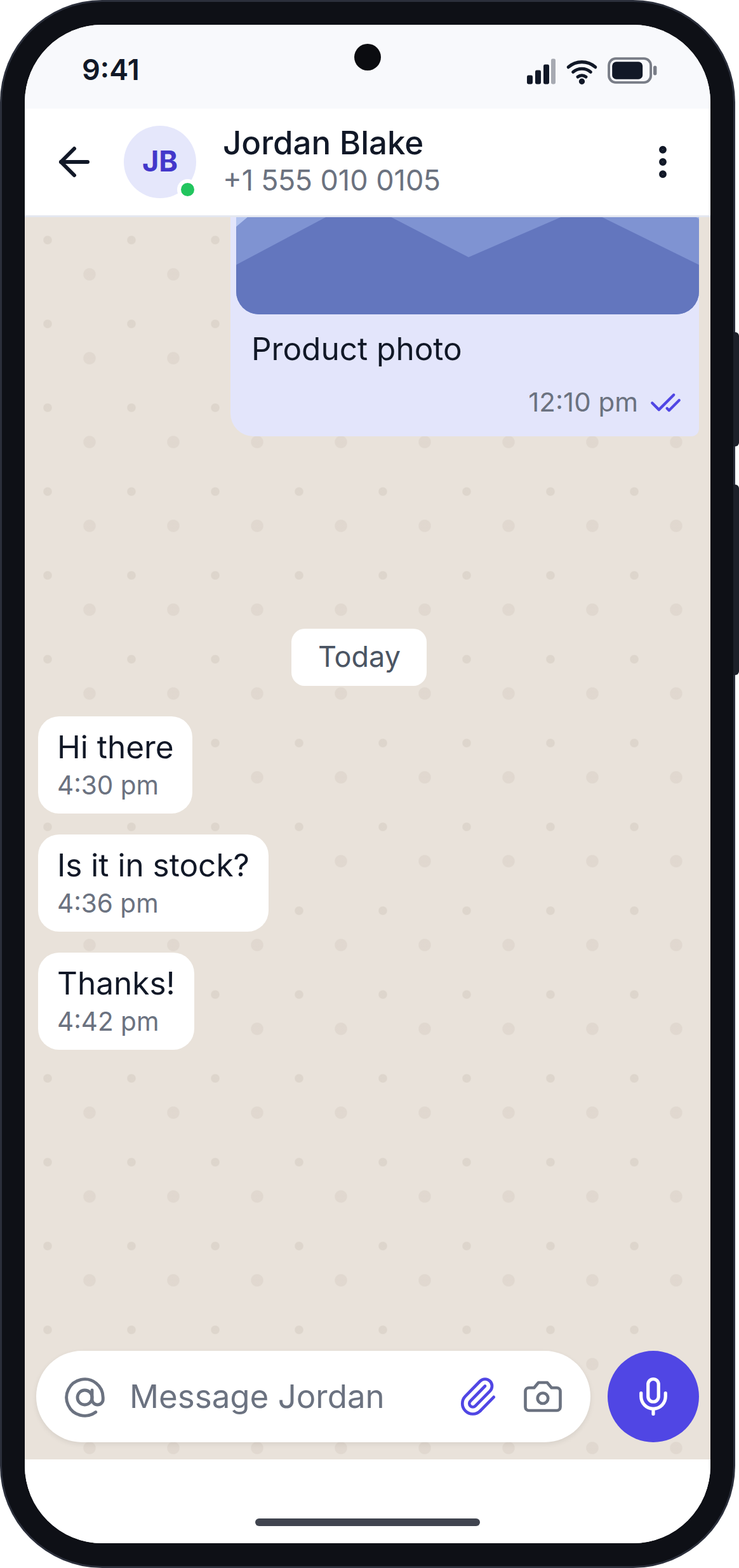
From left to right, the message box has:
| Button | What it does |
|---|---|
| @ | Inserts a customer detail, such as the first name. See Insert Customer Details. |
| Text area | Type your message here. |
| 📎 Paperclip | Opens the menu to send photos, files, locations and contacts. See Send Photos, Files and More. |
| 📷 Camera | Opens the camera right away. It is hidden while you are typing. |
| Microphone | Records a voice message. When you type text, it changes to ➤ Send. |
When you tap into the text area, a small row appears under it with two more buttons:
- Aa: text styles. See Format Your Text.
- /: quick replies. See Use a Quick Reply.
For emojis, use the emoji key on your phone's keyboard.
Your draft is kept
If you leave a chat without sending, your typed message is kept. It is still there when you come back, until you close the app or sign out.
Send a Text Message
- Type your message.
- Tap ➤.
The message appears at once with a 🕒 icon. When the website has received it, the icon changes to ✓. The chat also moves to the top of your Inbox.
Reply to a Specific Message
To quote a message in your reply, do one of these:
- Swipe the message to the right.
- Press and hold the message, then tap Reply in the top bar.
The quoted message appears above the message box. Type your reply and send it. The customer sees the quote on WhatsApp. Tap ✕ to cancel the quote.
Use a Quick Reply
Quick replies are saved messages that you can use again, for example a greeting or your opening hours.
- Tap the message box, then tap /.
- Tap a quick reply. The text is added to your message.
The list shows your own quick replies and the ones shared with the whole team. Quick replies are created and edited on the website, under More → Quick replies.
Insert Customer Details
Customer details (also called merge fields) let you add information about the customer, such as their first name, without typing it.
- Tap @ in the message box.
- Pick a detail, for example First name.
The app adds a short code to your message, for example {contact_first_name}. When you send the message, the website replaces the code with the customer's real first name.
Guests
A guest chat is with a number that is not saved as a contact. Guests have no contact details, so contact fields may stay empty in the sent message.
Format Your Text
You can use WhatsApp text styles.
- Tap the message box, then tap Aa.
- Select the text you want to style, or place the cursor where you want to type.
- Tap a style: B (bold), I (italic), S (strikethrough) or </> (monospace).
The app adds WhatsApp's style marks, for example *word* for bold. The customer sees the styled text on WhatsApp, and the app shows it styled in the chat too.
Send Photos, Files and More
Tap the 📎 paperclip to open the Share menu.
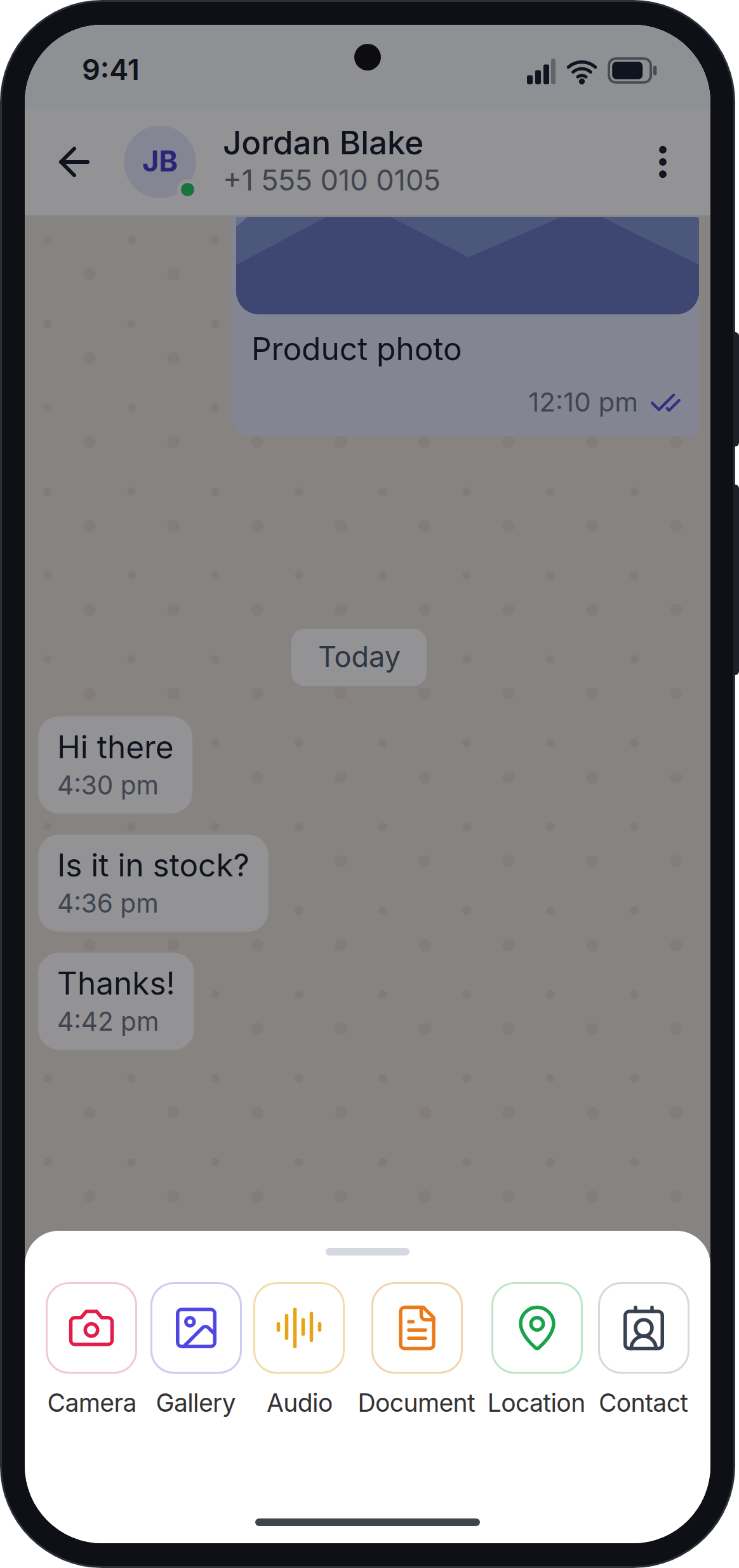
| Option | What it does |
|---|---|
| Camera | Take a new photo or video. |
| Gallery | Pick a photo or video from your phone. |
| Audio | Pick an audio file, such as an MP3. |
| Document | Pick a file, such as a PDF. |
| Location | Send your current location. |
| Contact | Send one of your saved contacts as a contact card. |
For photos, videos and documents, you see a preview first. You can add a caption, then tap Send. The caption is sent as a separate message, the same as on the website.
The first time you use the camera, location or microphone, your phone asks for permission. Tap Allow.
File Size Limits
WhatsApp only accepts some file types and sizes. The app checks your file before sending it and tells you if it does not fit.
| File type | Allowed formats | Maximum size |
|---|---|---|
| Photo | JPG, PNG | 5 MB |
| Video | MP4, 3GP | 16 MB |
| Audio | MP3, M4A, AMR | 16 MB |
| Document | PDF, Word, Excel, PowerPoint, TXT | 100 MB |
Send a Voice Message
- Tap . The first time, allow the app to use the microphone.
- Speak. A recording card shows the timer and a wave that moves with your voice.
- Use the buttons on the card:
- 🗑: delete the recording without sending.
- ⏸ Pause: pause the recording. Tap again to continue the same recording.
- ➤: send the voice message.
If a Message Fails
If a message cannot be sent, its bubble turns red, shows the reason, and gives you two buttons: Retry and Delete.
Common reasons:
- WhatsApp refused the message.
- Your plan limit is reached. Upgrade your plan on the website.
- The reply window closed. Send a template instead.
- The connection was lost. Check your internet, then tap Retry.
You do not need to worry about sending a message twice. If the connection was lost, the app first checks whether the message was already sent. If it was, the red bubble simply turns into a sent message.
When You Cannot Reply
The message box is replaced by a notice when:
- You have read-only access. The notice says "You have read-only access to this conversation." Ask your workspace owner if you need to reply.
- The reply window has closed. The notice says "Reply window closed · Templates only" with a Send template button.
Next Step
Continue with Template Sending.