Templates
The Templates screen shows all WhatsApp templates in your workspace and their approval status from Meta.
To open it, go to More → Templates. You can also tap the Templates tile or quick action on the Home tab.
View only
You can view and send templates in the app, but you cannot create or edit them. Create and edit templates on the website.
The Template List
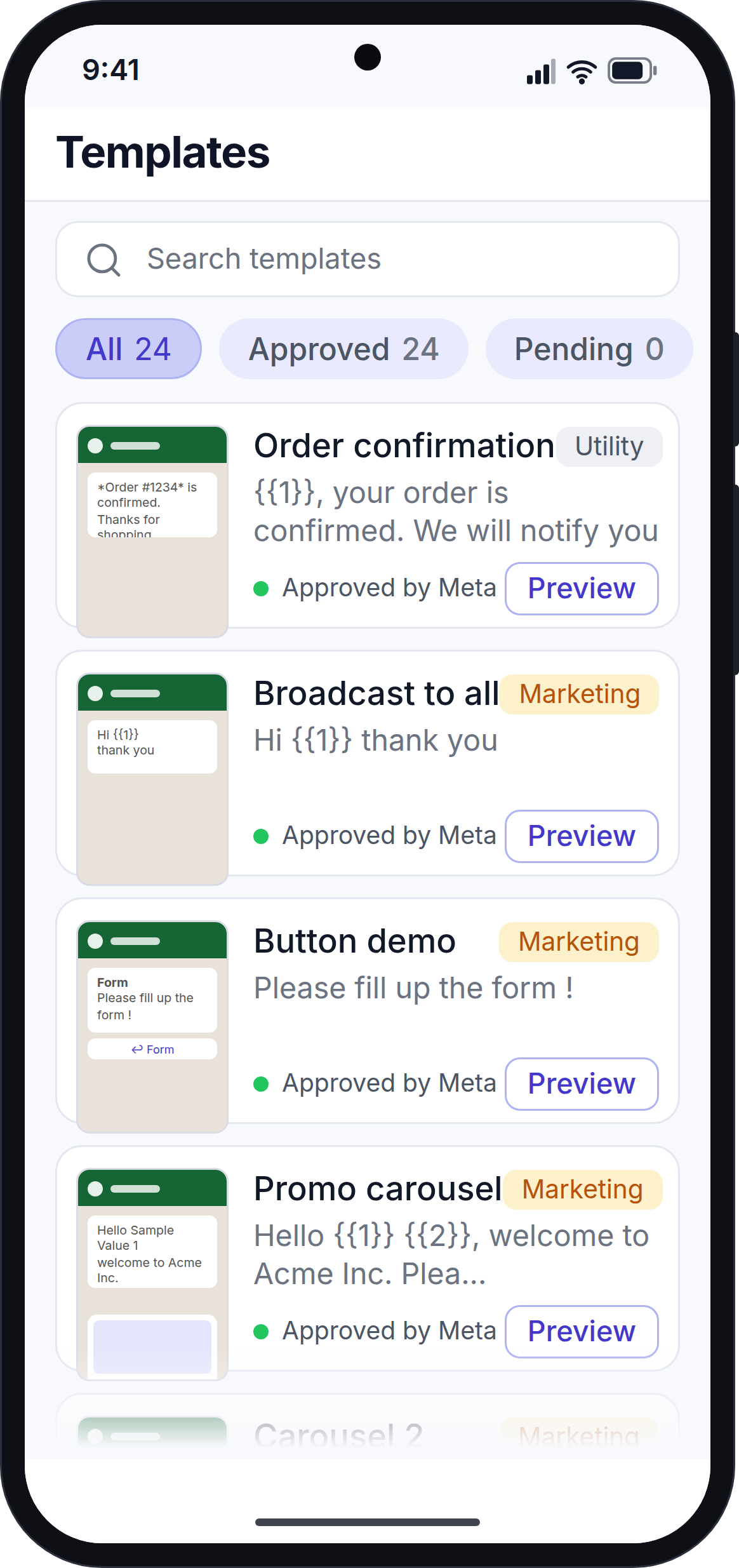
- Search box: type to find a template by name or text. The search looks at all templates, whatever tab you are on. Tap × to clear it.
- Tabs: All, Approved, Pending and Rejected, each with a count. Templates that Meta paused or disabled show under All with their own status.
Each card shows:
- A small preview of the message.
- The template name.
- The category: Marketing, Utility or Authentication.
- Two lines of the message text.
- The status from Meta, shown as a coloured dot.
Template Details
Tap a template to open it.
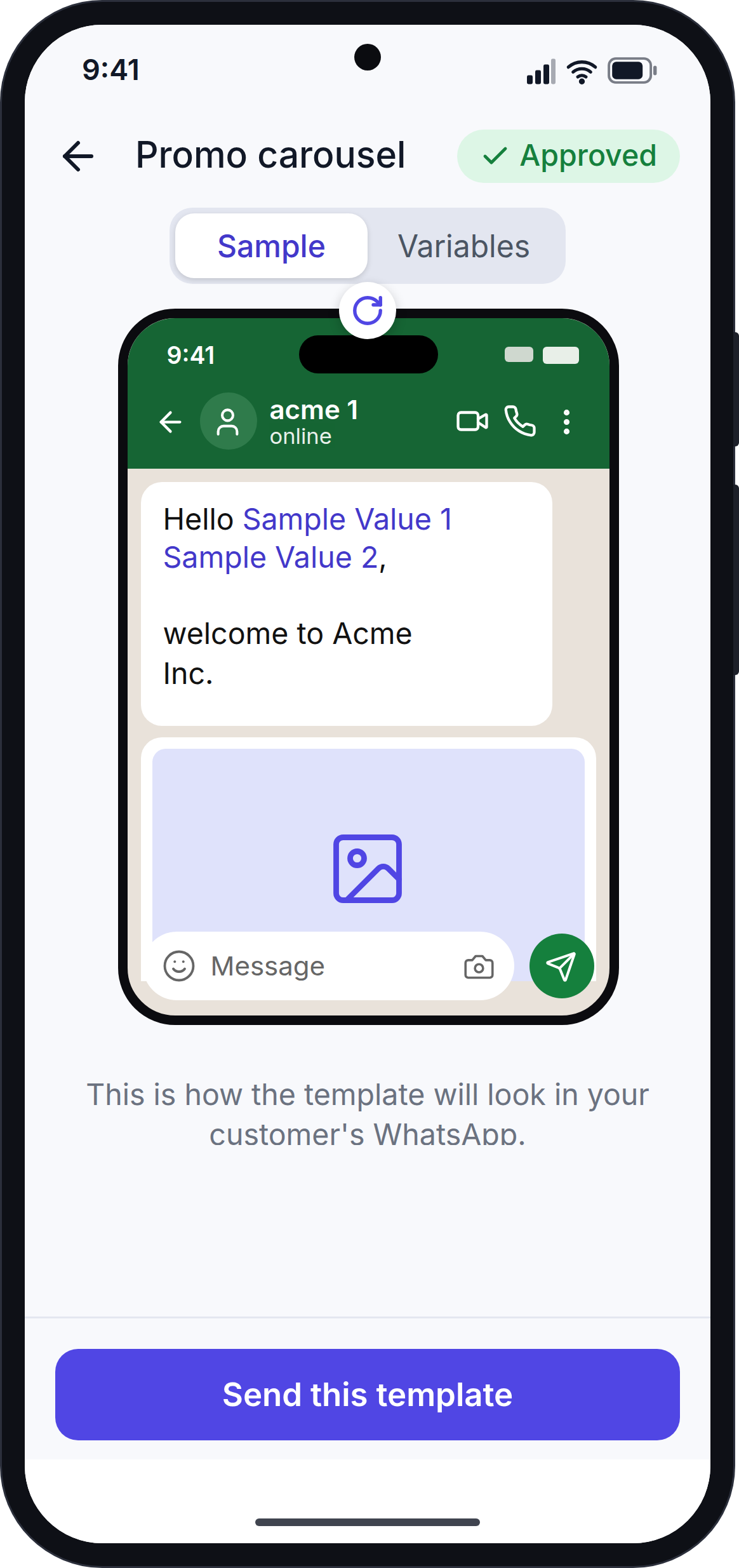
The details show the template inside a phone, exactly as your customer will see it on WhatsApp.
If the template has empty spaces for details, use the switch at the top:
- Sample: shows the example values that were sent to Meta for approval.
- Variables: shows the spaces as
{{1}},{{2}}and so on.
Templates with buttons show the buttons under the message, the same as on WhatsApp:
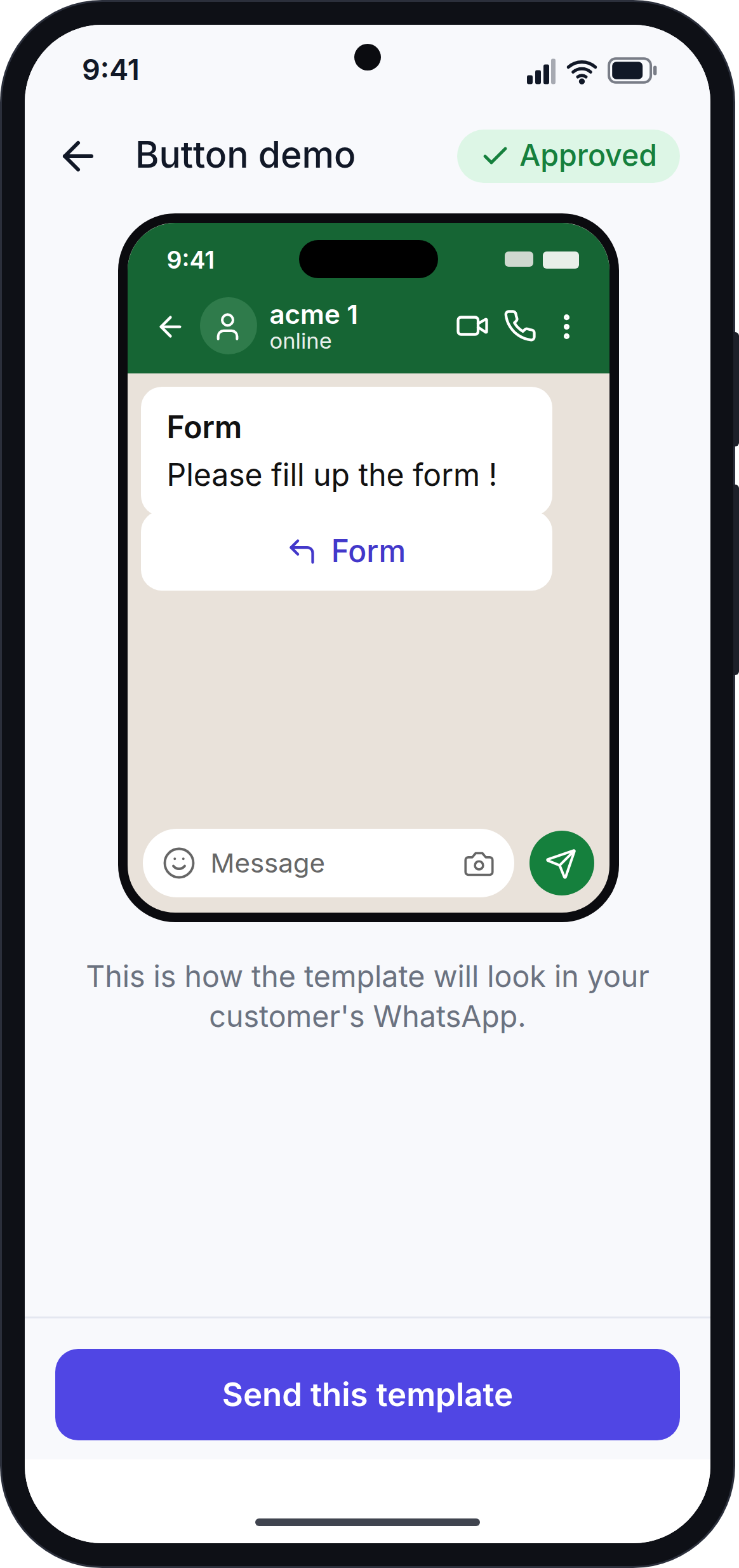
The switch only shows when the template has empty spaces and sample values.
Status Notices
| Status | What you see |
|---|---|
| Approved | The template can be sent. A Send this template button shows at the bottom. |
| Pending | "In review by Meta. This usually takes up to 24 hours." |
| Rejected | "Rejected by Meta". The template cannot be sent. Update it on the website and submit it again. |
| Paused or Disabled | "Paused by Meta". Update the template on the website. |
Send a Template From Here
For approved templates:
- Tap Send this template.
- Choose the contact to send it to.
- Fill in the values and tap Send template.
The rest works the same way as Template Sending.
You only see Send this template if your role allows you to send messages.
Next Step
Continue with More (Profile and Settings).