Inbox
The Inbox tab lists all your WhatsApp chats, with the newest chat at the top. It is the same inbox your team uses on the website.
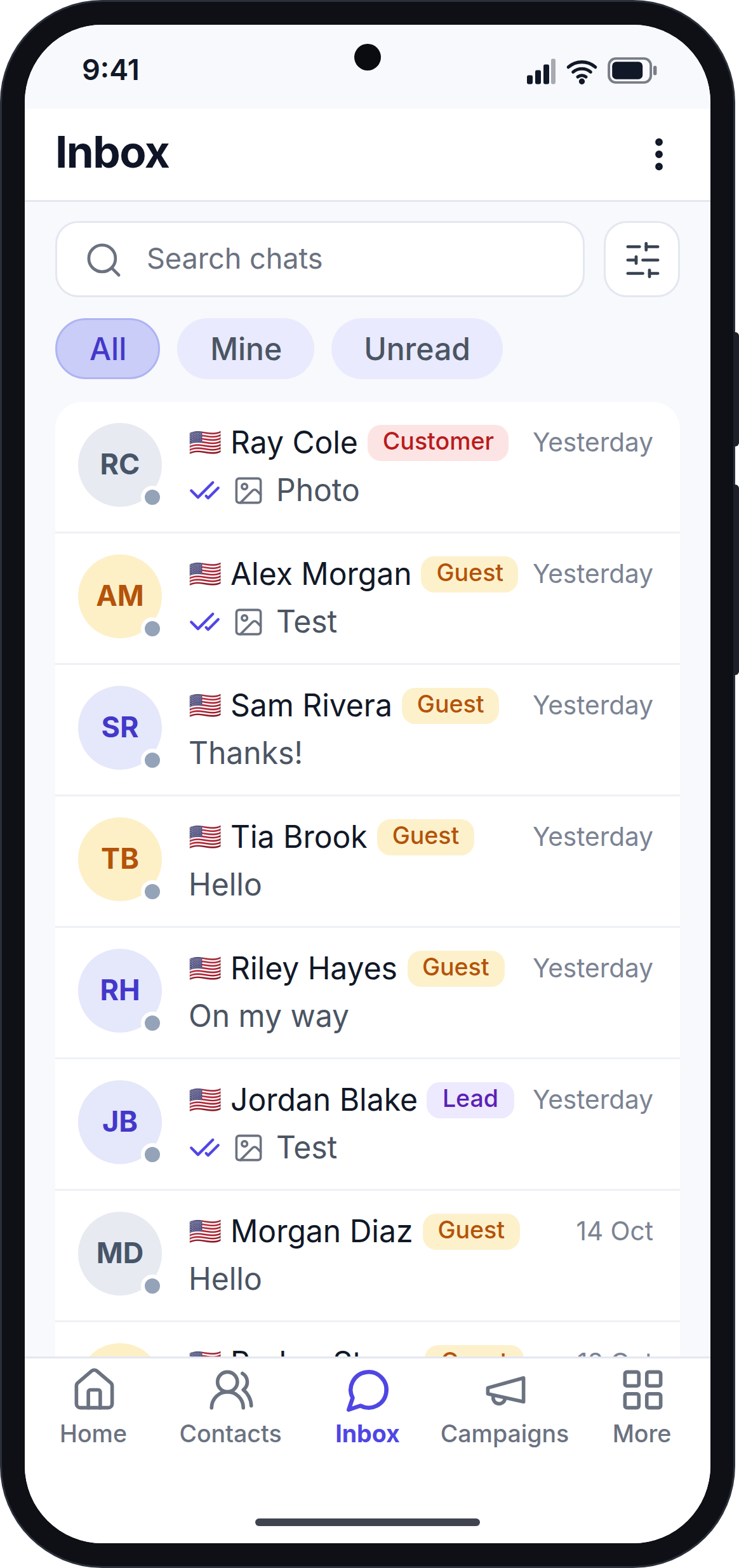
What Each Chat Row Shows
Each row in the chat list shows:
- The contact's initials in a circle, with a small dot:
- Green dot: you can reply freely. The customer messaged you in the last 24 hours, so you can type and send any message.
- Grey dot: you cannot type a normal reply. The customer's last message is more than 24 hours old. WhatsApp only lets you send an approved template message now. See Template Sending.
- A country flag for the phone number's country.
- The contact's name. The name is in bold when the chat has unread messages.
- The contact type: Lead, Customer or Guest. A guest is a number that is not saved as a contact yet.
- The time of the last message: the time for today, "Yesterday", the day of the week, or the date.
- The last message, and a blue number that shows how many messages are unread.
Tap a chat to open it. See Conversation.
Show All, Mine or Unread Chats
Under the search box, tap a chip to choose which chats you see:
- All: every chat you have access to.
- Mine: only chats assigned to you.
- Unread: only chats with unread messages. The chip shows how many chats are unread.
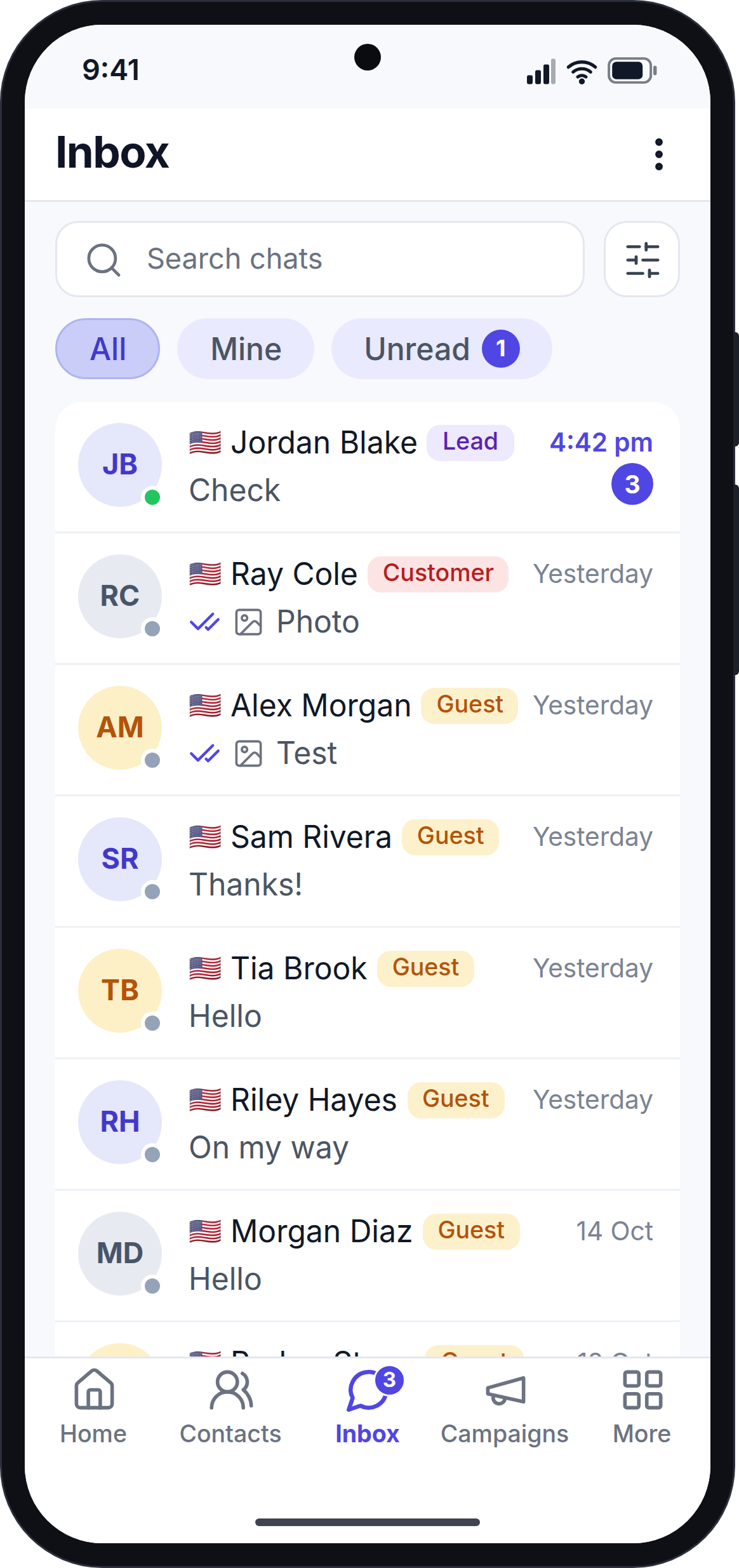
The Inbox tab at the bottom of the screen also shows how many unread messages you have.
Search Chats
Type at least 2 characters in the search box. The app searches contact names, phone numbers and the last message of each chat.
Tap ✕ to clear the search and see all chats again.
Filter Chats
Tap the filter button (next to the search box) to open Filters and narrow the list.
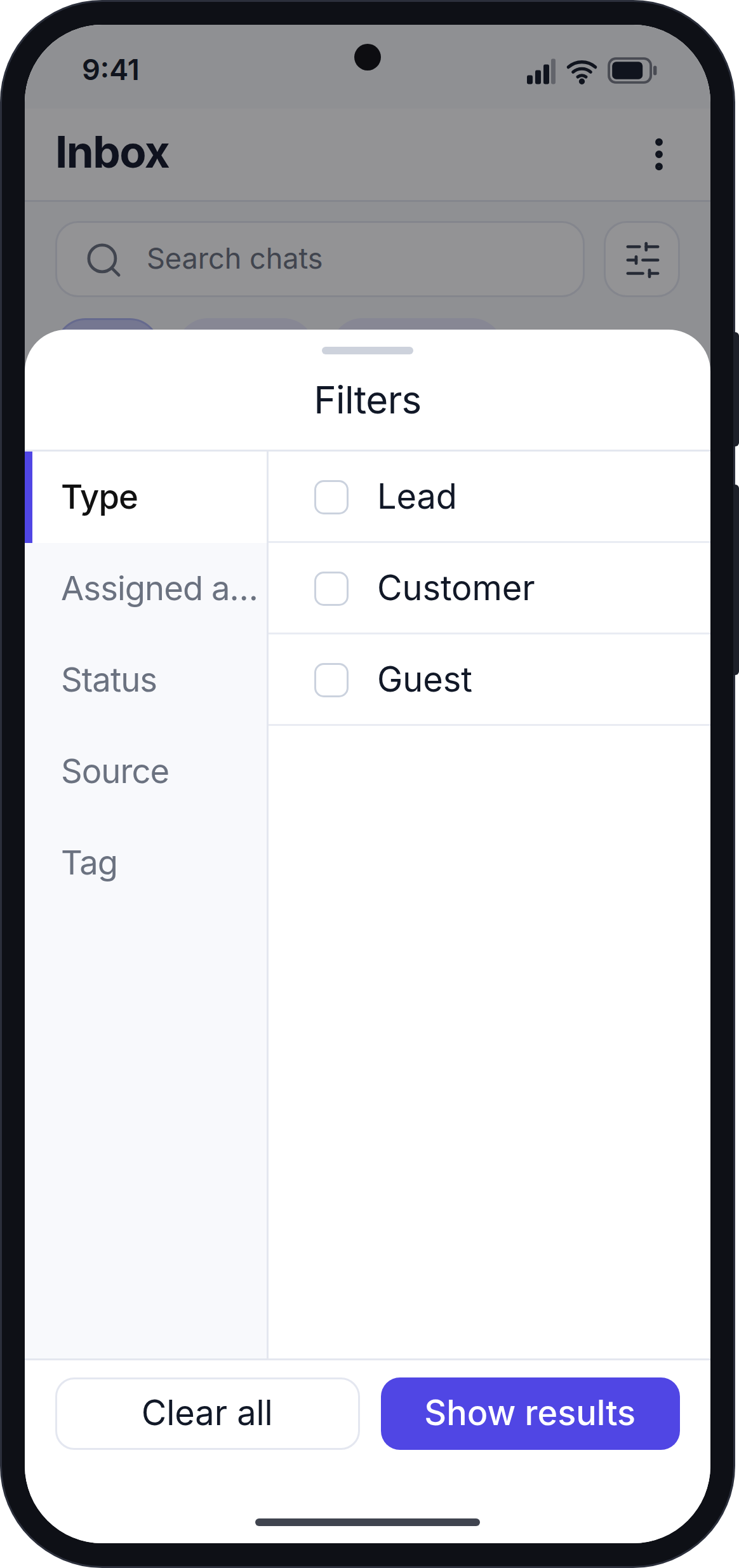
You can filter by:
- Type: Lead, Customer or Guest.
- Assigned agent: the staff member the chat is assigned to.
- Status, Source, Group, Tag and Label: these filters only apply to saved contacts, so guest chats are hidden when you use them.
You can pick one choice in each filter. Tap a choice again to remove it.
Tap Show results to apply the filters. The filter button shows how many filters are active. Tap Clear all to remove every filter.
Show Chats for One WhatsApp Number
If your workspace uses more than one WhatsApp number, you can show the chats for one number only.
- Tap ⋮ at the top right of the Inbox.
- Tap the first item. It says All chats, or the number you picked before.
- Pick a WhatsApp number, or pick All chats to see every chat again.
When a number is picked, a small dot shows on the ⋮ button.
INFO
This choice only applies to the chats that are already loaded in the app. Scroll down to load more chats if you are looking for an older chat.
Select Several Chats (Owners and Admins)
Owners and admins can assign or delete several chats at once.
- Tap ⋮ → Select chats, or press and hold a chat.
- Tap each chat you want to select. To select every chat, tap Select all.
- Use the bar at the bottom of the screen:
- Assign: pick a staff member. The staff member is added to each selected chat. Staff members who were already on a chat stay on it.
- Delete: the app asks you to confirm, then removes the selected chats.
Turn on Support Agent before you assign
To use Assign, first turn on Support Agent in the WhatsMark settings on your website. If Support Agent is off, the app shows a message asking you to turn it on.
Deleting a chat
When you delete a chat, the chat is removed for your whole team, in the app and on the website. The customer still keeps the chat in their own WhatsApp.
Next Step
Continue with Conversation.