Conversation
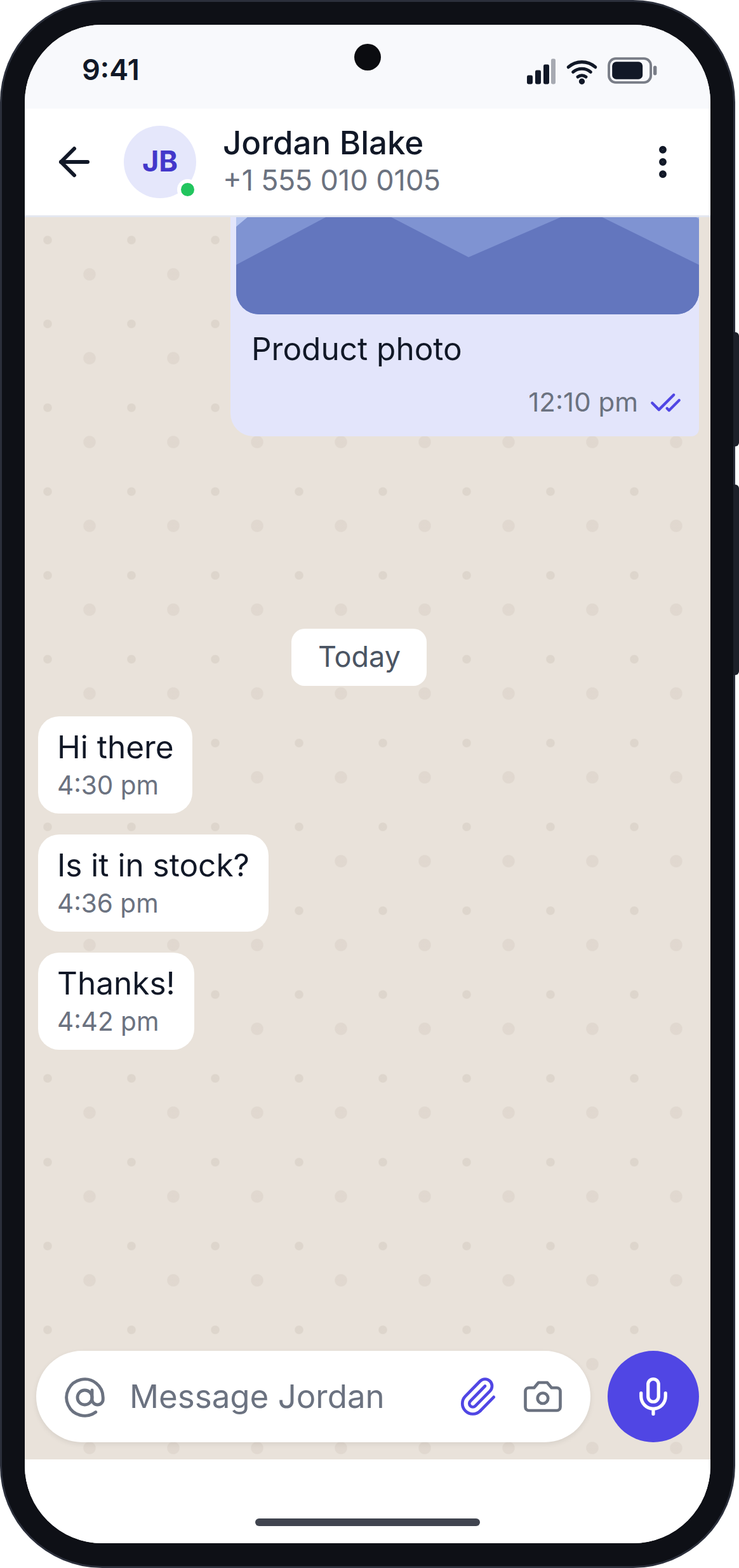
When you tap a chat in the Inbox, the conversation opens. It looks and works like a chat in WhatsApp.
How the Conversation Works
- The newest messages are at the bottom. Scroll up to load older messages.
- A grey label, such as Today, Yesterday or a date, marks the start of each day.
- New messages appear on their own while the chat is open. You do not need to refresh.
- Chats you opened before, and the top chats in your Inbox, open instantly because the app keeps their latest messages on your phone.
Message Ticks
Your sent messages show ticks, the same as on WhatsApp:
| Tick | Meaning |
|---|---|
| 🕒 | The message is being sent. |
| ✓ | Sent. |
| ✓✓ grey | Delivered to the customer's phone. |
| ✓✓ blue | Read by the customer. |
| Red ! | The message failed. The reason is shown under it. See Message Sending. |
Message Types
The app shows all common WhatsApp message types:
| Message | How it looks and works |
|---|---|
| Text | Shows bold, italic, strikethrough and monospace text the same way WhatsApp does. |
| Photo | Tap the photo to see it full screen. Pinch or double-tap to zoom. You can share it or save it to your phone's gallery. |
| Video | Tap to play it full screen. You can share it or save it to your gallery. |
| Voice message | Tap play. Tap or drag on the bar to jump forward or back. Only one voice message plays at a time. |
| Document | Shows the file name and type. Tap to open it. |
| Location | Shows a map with a pin, and the place name and address when available. Tap to open it in Google Maps. |
| Contact card | Shows the contact's name and number. |
| Template | Shows the template the way WhatsApp shows it, with its picture, text, footer and buttons. Swipe through carousel templates. |
| Reply | Shows the quoted message above the reply. Tap the quote to jump to the original message. |
If the app cannot show a message type yet, it says "This message type can't be shown in the app yet." You can still see the message on the website.
The 24-Hour Reply Window
WhatsApp only lets businesses send normal messages within 24 hours of the customer's last message. This is called the reply window.
- The small dot on the contact's picture at the top of the chat is green while the reply window is open and grey after it closes.
- While the window is open, you can reply with any message.
- After the window closes, the message box is replaced by "Reply window closed · Templates only" with a Send template button. See Template Sending.
- When the customer writes to you again, the message box comes back on its own.
Chat Details
Tap the contact's name at the top of the chat to open the chat details.
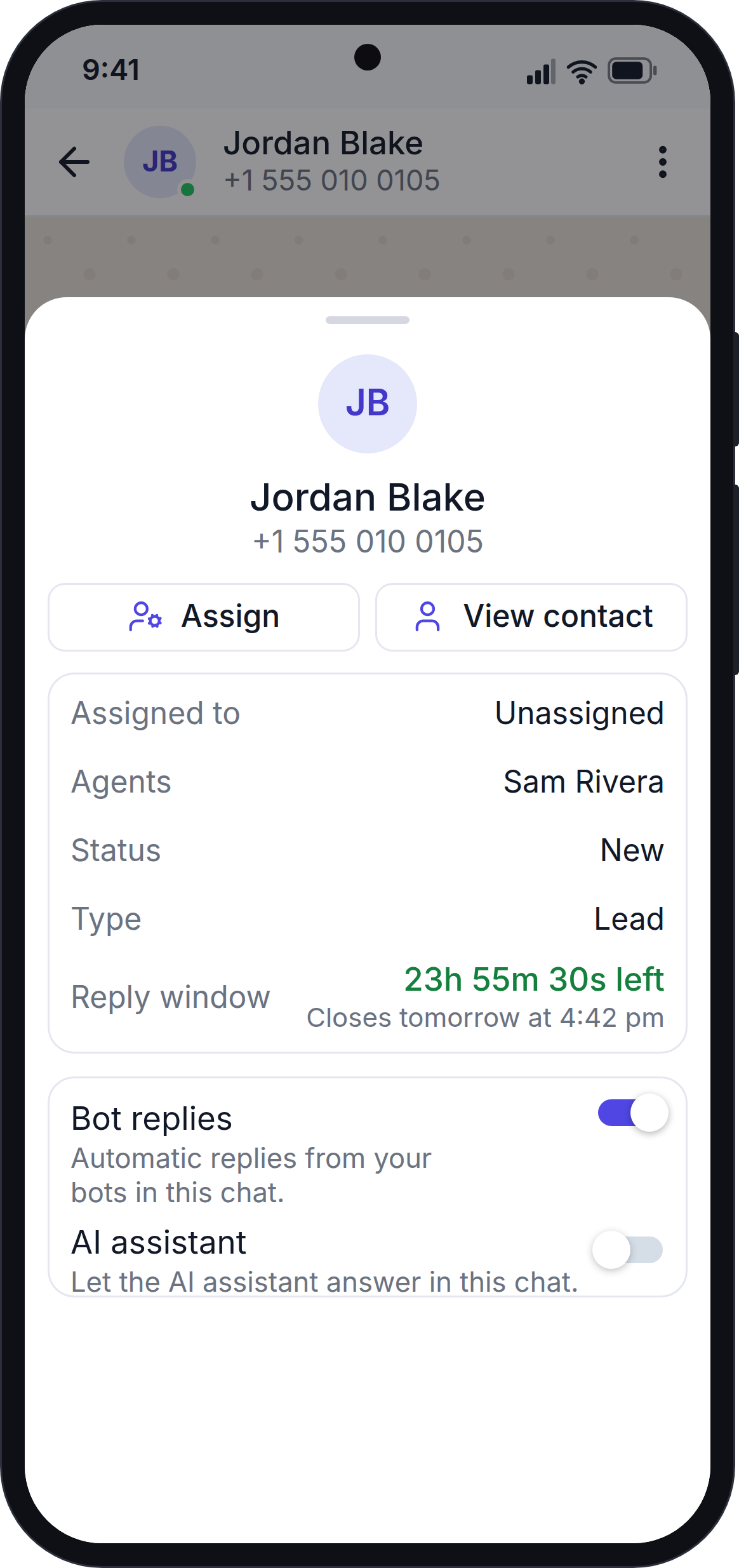
The chat details show:
- The contact's picture, name, number and tags.
- Assigned to and Agents: who is responsible for this chat.
- Status and Type of the contact.
- Reply window: how much time is left, counting down every second (for example "15h 42m 07s left"), or "Closed (templates only)".
You can also:
- Turn Bot replies on or off for this chat. When bot replies are off, your website's automatic bot stops replying to this customer.
- Turn the AI assistant on or off for this chat.
- Assign the chat to staff members (owners and admins only). Tick the staff members and tap Save. This needs the Support Agent setting to be turned on in your website's WhatsMark settings.
- View contact to open the saved contact.
Save a Guest as a Contact
If the chat is with a number that is not saved yet (a guest), the button says Save as contact. It opens the new contact form with the number already filled in. The contact is saved as a Lead, with the status, source and assigned staff member from your website's WhatsApp Auto Lead settings.
If the number was already saved as a contact after the last message, the button says Edit contact and opens that contact. This stops you from creating the same contact twice.
Select, Copy and Delete Messages
Press and hold a message to select it. A bar appears at the top of the chat:
- Tap other messages to add them to the selection. Tap a message again to remove it.
- Reply: quote the message in your reply. This only shows when one message is selected.
- Copy: copy the text of the selected messages. You can then paste it in another app.
- 🗑 Delete: the app asks you to confirm, then removes the messages.
- ← or the phone's back button: stop selecting.
What message delete does
Deleted messages are removed from your website and the app only. The customer still has them on their WhatsApp.
Staff members with read-only access can only use Reply and Copy. Messages that are still sending, or that failed, cannot be selected.
The Chat Menu (Owners and Admins)
Tap ⋮ at the top right of the chat to open the chat menu.
- Assign: assign the chat to staff members. This works only when Support Agent is turned on in your website settings.
- Delete: the app asks "Delete this chat?". When you confirm, the chat and its messages are removed from your website and the app for the whole team. The customer still has the chat on WhatsApp.
Staff members do not see the ⋮ menu.
Next Step
Continue with Message Sending.