Welcome and Connect Your Workspace
These are the first screens you see after you install the app. You only go through them once.
Step 1: The Welcome Screen
When you open the app for the first time, you see the Welcome screen with the message "WhatsApp Marketing, Anywhere."
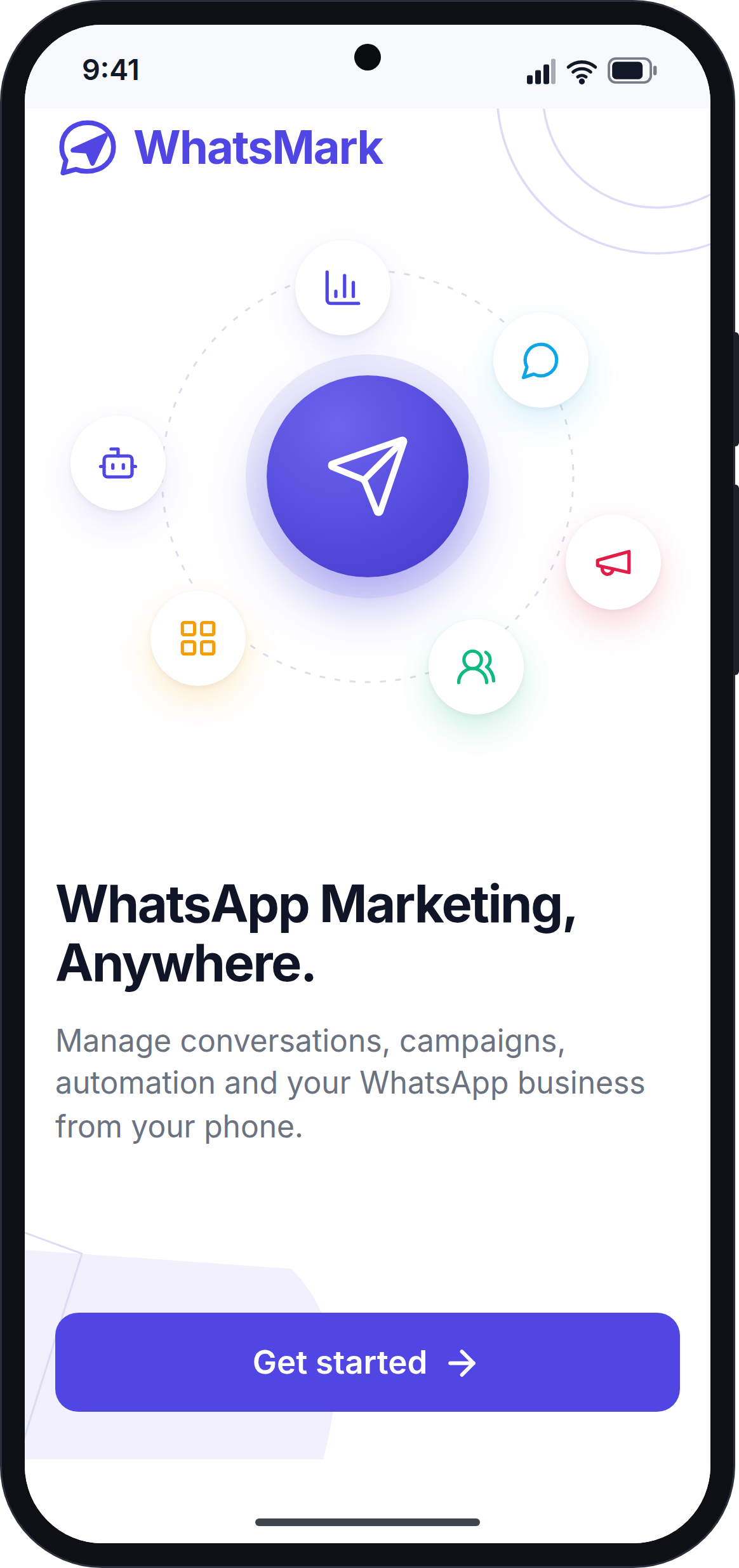
Tap Get started.
- If the app needs your website address, the Connect your workspace screen opens. Continue with Step 2.
- If your app was built for one website only, or you connected before, the Sign in screen opens. Continue with Sign In.
Step 2: Enter Your Website Address
On the Connect your workspace screen, type your website address in the box.
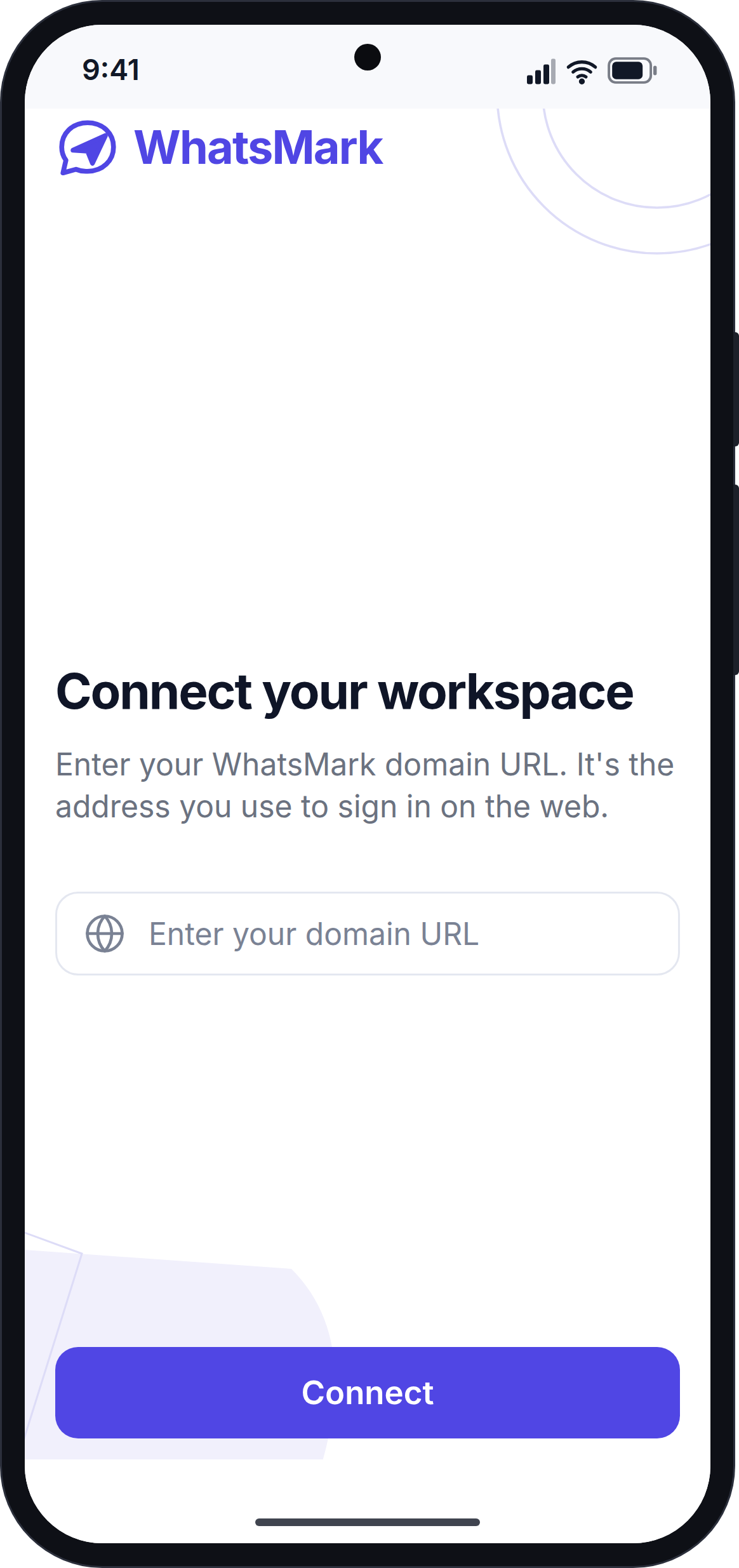
The address must:
- Start with
https:// - Have no spaces
- Be a full address, for example
https://app.yourcompany.com
You can type the address exactly as it appears in your browser.
Step 3: Tap Connect
Tap Connect. The app shows "Checking server…" while it checks that the address belongs to a WhatsMark website and that the website is ready for the app.
When everything is correct, you see a green Connected card and the button changes to Continue.
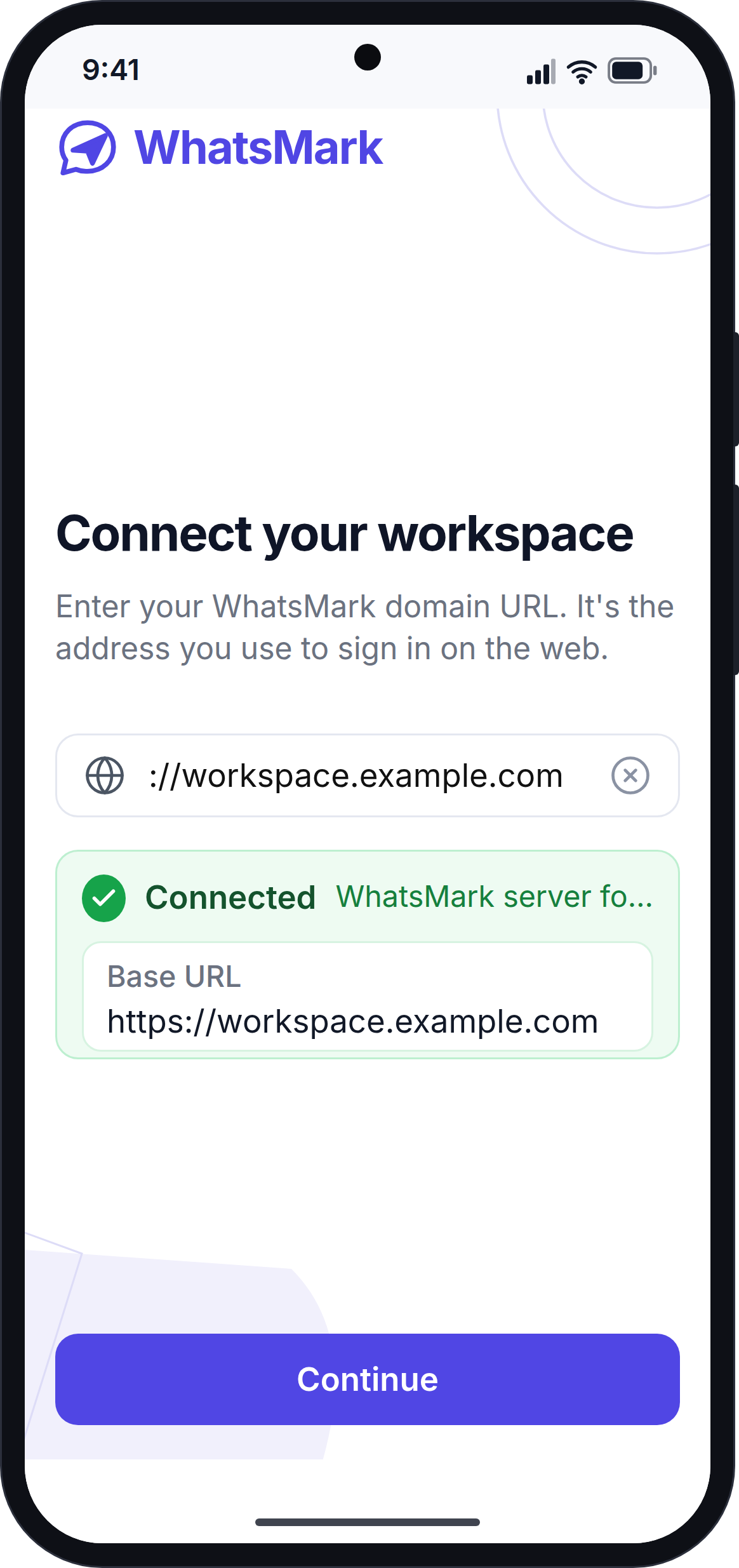
At this point, the app saves your website address.
Step 4: Tap Continue
Tap Continue. The Sign in screen opens.
The app remembers your website address. The next time you open the app, it goes straight to the sign-in screen (or to the Home screen, if you are still signed in).
If You See a Message
If the connection does not work, the app shows a message and the button changes to Try again. When you change the address, the message goes away.
| Message | What it means | What to do |
|---|---|---|
| Domain URL is required. | The box is empty. | Type your website address. |
| URL must start with https:// | The address is missing https://. | Add https:// at the start. |
| Use a secure https:// URL. | The address starts with http://. | Change it to https://. |
| URL can't contain spaces. | The address has a space in it. | Remove the spaces. |
| Please enter a valid URL | The address is incomplete, for example https://acme. | Type the full address, for example https://app.acme.com. |
| We couldn't find this domain | The app got no answer. The address may be wrong, or your phone may be offline. | Check the address and your internet connection, then tap Try again. |
| Invalid domain | The address belongs to a website that is not a WhatsMark website. | Check that you typed the correct address. |
| Mobile app is turned off | The platform admin has not turned on the mobile app. | Ask your platform admin to turn it on. See Before You Start. |
| Server under maintenance | The website is in maintenance mode. | Wait and try again later. |
| Server isn't licensed | The website's licence check failed. | Contact your platform admin. |
| Unsupported environment / Version mismatch | The website is running an older version that the app does not support. | Ask your platform admin to update the website. |
| Server not responding | The website has a problem right now. | Try again later. If it continues, contact your platform admin. |
Using a Different Website Later
The sign-in screen has no option to change the website address. To connect the app to a different website:
- Open your phone's Settings → Apps, and select the app.
- Tap Storage → Clear storage.
- Open the app again. It starts from the Welcome screen.
This signs you out and removes the old website address from the app.
Next Step
Continue with Sign In and Forgot Password.