More (Profile and Settings)
The More tab shows your profile, your workspace's WhatsApp connection and subscription, and links to other pages. You also sign out from here.
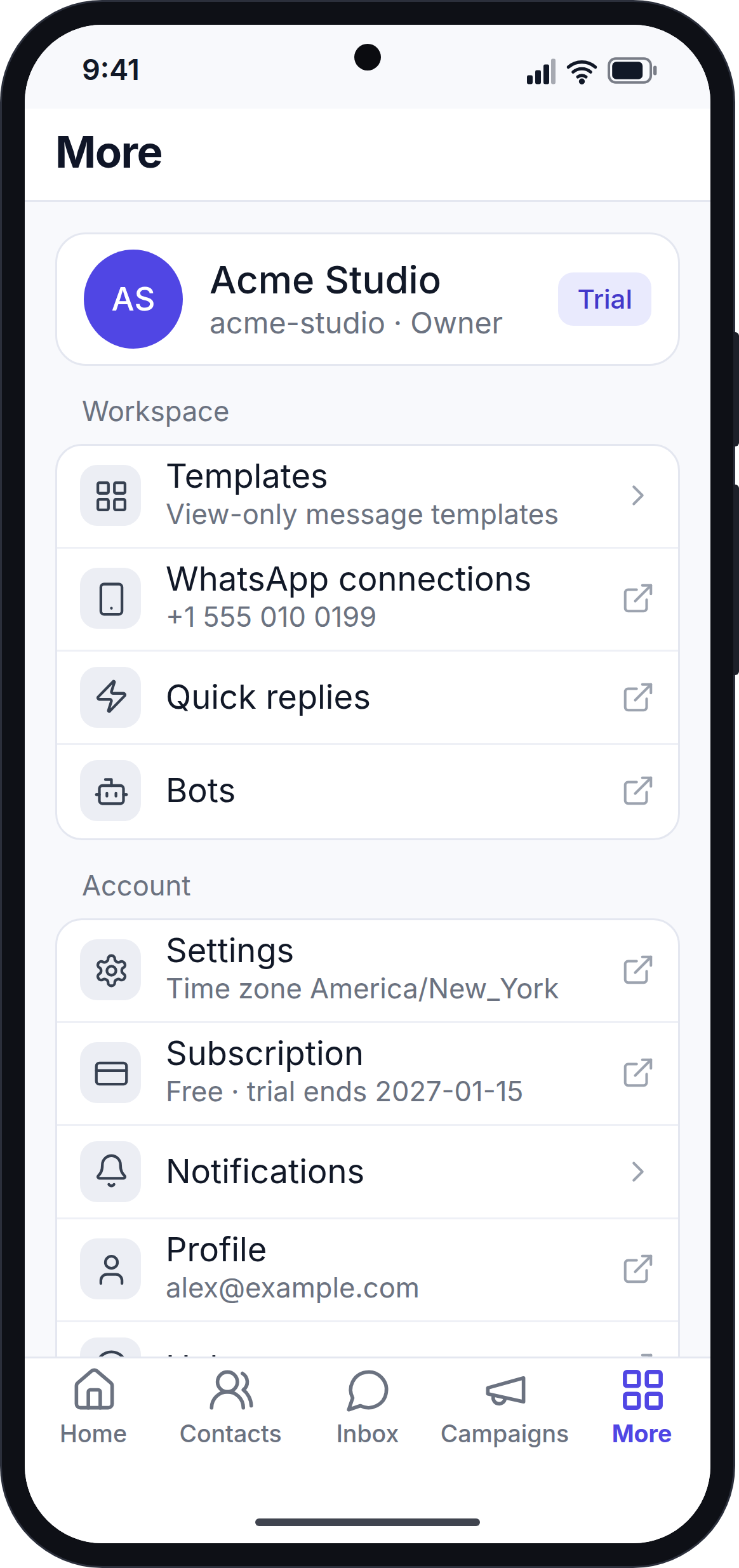
What the More Tab Shows
| Item | What it shows or does |
|---|---|
| Profile card | Your photo (or initials), your full name, your company, your role (Owner or Staff) and your plan (or Trial). |
| WhatsApp connections | Your WhatsApp number, or a red Not connected label. Tap to open the WhatsApp connection page on the website. |
| Templates | Opens the Templates screen in the app. |
| Notifications | Opens the notification settings. See Notifications. |
| Subscription | Your plan and its renewal date, for example "Professional · renews 08 Nov 2026", or when your trial ends. Tap to open the subscription page on the website. |
| Settings | Your workspace's timezone. Tap to open the workspace settings on the website. |
| Profile | Your email address. Tap to open your profile page on the website. |
| Quick replies | Opens the quick replies page on the website, where you can create and edit quick replies. |
| Bots | Opens the bots page on the website. |
| Help | Opens your email app with a new email to your website's support address. If no support email is set, it opens the support tickets page on the website. |
| Privacy policy, Terms and conditions | Open these pages from your website in the phone's browser. |
| Sign out | Signs you out of the app. |
| Footer | The app name and version number. |
Items that open the website show a link icon. If the website asks you to sign in, use your usual email and password.
You only see the items that your role allows. See Team Roles and Permissions.
Refresh Your Details
Pull down on the More tab to reload your profile and WhatsApp connection. For example, if you change your name on the website, pull down to see the new name in the app.
Sign Out
Tap Sign out.
The app signs you out, removes your saved chats and data from the phone, shows "You have been signed out." and opens the sign-in screen.
You can sign out even when your phone is offline.
Delete Your Account
You can delete your own user account from the app.
- Go to More → Account → Delete account. The screen explains what will be deleted.
- Type your password.
- Tap Delete my account.
- Confirm by tapping Delete account.
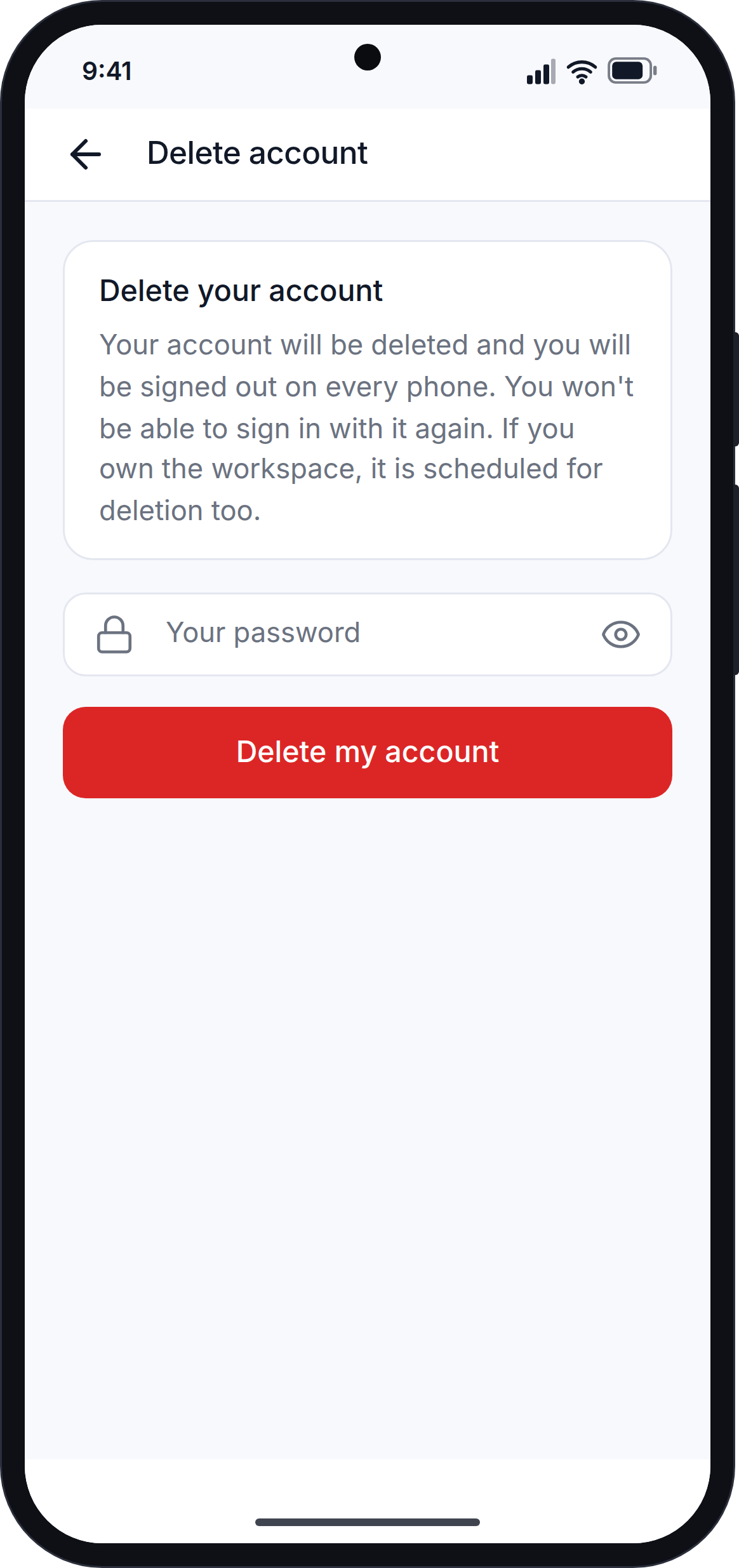
If the password is wrong, a message shows under the password box and nothing is deleted.
When the account is deleted, every phone that was signed in with it is signed out. The app shows "Your account has been deleted." and opens the sign-in screen.
Next Step
Continue with Notifications.