Email Configuration
Configure SMTP settings and email delivery for transactional emails, notifications, and digests.
Why Email Configuration Matters
FeedbackFlow sends emails for:
- New feature request notifications
- Status change updates
- Comment and reply notifications
- User mentions
- Weekly digest emails
- Password reset emails
- Email verification
Proper email configuration ensures reliable delivery.
Accessing Email Settings
- Navigate to Settings → Email Settings
- Click Add Email Configuration or edit existing configuration
- Fill in SMTP details
- Test the configuration
- Save and set as default
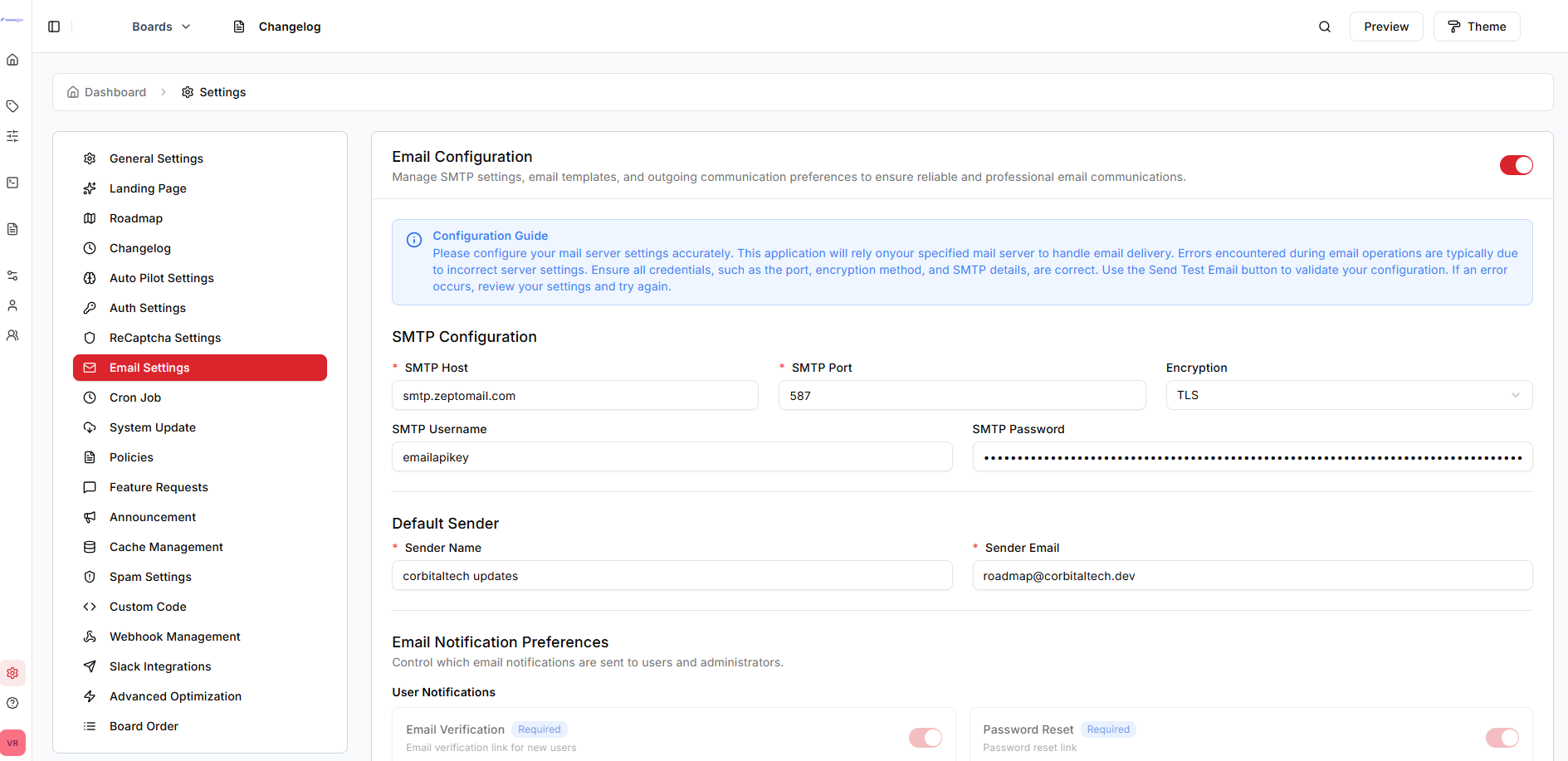
Email Configuration Fields
Configuration Name
Identifier for this email configuration.
- Example: "Primary Gmail SMTP", "SendGrid Backup"
- Purpose: Distinguish multiple configurations
Mail Driver
Select the email sending method.
Options:
smtp- SMTP server (most common)sendmail- Local sendmailses- Amazon SESmailgun- Mailgun APIlog- Write to log file (testing only)
SMTP Settings
| Field | Description | Example |
|---|---|---|
| Host | SMTP server address | smtp.gmail.com |
| Port | SMTP port number | 587 (TLS) or 465 (SSL) |
| Encryption | Security protocol | tls or ssl |
| Username | SMTP account username | your-email@gmail.com |
| Password | SMTP password or app password | app-specific-password |
Sender Information
| Field | Description | Example |
|---|---|---|
| From Name | Sender display name | "FeedbackFlow Support" |
| From Email | Sender email address | noreply@yourdomain.com |
| Reply-To Email | Where replies should go | support@yourdomain.com |
Popular Email Provider Settings
Gmail
Host: smtp.gmail.com
Port: 587
Encryption: tls
Username: your-email@gmail.com
Password: [App Password]
Gmail App Password
- Enable 2-factor authentication on your Google account
- Go to https://myaccount.google.com/apppasswords
- Generate an app password for "Mail"
- Use that password in FeedbackFlow
SendGrid
Host: smtp.sendgrid.net
Port: 587
Encryption: tls
Username: apikey
Password: [Your SendGrid API Key]
Mailgun
Host: smtp.mailgun.org
Port: 587
Encryption: tls
Username: postmaster@yourdomain.mailgun.org
Password: [Mailgun SMTP Password]
AWS SES
Host: email-smtp.us-east-1.amazonaws.com
Port: 587
Encryption: tls
Username: [Your SES SMTP Username]
Password: [Your SES SMTP Password]
AWS Region
Replace us-east-1 with your AWS region.
Postmark
Host: smtp.postmarkapp.com
Port: 587
Encryption: tls
Username: [Server API Token]
Password: [Server API Token]
Microsoft 365 / Outlook
Host: smtp.office365.com
Port: 587
Encryption: tls
Username: your-email@outlook.com
Password: [Your password]
Testing Email Configuration
After entering SMTP details:
- Click Test Email Configuration
- Enter a test recipient email address
- Click Send Test Email
- Check the recipient inbox for the test message
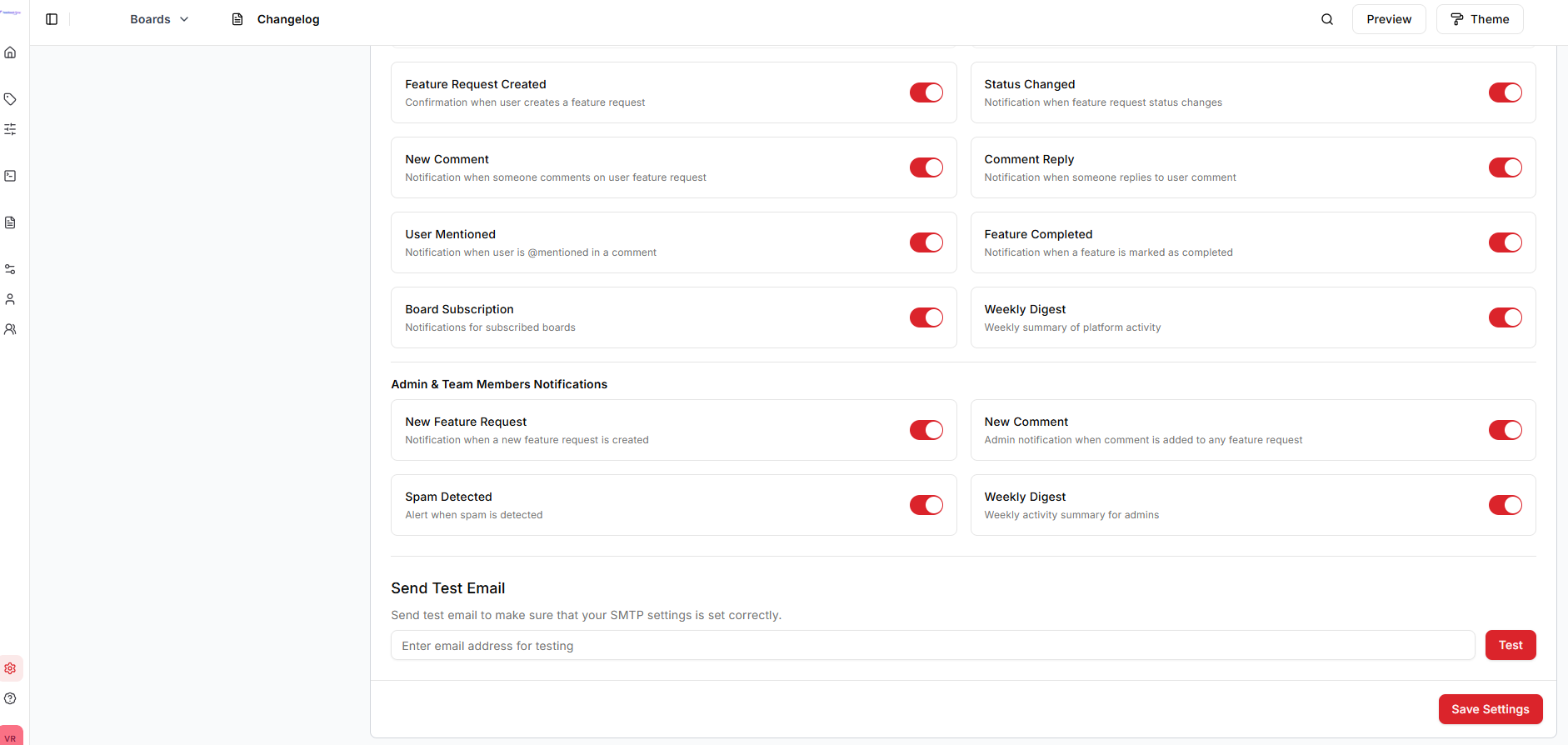
If the test fails, check:
- SMTP credentials are correct
- Host and port are correct
- Firewall allows outbound connections on the SMTP port
- Email provider allows SMTP access
Next Steps
- OAuth setup - User-facing OAuth documentation
- RECAPTHA setup - Captcha Setup