Submitting Feature Requests
Guide for users on how to submit feature requests to boards.
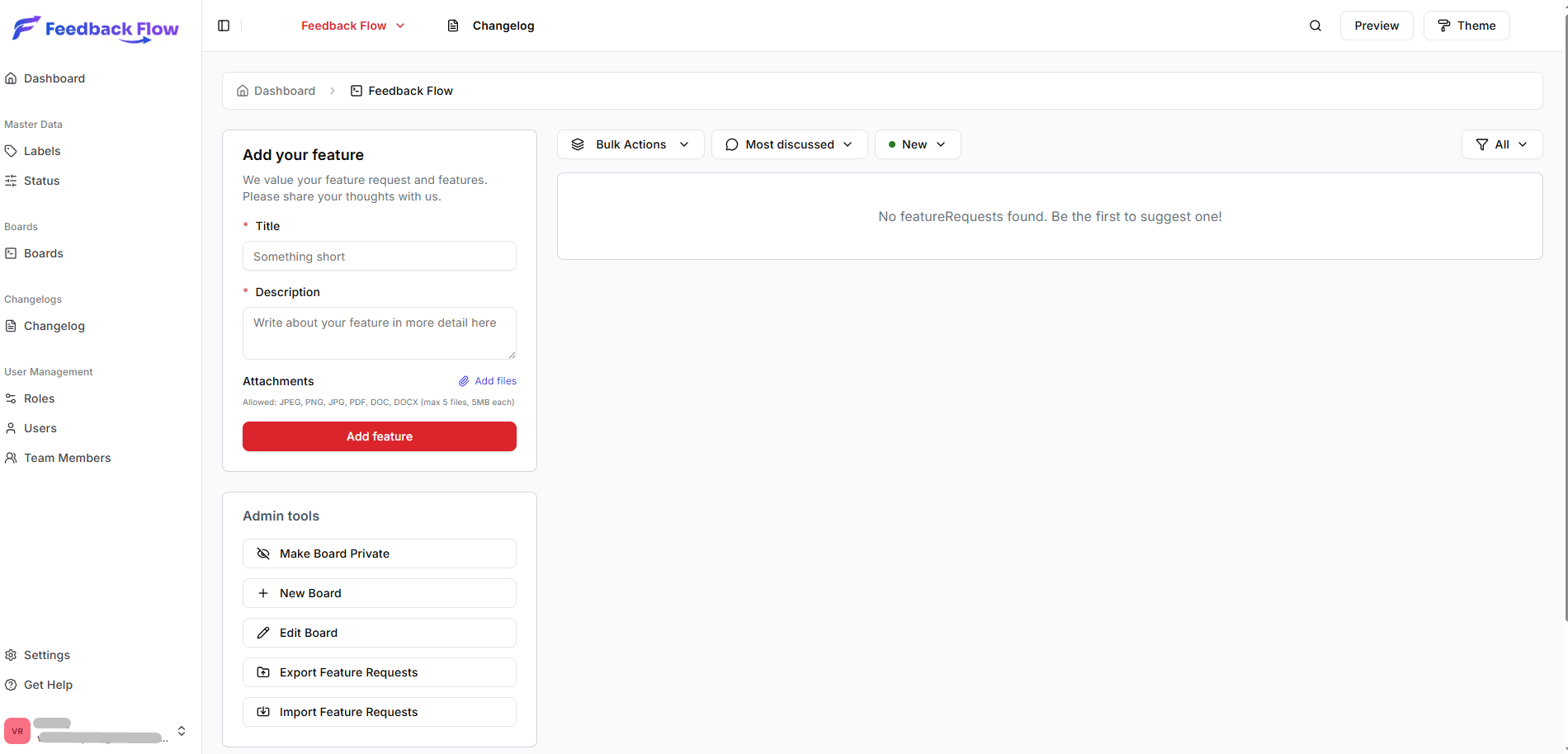
Accessing the Submission Form
From Board Page
- Navigate to the board URL:
https://yourdomain.com/board/{board-slug} - Scroll to the submission form
- Fill in the details
- Click submit
From Main Portal
- Go to the FeedbackFlow homepage
- Browse available boards
- Click on a board
- Submit your request
Required Information
Feature Title
A concise, descriptive title for your request.
Best practices:
- Keep it under 100 characters
- Be specific and clear
- Start with action verb when possible
Examples:
- ✓ Good: "Add dark mode toggle to settings"
- ✓ Good: "Export data as CSV format"
- ✗ Poor: "Make it better"
- ✗ Poor: "Need a feature"
Description
Detailed explanation of your feature request.
Include:
- What you want to accomplish
- Why this feature is needed
- How it would help users
- Any specific requirements
Example:
**What:**
Add ability to export all feature requests as a CSV file.

**Why:**
As a product manager, I need to analyze feature requests
in Excel for reporting purposes.

**How it helps:**
Saves time manually copying data, enables better analysis,
and facilitates stakeholder reporting.

**Requirements:**
- Include all fields (title, description, status, votes)
- Filter by date range
- Include comments count
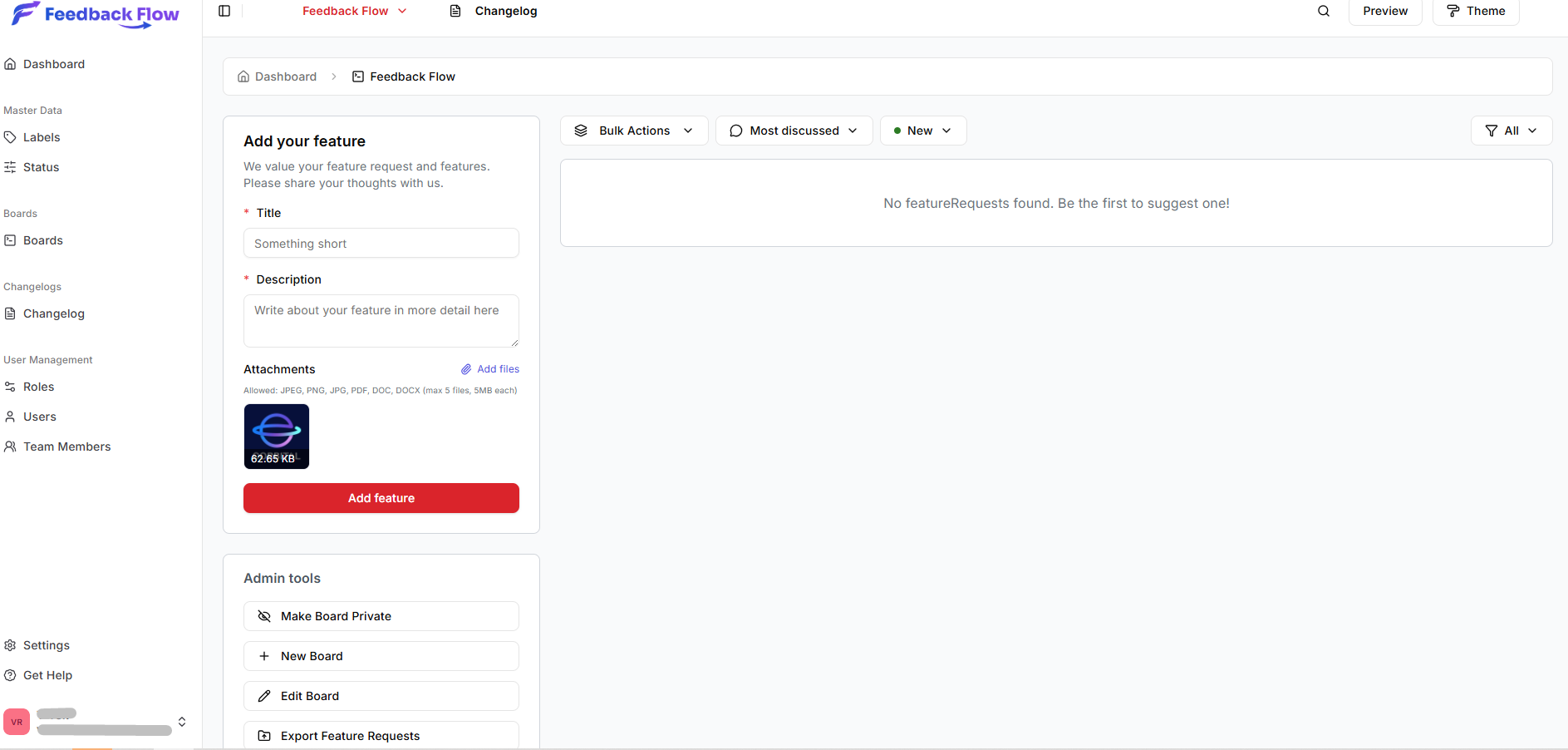
File Attachments
Upload supporting files to clarify your request:
Supported formats:
- Images: JPG, PNG, JPEG
- Documents: PDF, DOC, DOCX
- Maximum: 5 files
- File size: 5 MB per file
What to attach:
- Screenshots showing desired functionality
- Mockups or wireframes
- Examples from other applications
- Documents with specifications
Submitting the Request
As Logged-In User
- Fill in all fields
- Attach files (if any)
- Click Submit Request
- Get email notification
Benefits:
- Receive status updates via email
- Get notified of comments
- Edit your request later
- Track all your submissions
After Submission
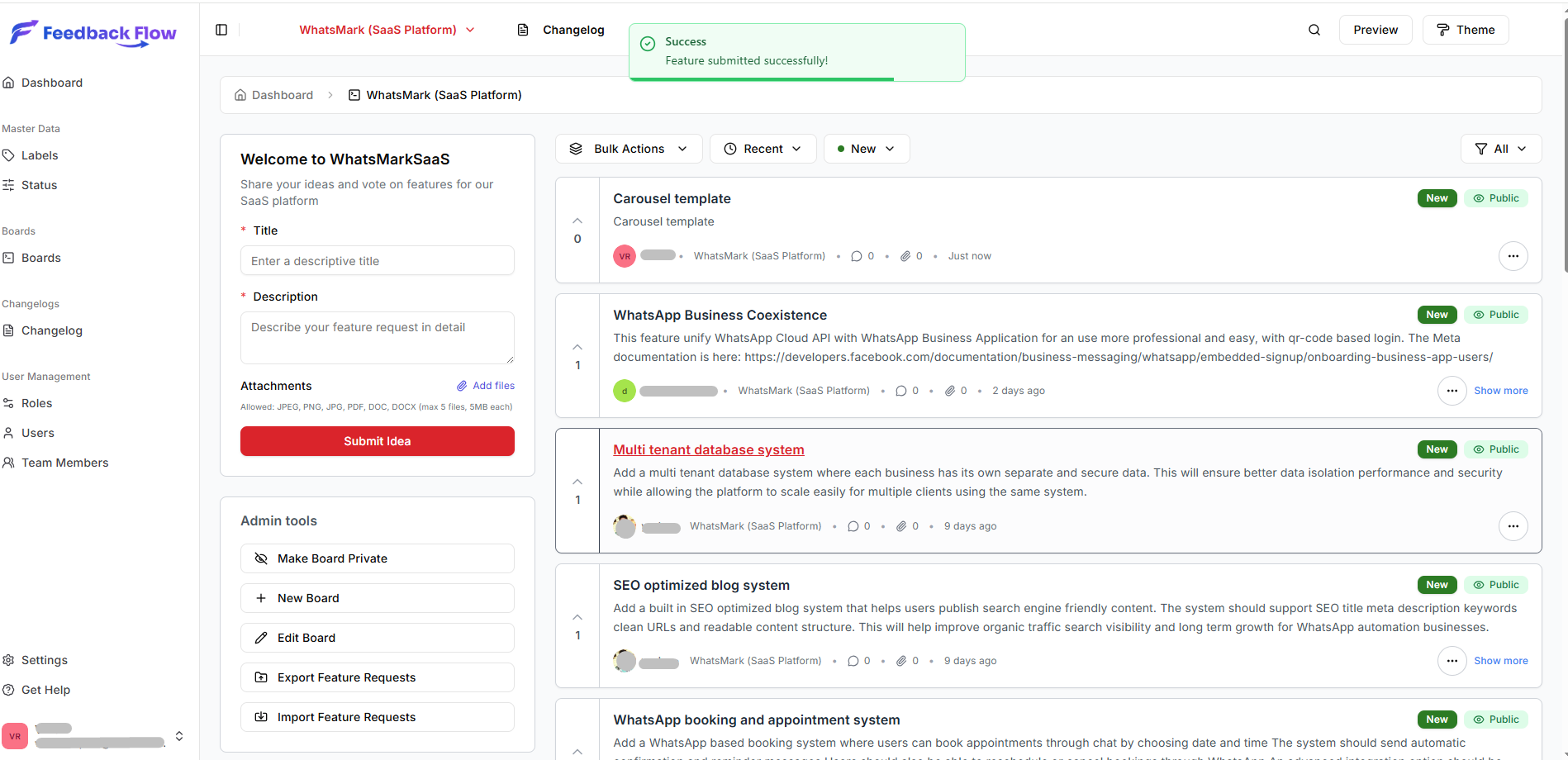
Confirmation
You'll see a success message:
✓ Feature request submitted successfully!
Your request has been received and will be reviewed by our team.
Email Confirmation
Logged-in users receive an email:
Subject: Your feature request was submitted
Content:
- Link to your request
- Next steps
- Expected review time
- How to track status
Request Appears on Board
Your request is now visible:
- Listed with other feature requests
- Sorted by date (recent first by default)
- Status shows "New" or board default
- Vote buttons available
- Comments enabled
Editing Feature Request (Admin)
Edit Window
Only Admin can edit requests:
How to Edit
- Go to your feature request link or action button
- Click Edit button
- Make changes
- Click Update
Tracking Your Request
Finding Your Requests
View all your submissions:
- Log in to your account
- Click your profile
- Select My Feature Requests
- View list with status
Bookmark the link: Save the direct URL to check later.
Status Updates
Receive notifications when:
- Admin changes status
- Status moves to "Planned"
- Status moves to "Completed"
- Request is merged with another
Voting and Engagement
Encourage voting:
- Share the link with others
- Post on social media
- Engage with comments
Higher votes increase priority!
Best Practices
Be Specific
Vague requests are hard to implement:
- ✗ "Make it faster"
- ✓ "Reduce page load time on dashboard"
Explain the Why
Help admins understand the value:
- ✗ "Add this button"
- ✓ "Add quick access button to save time navigating deep menus"
One Feature Per Request
Don't bundle multiple ideas:
- ✗ "Add dark mode, export CSV, and mobile app"
- ✓ Submit each as separate request
Include Context
Provide relevant background:
- Your use case
- Current workflow
- Desired improvement
Be Respectful
Remember:
- This is a request, not a demand
- Development takes time
- Priorities may differ from yours
- Feedback is appreciated, demands aren't
Attachment Upload Fails
Causes:
- File too large (> 5 MB)
- Unsupported file type
- Server upload limit
Solutions:
- Compress images
- Use supported formats
- Split into smaller files
Next Steps
After submitting:
- Managing Requests - Handle incoming requests
- Workflow - Status updates