Accessing Admin Dashboard
Learn how to access and navigate the FeedbackFlow admin dashboard.
Admin Login
After installation, access the admin dashboard:
- Navigate to your FeedbackFlow URL
- go to
/login - Enter admin credentials created during installation
- Click Sign In
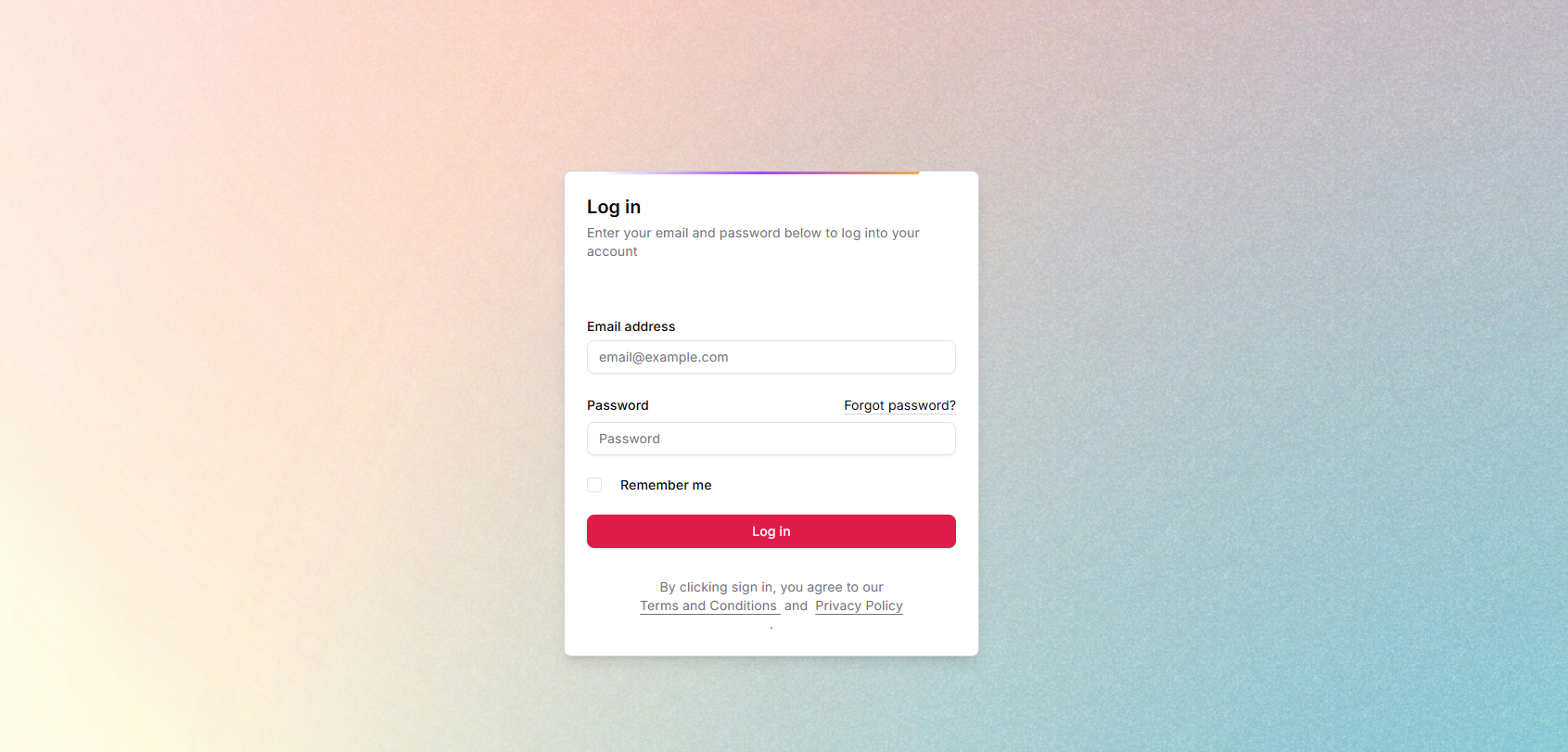
The system will redirect you to the admin dashboard.
Admin Dashboard URL
The admin dashboard is accessible at:
https://yourdomain.com/adminBookmark This
Bookmark the /admin URL for quick access to the dashboard.
Dashboard Overview
The admin dashboard provides a centralized view of your FeedbackFlow instance.
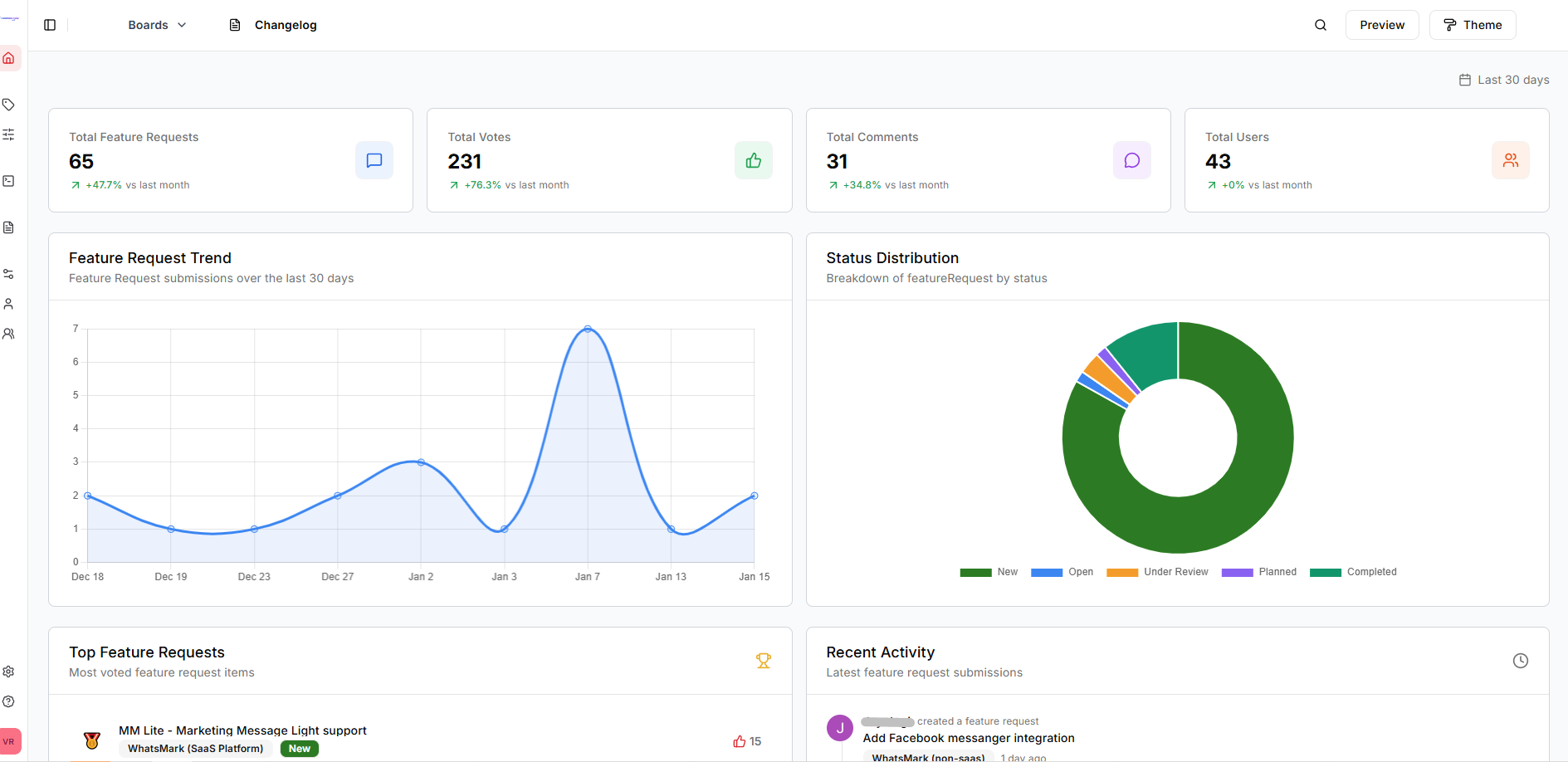
Key Sections
Statistics Overview
- Total feature requests
- Total users
- Total votes
- Total comments
- Recent activity
Quick Actions
- Create new board
- Create new feature request
- View pending requests
- Manage users
Recent Activity
- Latest feature requests submitted
- Recent comments and votes
- Status changes
- User registrations
Main Navigation
The left sidebar contains the main navigation:
Boards
- View all boards
- Create new boards
- Manage board settings
- View feature requests per board
Feature Requests
- All feature requests (across all boards)
- Filter by status, board, category, priority
- Search feature requests
- Bulk actions
Users
- List all users
- Edit users
- Toggle user status
- View user activity
Team Members
- Manage team members (separate from regular users)
Changelogs
- Create release notes
- Publish changelogs
- Version management
Settings
Access to all configuration sections:
- General Settings
- Email Settings
- Spam Settings
- AutoPilot (AI) Settings
- OAuth Providers
- Webhooks
- Slack Integration
- ReCAPTCHA
- And more...
Reports & Logs
- Activity logs
- Email logs
- System status
User Menu
Click your profile avatar in the top-right corner for:
- Profile Settings - Update your account details
- Preferences - Set theme, notifications
- Logout - Sign out of the dashboard
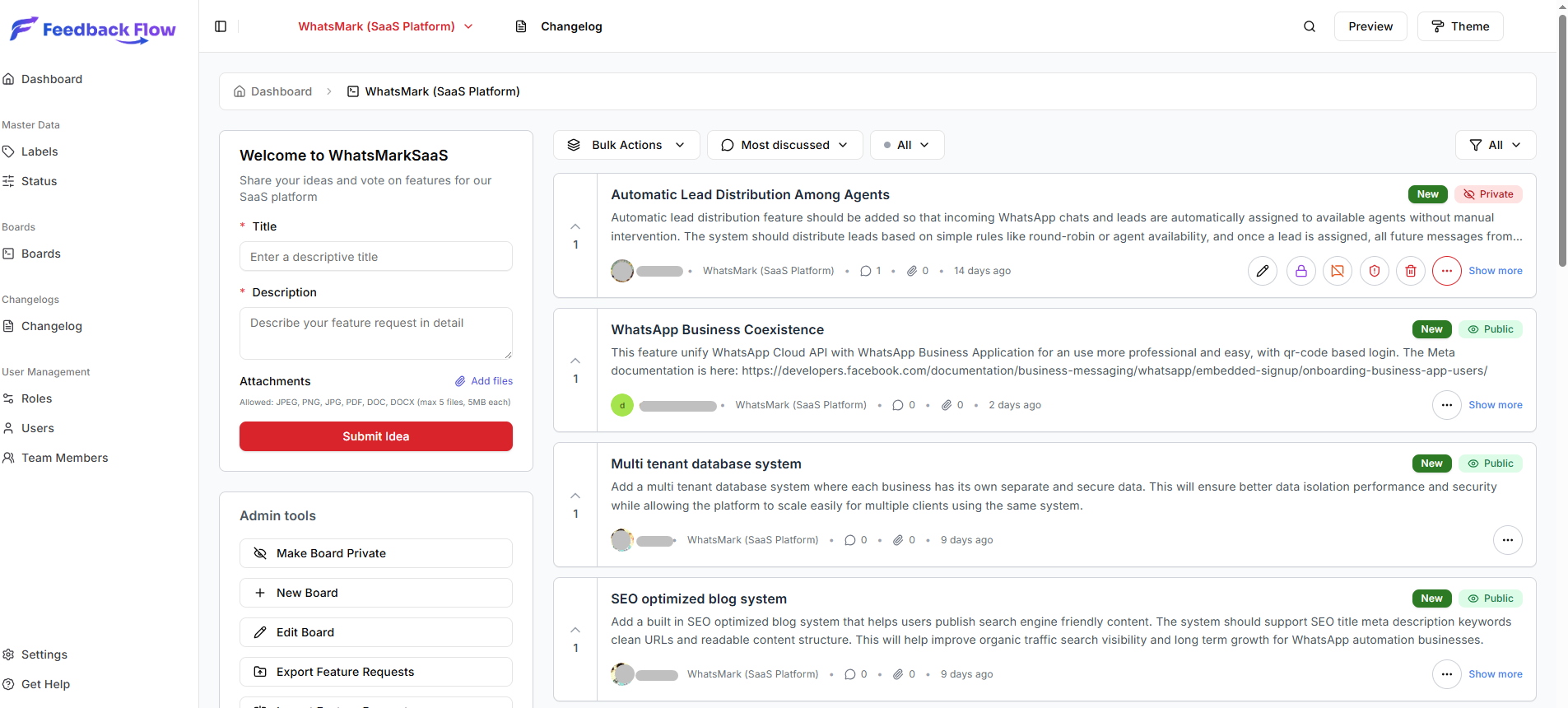
Navigating Boards
To manage a specific board:
- Click Boards in the sidebar
- Click on a board name
- View all feature requests for that board
- Filter, search, or create new requests
Each board has its own dedicated view with:
- Feature request list
- Filters (status, category, priority)
- Search functionality
- Board-specific settings
Quick Search
Use the search bar at the top to quickly find:
- Feature requests by title or description
- Users by name or email
- Boards by name
Responsive Design
The admin dashboard is fully responsive and works on:
- Desktop computers
- Tablets
- Mobile devices
The sidebar collapses on smaller screens for optimal viewing.
Theme Customization
Change your admin panel theme:
- Click your profile avatar
- Select Preferences
- Choose theme mode:
- Light
- Dark
- System (auto-detect)
- Select color scheme
- Adjust border radius
Theme preferences are saved per-user.
Multi-Tab Usage
You can open multiple tabs of the admin dashboard simultaneously:
- One tab for managing requests
- Another for viewing settings
- Another for monitoring logs
All tabs stay in sync with real-time updates (if broadcasting is enabled).
Dashboard Widgets
The dashboard displays customizable widgets showing:
- Feature request statistics by status
- User growth over time
- Top voted features
- Recent activity feed
- Email sending statistics
Widgets update automatically.
Setting Up Your First Board
To get started immediately after logging in:
- Click Boards → Create Board
- Fill in board details:
- Name (e.g., "Product Ideas")
- Description
- Choose a color theme
- Customize form labels
- Set default status for new requests
- Click Save
Your board is now ready to accept feature requests!

Inviting Team Members
If you have a team, invite them:
- Navigate to Team Members
- Click Add Team Member
- Enter details:
- First Name
- Last Name
- Assign permissions
- Click Save
Team members receive an invitation email with login instructions.
Accessing Help
Get help within the dashboard:
- Documentation Link - Top navigation bar
- Support - Contact support (if configured)
Security Recommendations
For secure admin access:
- Use a strong, unique password
- Enable two-factor authentication (if available)
- Don't share admin credentials
- Log out when finished
- Use HTTPS for all admin access
- Restrict admin access to trusted IP addresses (via firewall)
Next Steps
Now that you're in the admin dashboard:
- General Settings - Configure application basics
- Email Configuration - Complete email setup