General Settings
Configure basic application settings that control how FeedbackFlow operates.
Accessing General Settings
- Log in to the admin dashboard
- Navigate to Settings → General Settings
- Make your changes
- Click Save Changes
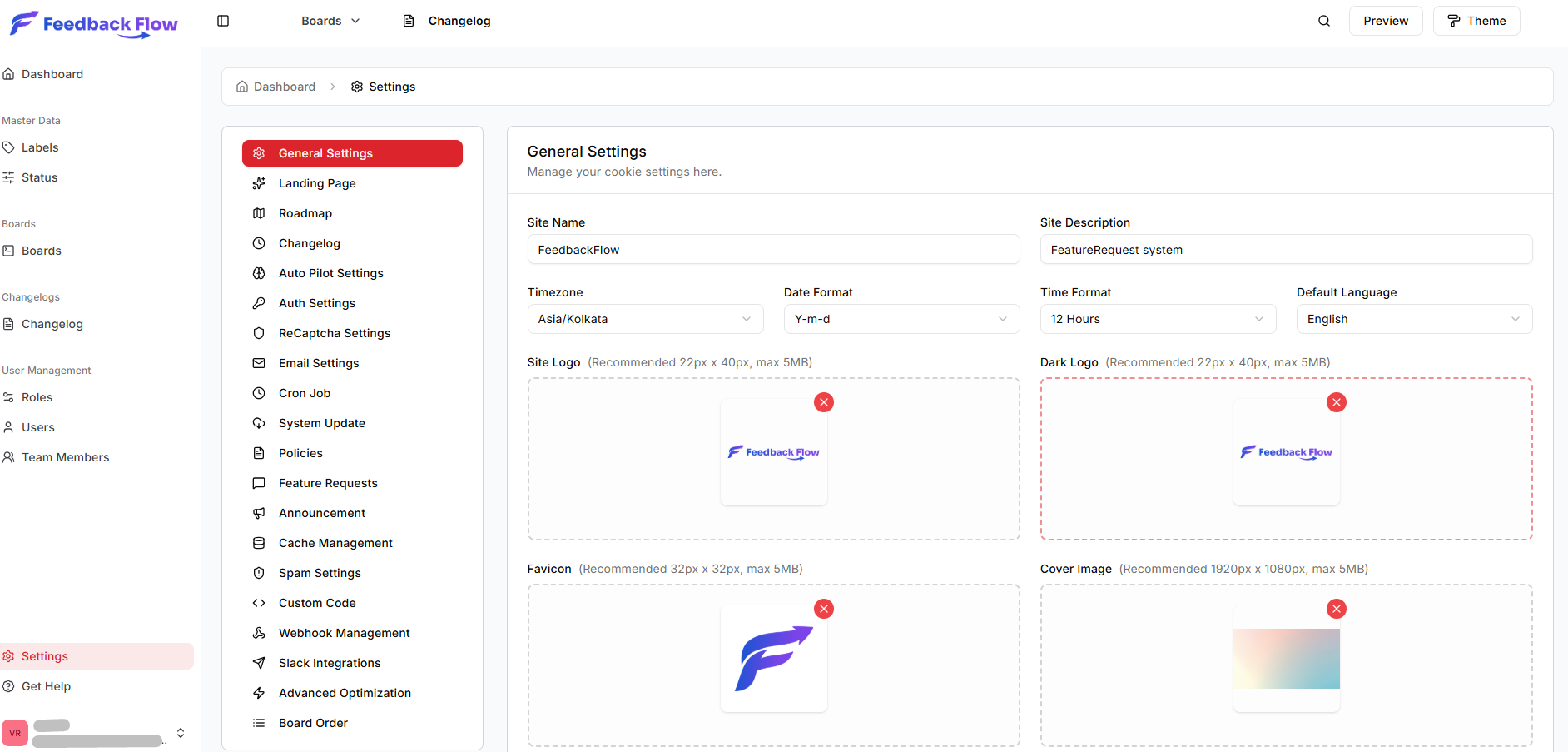
Application Information
Application Name
The name displayed throughout the application.
- Default: "FeedbackFlow"
- Usage: Appears in page titles, emails, and branding
- Example: "Product Ideas Portal", "Customer Feedback"
Application URL
The full URL where FeedbackFlow is accessible.
- Format:
https://yourdomain.com - Important: Include the protocol (
https://orhttp://) - Usage: Used in emails, OAuth callbacks, and absolute URLs
Update After SSL
If you enable SSL after installation, update this URL from http:// to https://.
Application Logo
Upload a custom logo for your installation.
- Supported formats: PNG, JPG, JPEG
- Recommended size: 22px x 40px pixels
- Usage: Displayed in the header and emails
Regional Settings
Timezone
Set the application timezone for dates and scheduled tasks.
- Default: UTC
- Common options:
America/New_YorkEurope/LondonAsia/TokyoAustralia/Sydney
- Usage: Affects timestamps, scheduled emails, and cron jobs
Locale
Default language for the application.
- Default:
en(English) - Format: Two-letter language code
Date Format
Choose how dates are displayed.
- Options:
Y-m-d→ 2026-01-11m/d/Y→ 01/11/2026d/m/Y→ 11/01/2026F j, Y→ January 11, 2026
Time Format
Choose 12-hour or 24-hour time display.
- 12-hour: 2:30 PM
- 24-hour: 14:30
Registration Settings
Allow User Registration
Control whether new users can register accounts.
- Enabled: Public registration form available at
/register - Disabled: Only admins can create user accounts
Require Email Verification
Enforce email verification for new users.
- Enabled: Users must verify email before accessing features (recommended)
- Disabled: Users can access immediately after registration
Security
Email verification is strongly recommended to prevent spam accounts and ensure valid user emails.
System Settings
Maintenance Mode
Temporarily disable public access for maintenance.
- When enabled:
- Public users see a maintenance message
- Admins can still access the dashboard
- Usage: During updates, migrations, or troubleshooting
Debug Mode
Control detailed error display.
- Production: Must be
false - Development: Can be
truefor debugging - Security: Never enable debug mode in production
Production Warning
Debug mode exposes sensitive information. Always keep it disabled on live sites.
Documentation Link
Documentation URL
Link to your custom documentation or help resources.
- Default: Points to official FeedbackFlow docs
- Custom: Enter your own knowledge base or FAQ URL
- Usage: Appears in help menus and tooltips
Cache Settings
Clears:
- Configuration cache
- Route cache
- View cache
- Application cache
- Model cache
Use after making significant configuration changes.
Related Settings
After configuring general settings, set up:
- Email Configuration - SMTP and email delivery
- OAuth Providers - Social login options
- Advanced Settings - Redis, queue, performance
Next Steps
- Email Configuration - Set up email delivery
- Auth setup - Auth Setup