Changelog Management
Publish versioned release notes and product updates to keep users informed.
What is a Changelog?
Changelogs are public announcements of product updates, new features, bug fixes, and improvements.
Changelog URL:
https://yourdomain.com/changelog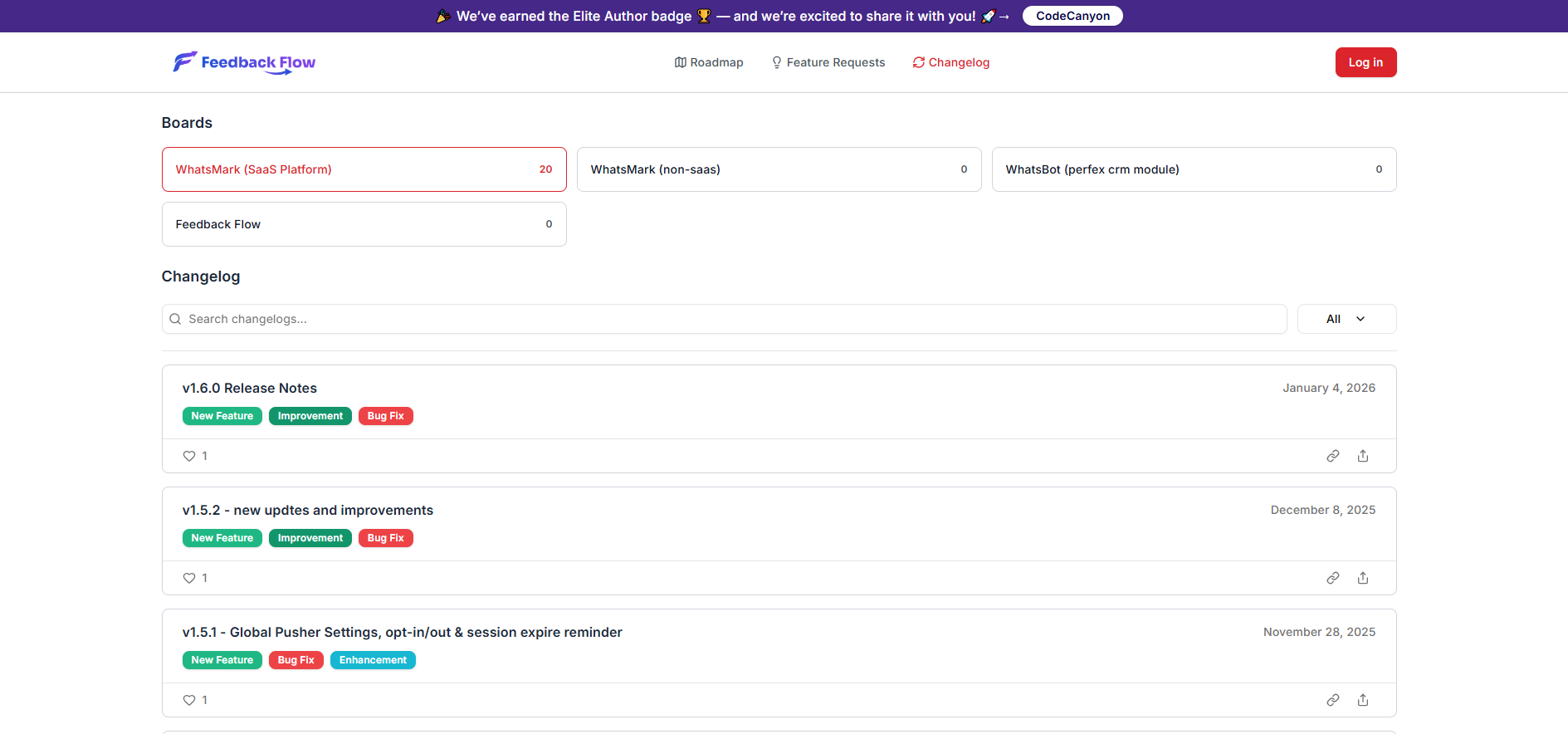
Creating a Changelog Entry
Step 1: Navigate to Changelogs
- Admin Dashboard → Changelogs
- Click Create Changelog
Step 2: Fill in Details
| Field | Description | Required |
|---|---|---|
| Title | Release name | ✓ Yes |
| Version | Version number (e.g., 2.1.0) | Optional |
| Release Date | When released | ✓ Yes |
| Content | Markdown description | ✓ Yes |
| Is Published | Public visibility | ✓ Yes |
| Labels | Kind of Items | ✓ Yes |
| Status | Current State | ✓ Yes |
Step 3: Write Content
Use Markdown to format:
## New Features

- Dark mode support across all pages
- Export feature requests as CSV
- Advanced filtering options

## Improvements

- Faster page load times
- Better mobile responsiveness
- Improved search accuracy

## Bug Fixes

- Fixed email notification delays
- Resolved voting count issues
- Corrected timezone displays
Step 4: Add Labels
Tag changelog entries with labels:
Feature RequestBug ReportImprovement
Labels help users scan changes quickly.
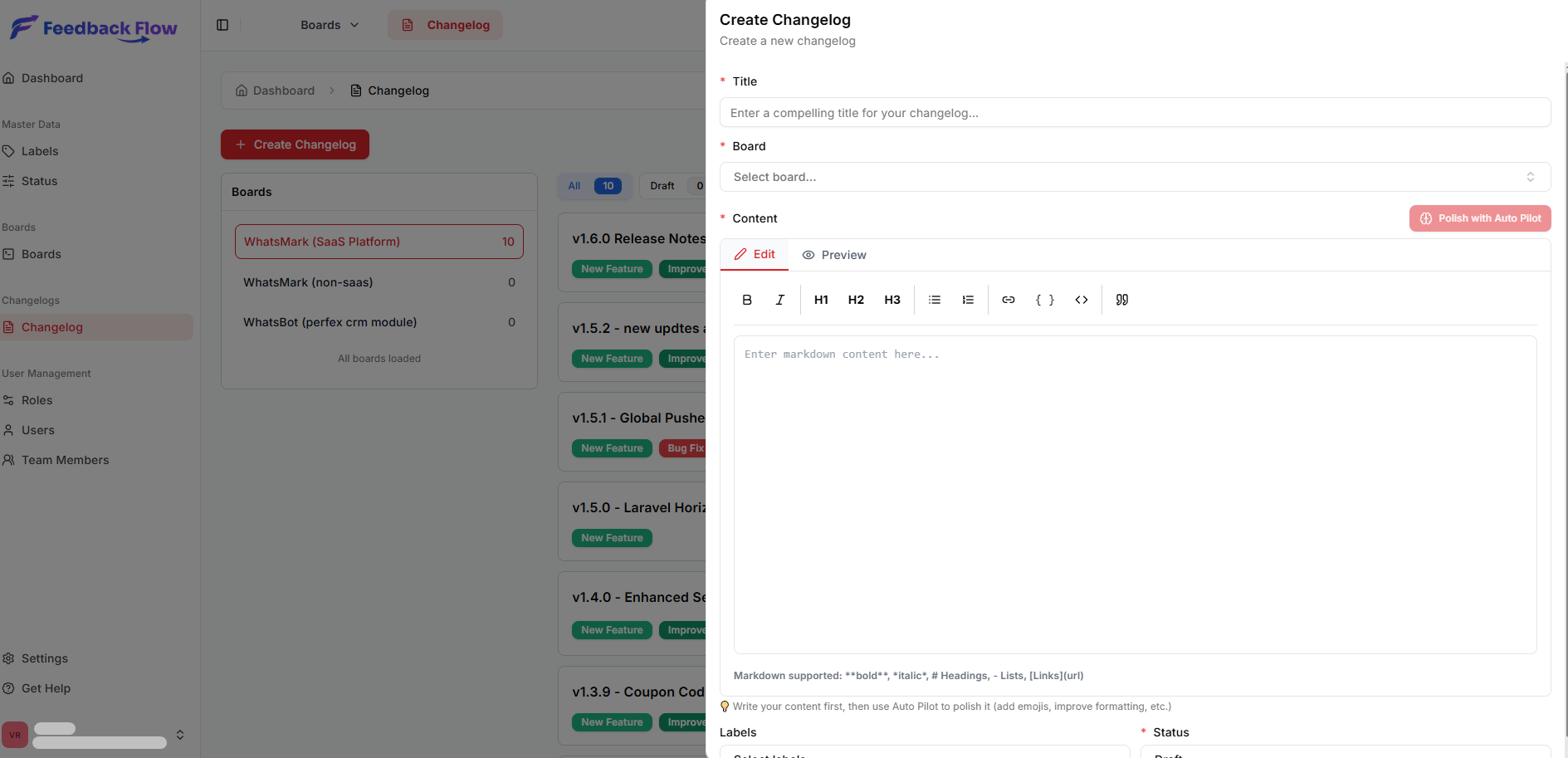
Step 5: Publish
Draft mode: Save as draft to preview before publishing.
Publish: Click Publish to Auto Pilot to make visible to users.
Linking Feature Requests
Associate completed feature requests with changelog:
- Edit changelog entry
- Linked Requests section
- Search and select feature requests
- Save
Benefits:
- Users see which requests were completed
- Feature request pages link to changelog
- Automatic content generation
Public Changelog Display
List View
Users see all changelog entries:
- Sorted by date (newest first)
- Filterable by label
- Search functionality
- Like/reaction counts
Detail View
Each entry shows:
- Full content
- Version number
- Release date
- Labels
- Linked feature requests
- Like button
Changelog Likes
Users can like changelog entries:
- Shows appreciation
- Indicates popular updates
- Tracks engagement
Admins see like counts in dashboard.
Changelog RSS Feed
Provide RSS feed for changelog subscribers:
https://yourdomain.com/changelog/feedUsers can subscribe via RSS readers.
Managing Changelogs
Edit Changelog
- Click changelog title
- Make changes
- Save
Edited badge appears if modified after publication.
Unpublish
Hide changelog from public:
- Toggle Is Published off
- Entry hidden but preserved
Delete
Permanently remove changelog:
- Click Delete
- Confirm action
Cannot Undo
Deletion is permanent. Consider unpublishing instead.
Best Practices
Regular Updates
- Publish after each release
- Bundle minor updates
- Keep users informed
Clear Communication
- Write for users, not developers
- Explain benefits, not technical details
- Use simple language
- Group by category
Consistent Format
- Use standard sections (New, Improved, Fixed)
- Consistent Markdown structure
- Similar tone across entries
Link Requests
- Associate completed feature requests
- Give credit to user ideas
- Show you're listening
Changelog Analytics
Track engagement:
- View counts per entry
- Like counts
- Click-through rates
- Most viewed changes