ReCAPTCHA Setup
Configure Google reCAPTCHA to protect forms from spam and abuse.
Overview
ReCAPTCHA prevents automated bots from submitting spam feature requests, registrations, and comments.
Protected forms:
- User registration
- Feature request submission
- Contact forms (if enabled)
- Comment posting (optional)
reCAPTCHA Version
FeedbackFlow supports reCAPTCHA v2 (checkbox) and v3 (invisible). v3 is recommended for better user experience.
Getting reCAPTCHA Keys
Step 1: Access reCAPTCHA Admin
Go to Google reCAPTCHA Admin Console
Step 2: Register a New Site
Click + to create a new site.
Step 3: Configure reCAPTCHA
Fill in the registration form:
| Field | Value |
|---|---|
| Label | FeedbackFlow |
| reCAPTCHA type | reCAPTCHA v3 (recommended) or v2 |
| Domains | yourdomain.com (without https://) |
| Accept terms | ✓ Check the box |
Step 4: Submit
Click Submit to generate keys.
Step 5: Copy Keys
You'll receive:
- Site Key (public key)
- Secret Key (private key)
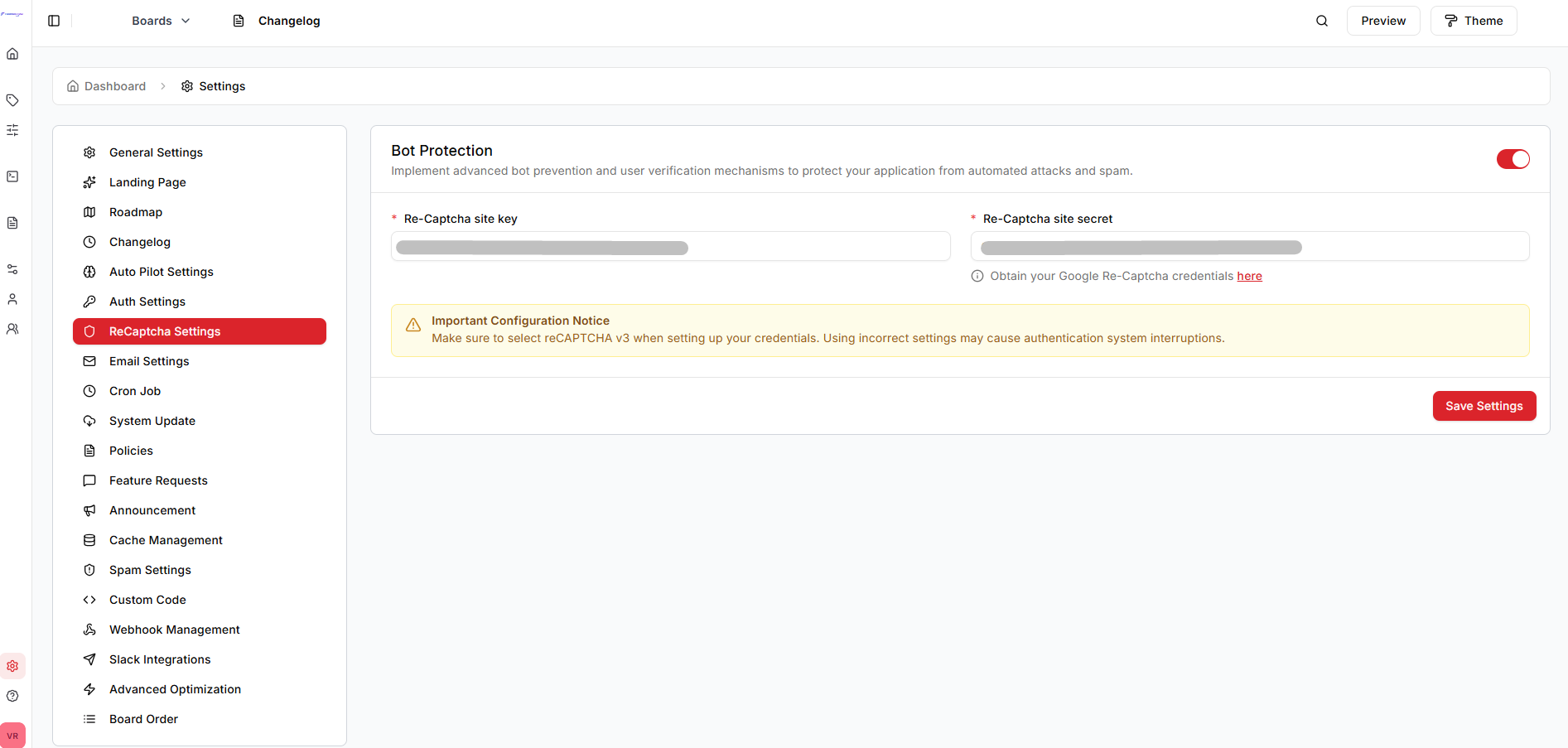
Configuring in FeedbackFlow
Step 1: Access Settings
- Log in to admin dashboard
- Navigate to Settings → ReCAPTCHA Settings
Step 2: Enter Keys
Fill in the fields:
| Field | Description |
|---|---|
| Enable reCAPTCHA | Toggle to enable |
| Site Key | Your reCAPTCHA site key (public) |
| Secret Key | Your reCAPTCHA secret key (private) |
| reCAPTCHA Version | v2 or v3 |
Step 3: Configure Threshold (v3 only)
For reCAPTCHA v3, set the minimum score threshold:
- Range: 0.0 to 1.0
- Default: 0.5
- Recommended: 0.5
- Strict: 0.7 (more false positives)
- Lenient: 0.3 (more spam may pass)
Higher scores = more confident the user is human.
Step 4: Select Protected Forms
Choose which forms require reCAPTCHA:
- [ ] User Registration
- [ ] Feature Request Submission
- [ ] Comment Posting
- [ ] Contact Forms
Step 5: Save
Click Save Settings.
reCAPTCHA v2 vs v3
reCAPTCHA v2 (Checkbox)
Pros:
- Visible verification
- Clear pass/fail
- Users understand what's happening
Cons:
- Additional user friction
- Checkbox required on each submission
- Accessibility challenges
Best for:
- High-security needs
- Forms with high spam rates
reCAPTCHA v3 (Invisible)
Pros:
- No user interaction required
- Better user experience
- Works in background
Cons:
- Score-based (not binary)
- Requires threshold tuning
- Less obvious to users
Best for:
- General use
- User-friendly experience
- Moderate spam protection
Recommendation
Use reCAPTCHA v3 with a 0.5 threshold for best balance between security and user experience.
Testing reCAPTCHA
After configuration:
- Log out of admin dashboard
- Visit the registration or feature request page
- Verify reCAPTCHA badge appears (v3) or checkbox appears (v2)
- Submit the form
- Check submission succeeds
Troubleshooting
reCAPTCHA Not Showing
Check:
- reCAPTCHA is enabled in settings
- Site and Secret keys are correct
- Domain matches reCAPTCHA admin console
- JavaScript is enabled in browser
- No browser extensions blocking reCAPTCHA
"Invalid Site Key" Error
Cause: Site key is incorrect or domain mismatch
Solution:
- Verify site key copied correctly
- Check domain in reCAPTCHA admin console matches your domain
- For localhost testing, add
localhostto domains
Form Submissions Blocked
For v3:
- Lower the threshold score (try 0.3)
- Check reCAPTCHA admin console for failure logs
For v2:
- Ensure users are clicking the checkbox
- Check for browser compatibility issues
"ERROR for site owner: Invalid domain"
Cause: Your domain is not added to reCAPTCHA configuration
Solution:
- Go to reCAPTCHA admin console
- Edit your site
- Add your domain to the domains list
- Save changes
Localhost Testing
For local development, add to reCAPTCHA domains:
localhost127.0.0.1
Or use test keys provided by Google:
Test Site Key (always passes):
6LeIxAcTAAAAAJcZVRqyHh71UMIEGNQ_MXjiZKhITest Secret Key:
6LeIxAcTAAAAAGG-vFI1TnRWxMZNFuojJ4WifJWeProduction
Never use test keys in production. They provide no actual protection.
reCAPTCHA Analytics
Monitor reCAPTCHA performance:
- Visit reCAPTCHA Admin Console
- Select your site
- View analytics:
- Total requests
- Verification success rate
- Score distribution (v3)
Use this data to tune your threshold settings.
Privacy Considerations
reCAPTCHA collects user data including:
- IP address
- Cookies
- Browser information
Compliance:
- Update Privacy Policy to mention reCAPTCHA
- Link to Google's Privacy Policy
- Inform users in terms of service
Alternative: hCaptcha
If you prefer an alternative to Google reCAPTCHA, consider hCaptcha (requires custom integration).
Disabling reCAPTCHA
To disable reCAPTCHA:
- Navigate to Settings → ReCAPTCHA Settings
- Toggle Enable reCAPTCHA off
- Save changes
Forms will no longer require reCAPTCHA verification.
Best Practices
Use v3 by Default
Better user experience with invisible verification.
Monitor Spam Rates
If spam increases, lower the v3 threshold or switch to v2.
Combine with Other Protection
Use reCAPTCHA alongside:
- Spam Detection - AI-powered content filtering
- Trust Score System - User reputation tracking
- Email verification
Update Privacy Policy
Inform users about reCAPTCHA usage and data collection.
Next Steps
- Advanced Settings - More advance Settings
- Createing Boards -New board create