OAuth Providers Setup
Enable social login with Google, GitHub, Facebook, and Envato OAuth providers.
Overview
OAuth login allows users to sign in using their existing accounts from popular platforms, reducing friction and improving user experience.
Supported providers:
- GitHub
- Envato
Benefits
- Faster user onboarding
- No password management for users
- Verified email addresses
- Reduced support requests
Accessing OAuth Settings
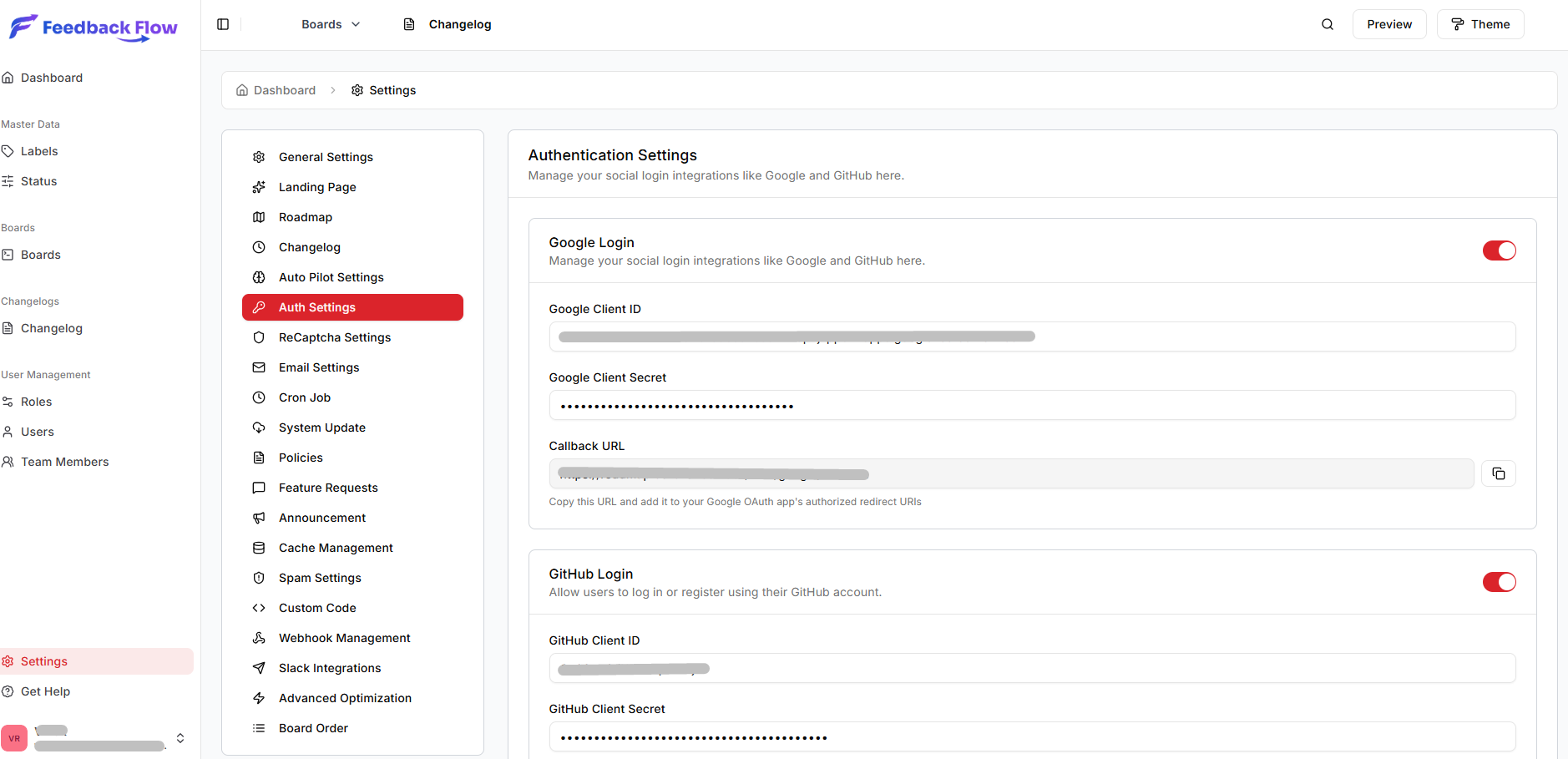
- Navigate to Settings → Authentication Settings
- Scroll to OAuth Providers section
- Enable desired providers
- Enter API credentials
- Save changes
Google OAuth Setup
Step 1: Create Google Cloud Project
- Go to Google Cloud Console
- Create a new project or select existing
- Navigate to APIs & Services → Credentials
Step 2: Create OAuth Client ID
- Click Create Credentials → OAuth client ID
- Application type: Web application
- Name: "FeedbackFlow"
- Authorized redirect URIs:
https://yourdomain.com/auth/google/callback - Click Create
Step 3: Copy Credentials
Copy the Client ID and Client Secret.
Step 4: Configure in FeedbackFlow
- Navigate to Settings → Authentication Settings
- Enable Google Login
- Enter:
- Client ID: Your Google Client ID
- Client Secret: Your Google Client Secret
- Redirect URL:
https://yourdomain.com/auth/google/callback(auto-filled)
- Save changes
GitHub OAuth Setup
Step 1: Register OAuth App
- Go to GitHub Developer Settings
- Click New OAuth App
- Fill in details:
- Application name: FeedbackFlow
- Homepage URL:
https://yourdomain.com - Authorization callback URL:
https://yourdomain.com/auth/github/callback
- Click Register application
Step 2: Generate Client Secret
- Click Generate a new client secret
- Copy the Client ID and Client Secret
Step 3: Configure in FeedbackFlow
- Navigate to Settings → Authentication Settings
- Enable GitHub Login
- Enter:
- Client ID: Your GitHub Client ID
- Client Secret: Your GitHub Client Secret
- Save changes
Facebook OAuth Setup
Step 1: Create Facebook App
- Go to Facebook Developers
- Click My Apps → Create App
- Select Consumer app type
- Enter app name and contact email
- Create the app
Step 2: Add Facebook Login
- In app dashboard, click Add Product
- Select Facebook Login
- Choose Web platform
- Site URL:
https://yourdomain.com
Step 3: Configure OAuth Redirect
- Go to Facebook Login → Settings
- Add to Valid OAuth Redirect URIs:
https://yourdomain.com/auth/facebook/callback - Save changes
Step 4: Get App Credentials
- Navigate to Settings → Basic
- Copy App ID and App Secret
Step 5: Configure in FeedbackFlow
- Navigate to Settings → Authentication Settings
- Enable Facebook Login
- Enter:
- Client ID: Your Facebook App ID
- Client Secret: Your Facebook App Secret
- Save changes
Facebook App Review
For public Facebook apps, you may need to submit for app review. During development, test with users assigned as developers/testers in the Facebook app settings.
Envato OAuth Setup
Step 1: Create Envato API Application
- Go to Envato API
- Click Create a new app
- Fill in details:
- App name: FeedbackFlow
- Confirmation URL:
https://yourdomain.com/auth/envato/callback - App description: Brief description
- Agree to terms and create
Step 2: Copy Credentials
Copy the Client ID and Client Secret.
Step 3: Configure in FeedbackFlow
- Navigate to Settings → Authentication Settings
- Enable Envato Login
- Enter:
- Client ID: Your Envato Client ID
- Client Secret: Your Envato Client Secret
- Save changes
Testing OAuth Login
After configuring a provider:
- Log out of admin dashboard
- Go to the login page
- Click the OAuth provider button (e.g., "Sign in with Google")
- Authorize the application
- Verify successful login
User Data Handling
When a user logs in via OAuth:
Data stored:
- Email address
- First name and last name (if provided)
- OAuth provider name
- OAuth user ID
- Profile avatar (if available)
Security:
- OAuth tokens are encrypted in the database
- No passwords are stored for OAuth users
- Email verification is automatically marked as verified
Disabling OAuth Providers
To disable a provider:
- Navigate to Settings → Authentication Settings
- Toggle off the provider
- Save changes
Existing users who logged in via that provider can still access their accounts but cannot use OAuth login until re-enabled.
Troubleshooting OAuth
"Redirect URI mismatch" Error
Cause: Callback URL doesn't match provider configuration
Solution:
- Verify callback URL matches exactly in provider settings:
https://yourdomain.com/auth/{provider}/callback - Ensure protocol matches (http vs https)
- No trailing slash
OAuth Login Button Not Appearing
Check:
- Provider is enabled in Authentication Settings
- Client ID and Client Secret are saved
- Cache has been cleared
"Invalid Client" Error
Cause: Incorrect Client ID or Client Secret
Solution:
- Double-check credentials copied correctly
- Ensure no extra spaces
- Regenerate secret if necessary
Users Cannot Complete OAuth Flow
Check:
- Application is approved/published (Facebook, Google)
- Email scope is requested
- OAuth app is not in development mode (for production)
Security Considerations
HTTPS Required
OAuth providers require HTTPS for production apps. Never use OAuth with plain HTTP in production.
Callback URL Validation
Ensure callback URLs cannot be manipulated. FeedbackFlow validates redirect URIs automatically.
Token Security
OAuth tokens are encrypted at rest using Laravel's encryption features.
OAuth vs Email/Password
Users can have both OAuth and email/password login enabled:
OAuth-only users:
- Cannot reset password (none exists)
- Must use OAuth provider to log in
Email/password users:
- Can add OAuth providers to existing account
- Can use either method to log in
Next Steps
- RECAPTHA setup - Captcha Setup
- Advanced Settings - More advance Settings