Post-Installation Setup
After completing the web installer, configure these essential components to ensure FeedbackFlow operates correctly.
1. Email Configuration
Email functionality is critical for notifications, weekly digests, and password resets.
Configure SMTP Settings
- Log in to the admin dashboard
- Navigate to Settings → Email Settings
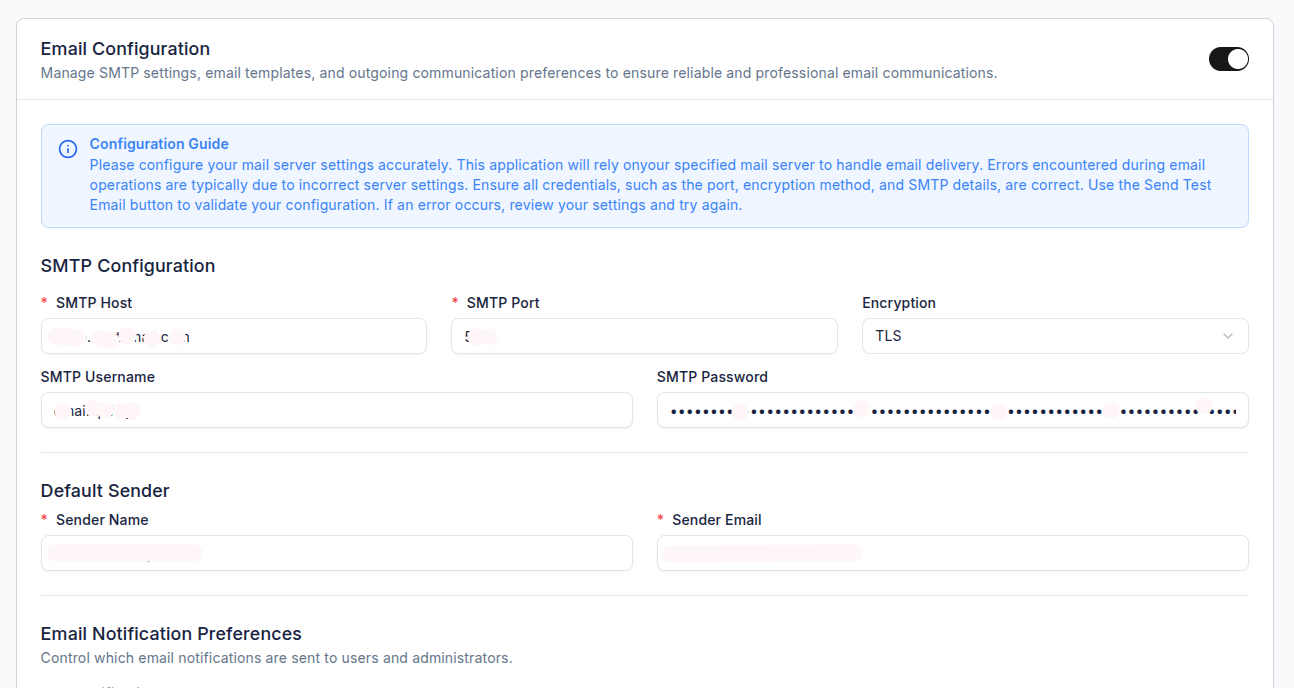
- Click Add Email Configuration
- Fill in SMTP details:
| Field | Description | Example |
|---|---|---|
| Configuration Name | Identifier for this config | "Primary SMTP" |
| Mailer | Mail driver | smtp |
| Host | SMTP server address | smtp.gmail.com |
| Port | SMTP port | 587 (TLS) or 465 (SSL) |
| Encryption | Encryption type | tls or ssl |
| Username | SMTP username | your-email@gmail.com |
| Password | SMTP password or app password | your-app-password |
| From Name | Sender name | "FeedbackFlow Support" |
| From Email | Sender email | noreply@yourdomain.com |
- Click Test Email Configuration to verify
- Mark as Default if this is your primary email config
Multiple SMTP Configs
FeedbackFlow supports multiple email configurations with fallback. If the primary SMTP fails, it automatically tries the next configured provider.
2. Queue Worker Setup
FeedbackFlow uses queues for background tasks like email sending, webhooks, and spam detection.
Using Supervisor (Recommended)
Create a Supervisor configuration file:
sudo nano /etc/supervisor/conf.d/feedbackflow-worker.confAdd this configuration:
[program:feedbackflow-worker]
process_name=%(program_name)s_%(process_num)02d
command=php /path/to/feedbackflow/artisan queue:work redis --sleep=3 --tries=3 --max-time=3600
autostart=true
autorestart=true
stopasgroup=true
killasgroup=true
user=www-data
numprocs=2
redirect_stderr=true
stdout_logfile=/path/to/feedbackflow/storage/logs/worker.log
stopwaitsecs=3600
Update and start:
sudo supervisorctl reread
sudo supervisorctl update
sudo supervisorctl start feedbackflow-worker:*
Using systemd
Create a systemd service:
sudo nano /etc/systemd/system/feedbackflow-worker.service[Unit]
Description=FeedbackFlow Queue Worker
After=network.target
[Service]
User=www-data
Group=www-data
Restart=always
ExecStart=/usr/bin/php /path/to/feedbackflow/artisan queue:work redis --sleep=3 --tries=3
[Install]
WantedBy=multi-user.targetEnable and start:
sudo systemctl enable feedbackflow-worker
sudo systemctl start feedbackflow-worker
Using Laravel Horizon (Alternative)
If you prefer Laravel Horizon for queue monitoring:
php artisan horizonConfigure Horizon to start automatically via Supervisor.
Important
Queue workers must run continuously. Without them, emails won't send, webhooks won't fire, and spam detection won't work.
3. Cron Job Setup
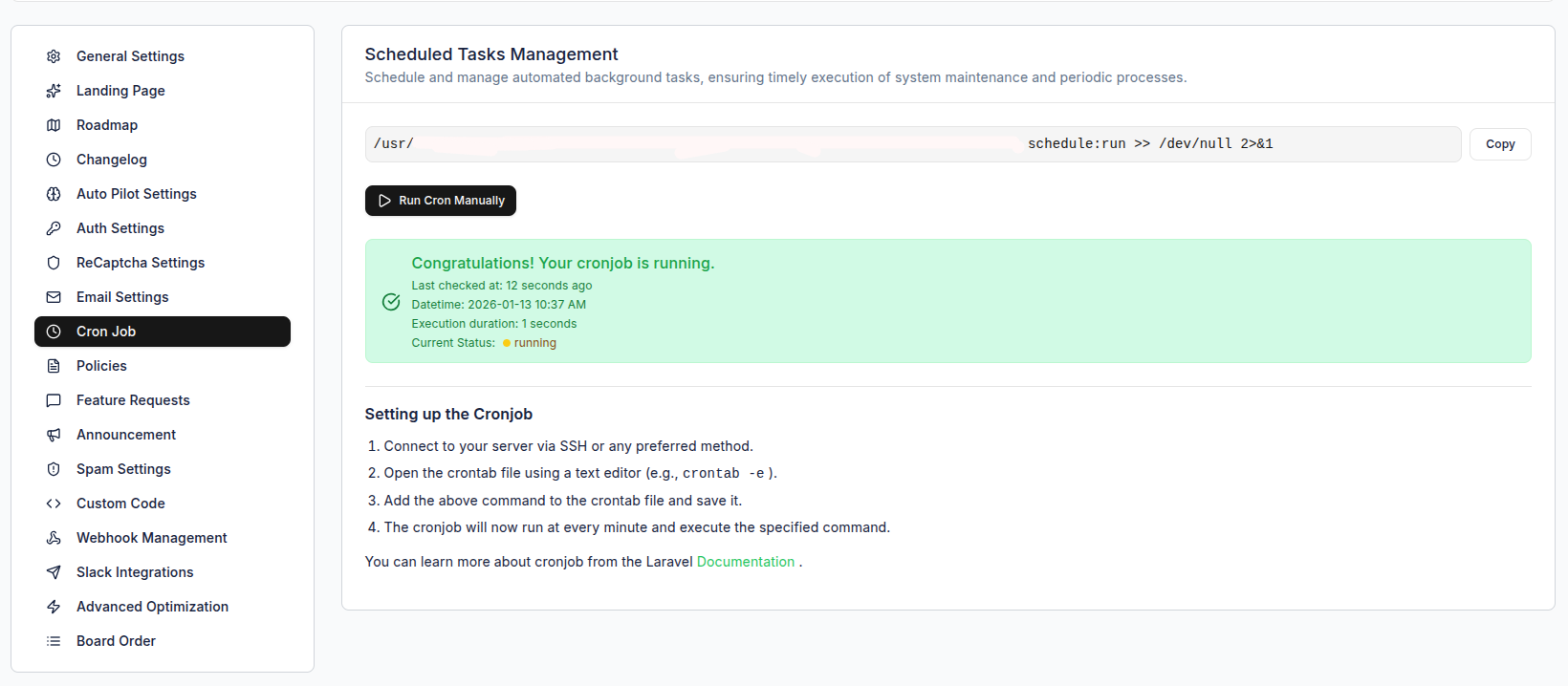
Laravel's task scheduler requires a cron entry to run every minute.
Verify Cron is Working
After adding the cron job, check the admin dashboard:
- Navigate to Settings → Cron Job Settings
- Click Run Cron Manually to test
- Check the last run timestamp
What Cron Jobs Do
- Send weekly digest emails (Sundays at 09:00 UTC)
- Clean up old email logs
- Process scheduled tasks
Next Steps
- Accessing Admin Dashboard - Log in and explore features
- General Settings - Configure application basics