Admin Ticket Management
Comprehensive customer support and technical issue management system for Streamlines customer support operations through departmental organization, priority-based routing, and complete ticket lifecycle management with automated notifications
Accessing Ticket Management
Navigation Path
To access the Ticket management interface:
- Login to the Admin Panel with valid credentials.
- From the main menu, go to Support.
- Click on Ticket.
- Select Ticket to view Ticket.
Prerequisites Setup
Step 1: Department Management
Establish departmental structure for effective ticket routing and specialized support handling.
Department Management
Ticket Management System
Ticket Overview Dashboard

Location: Admin Panel → Support → Tickets
Ticket Status Summary:
- Total Tickets : Complete count of all support tickets in the system
- Open Tickets : Active tickets requiring attention or response
- Answered Tickets : Tickets with admin responses awaiting tenant feedback
- Closed Tickets : Resolved and completed tickets
- High Priority Tickets : Urgent tickets requiring immediate attention
Dashboard Features:
- Real-time Updates: Live ticket count updates
- Status Distribution: Visual breakdown of ticket states
- Priority Indicators: High-priority ticket alerts
- Quick Navigation: Direct access to filtered ticket views
All Tickets Management
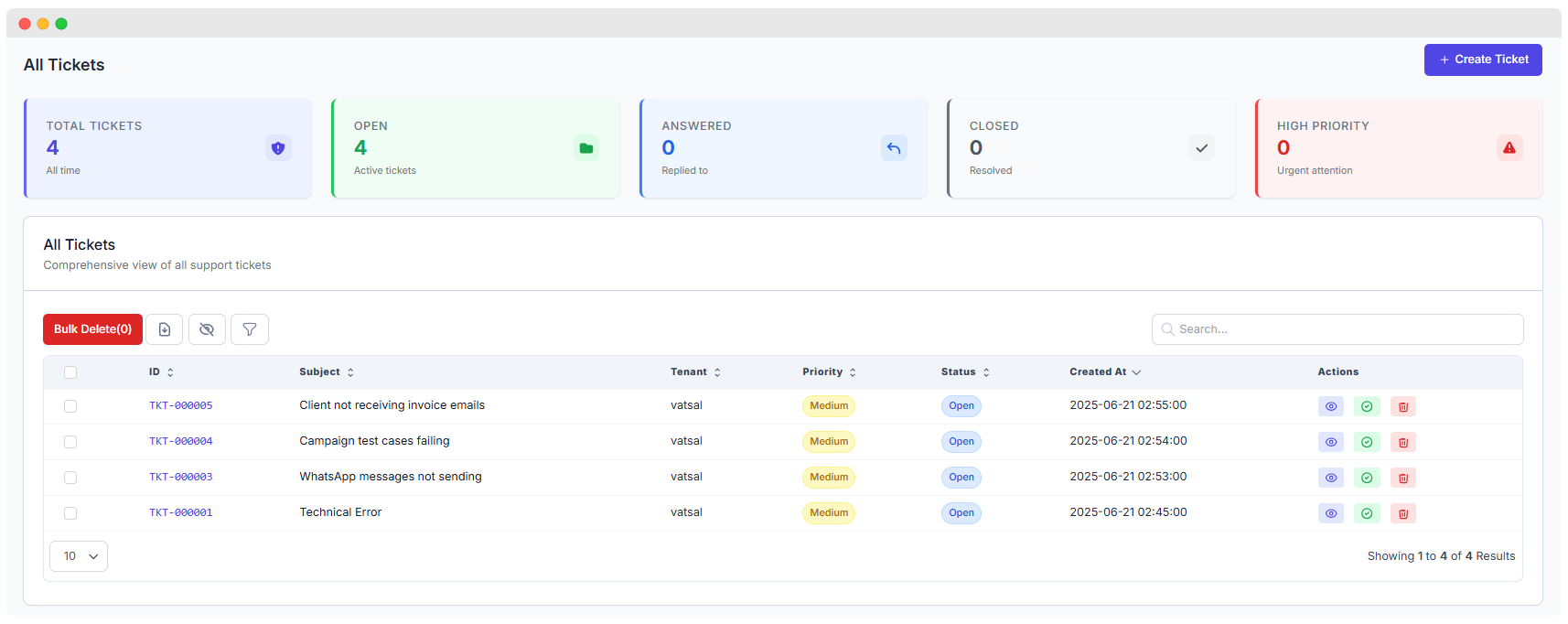
Location: Admin Panel → Tickets → All Tickets
Comprehensive Ticket View:
- Bulk Operations: Mass delete selected tickets with "Bulk Delete(0)" functionality
- Advanced Filtering: Filter tickets by status, priority, department, or date
- Search Functionality: Locate specific tickets using search criteria
- Export Options: Generate ticket reports for analysis
Creating New Tickets
Navigation to Ticket Creation
Path: Admin Panel → Tickets → Create Ticket
Ticket Creation Form
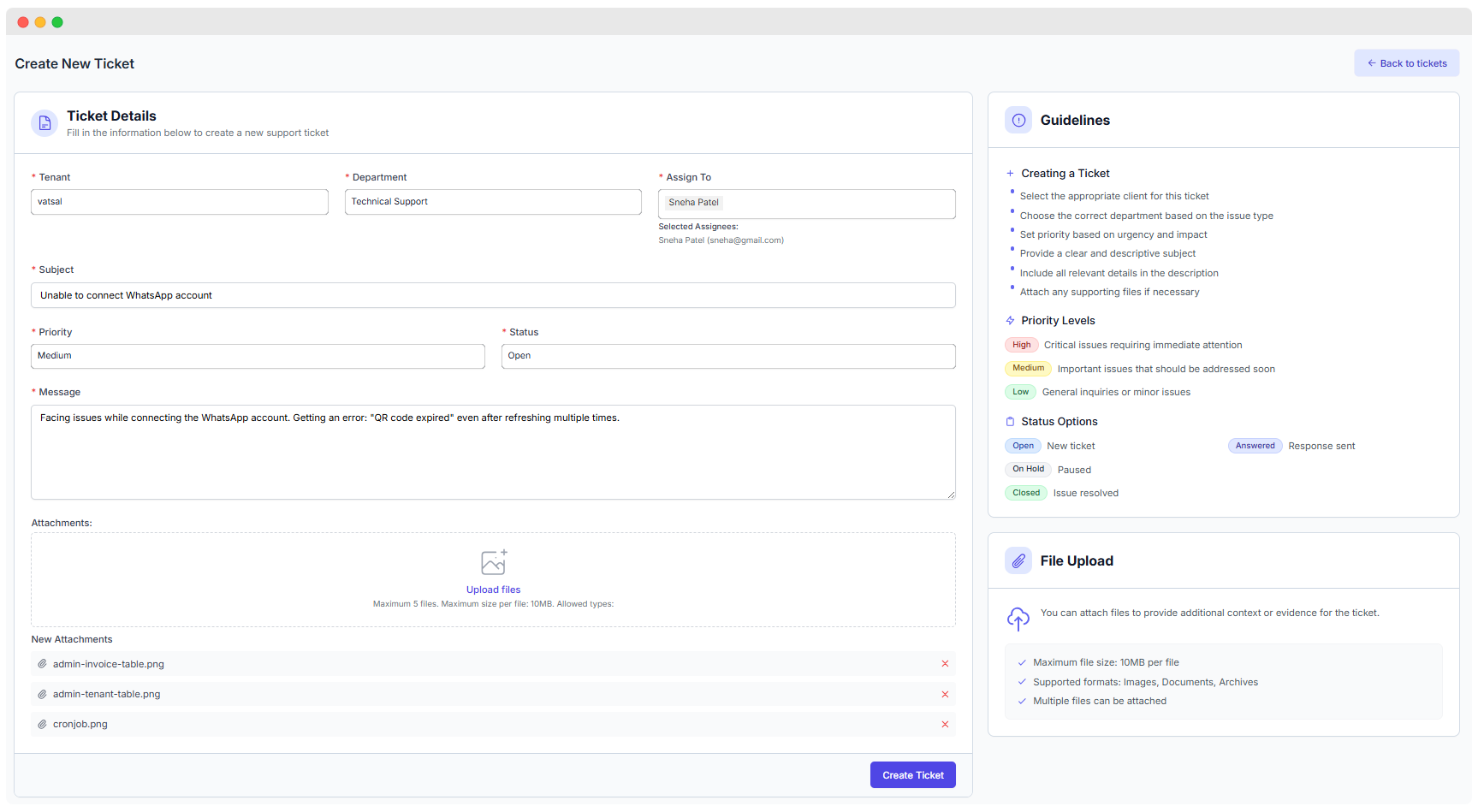
Location: Admin Panel → Tickets → Create New Ticket
Ticket Details Section
Required Fields:
Tenant Selection:
- Purpose: Identify the customer/client for whom the ticket is being created
- Selection: Choose from existing tenant database
- Validation: Ensure tenant has active account status
Department Assignment:
- Purpose: Route ticket to appropriate specialized team
- Options: Select from configured departments (Technical, Sales, Quality Assurance, General)
- Impact: Determines which admin users receive notifications
Admin Assignment:
- Purpose: Designate specific admin user responsible for ticket resolution
- Selection: Choose from department-assigned admin users
- Responsibility: Assigned admin receives direct notifications and is accountable for resolution
Subject Line:
- Purpose: Provide clear, concise description of the issue
- Guidelines: Use descriptive, searchable keywords
- Character Limit: Sufficient length for comprehensive issue summary
Priority Classification:
- High: Critical issues requiring immediate attention (red indicator)
- Medium: Important issues requiring prompt response (yellow indicator)
- Low: General inquiries or minor issues (green indicator)
Status Configuration:
- Open: New ticket requiring initial response
- On Hold: Ticket temporarily paused awaiting information
- Closed: Issue resolved and ticket completed
Message Content:
- Purpose: Detailed description of the issue, request, or inquiry
- Guidelines: Include all relevant information for efficient resolution
- Format: Support rich text formatting for clear communication
Attachment Management
File Upload Capabilities:
- Maximum Files: 5 files per ticket
- File Size Limit: 10MB per individual file
- Supported Formats: Images, Documents, Archives
- Purpose: Provide additional context, screenshots, or evidence for ticket resolution
Upload Process:
- Drag and Drop: Simple file upload interface
- Browse Selection: Traditional file browser option
- Preview: Visual confirmation of uploaded files
- Management: Remove or replace uploaded files before submission
Guidelines and Best Practices
Creating a Ticket Guidelines:
- Select Appropriate Client: Ensure correct tenant identification
- Choose Correct Department: Route based on issue type for efficient handling
- Set Priority Based on Urgency: Assess impact and urgency for appropriate prioritization
- Provide Clear Subject: Use descriptive, searchable ticket titles
- Include Relevant Details: Comprehensive information for efficient resolution
- Attach Supporting Files: Include screenshots, logs, or documentation when helpful
Priority Level Guidelines:
- High: Critical issues requiring immediate attention (system outages, security issues, payment problems)
- Medium: Important issues that should be addressed soon (feature requests, minor bugs, account questions)
- Low: General inquiries or minor issues (documentation questions, general support)
Status Workflow:
- Open: New ticket requiring attention
- Answered: Response sent, awaiting tenant feedback
- On Hold: Paused, awaiting additional information
- Closed: Issue resolved and ticket completed
Individual Ticket Management
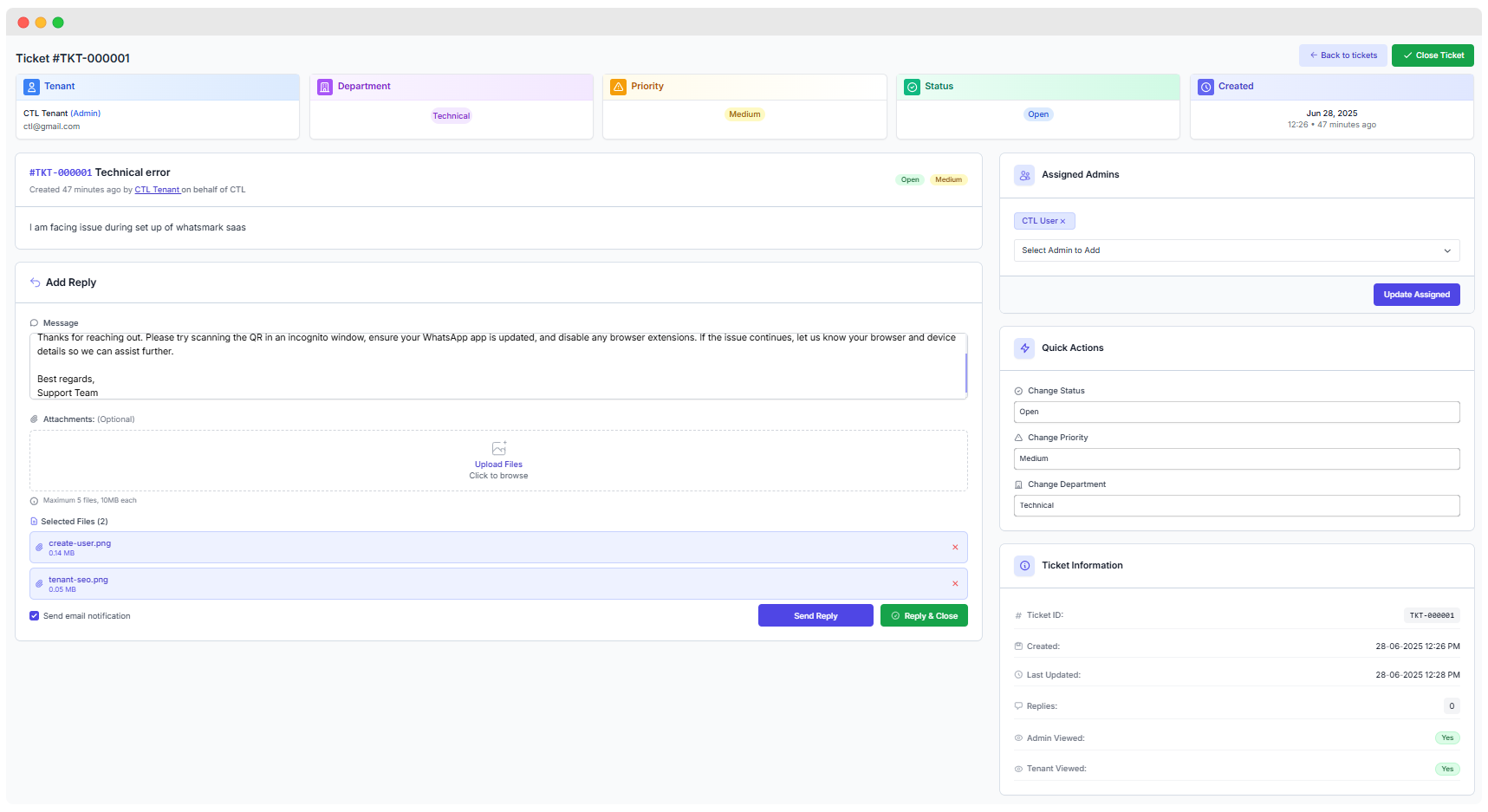
Location: Admin Panel → Tickets → View Ticket
Ticket Information Panel
Tenant Information:
- Tenant Name: CTL Tenant (Admin)
- Contact Email: Available for direct communication
- Account Status: Verification of active tenant status
Department Assignment:
- Current Department: Technical
- Department Description: Responsible for development, deployment, and technical support
- Change Option: Reassign to different department if needed
Priority Management:
- Current Priority: Medium (yellow indicator)
- Visual Indicator: Color-coded priority display
- Modification: Quick priority adjustment capability
Status Tracking:
- Current Status: Open
- Status History: Track all status changes
- Quick Change: Instant status updates
Creation Information:
- Created Date: Jun 28, 2025
- Time Stamp: 12:26 × 5 minutes ago
- Creator: Tracking of ticket originator
Ticket Content Management
Subject Display:
- Ticket ID: TKT-000001 Technical error
- Creation Details: Created 5 minutes ago by CTL Tenant on behalf of CTL
- Content: "I am facing issue during set up of whatsmark saas"
Administrative Controls
Assigned Admins Section:
- Current Assignment: CTL User ×
- Add Admins: "Select Admin to Add" dropdown
- Update Functionality: "Update Assigned" button for changes
- Multi-Assignment: Multiple admins can be assigned to single ticket
Quick Actions Panel
Status Management:
- Change Status: Dropdown selection for status updates
- Current: Open status
- Options: Open, Answered, On Hold, Closed
Priority Adjustment:
- Change Priority: Quick priority modification
- Current: Medium priority
- Options: High, Medium, Low
Department Reassignment:
- Change Department: Transfer ticket between departments
- Current: Technical
- Options: All configured departments
Communication Management
Reply System:
- Add Reply: Respond to tenant inquiries
- Message Field: "Type your reply here..." text area
- Attachment Support: Include files with responses (Optional)
- File Limits: Maximum 5 files, 10MB each
Reply Actions:
- Send Reply: Submit response and maintain current status
- Reply & Close: Submit response and mark ticket as resolved
- Email Notification: Automatic notification to tenant and assigned admins
Notification Settings:
- Send Email Notification: Checkbox for automatic email alerts
- Recipients: Tenant and assigned admin users
- Content: Reply content and updated ticket status
Ticket Information Tracking
System Information:
- Ticket ID: TKT-000001 (unique identifier)
- Created: 28-06-2025 12:26 PM (creation timestamp)
- Last Updated: 28-06-2025 12:26 PM (most recent modification)
- Replies: 0 (response count)
- Admin Viewed: Yes (confirmation of admin review)
- Tenant Viewed: Yes (verification of tenant acknowledgment)
Advanced Ticket Management Features
Ticket List Quick Actions

Available Actions from Ticket List:
- View Details : Access complete ticket information and reply interface
- Quick Status Change : Instant status updates without opening ticket
- Delete : Permanently remove the selected ticket from the system (this action cannot be undone)
Bulk Operations:
- Bulk Delete: Select multiple tickets for mass deletion
- Export Functionality: Generate reports of selected tickets
- Filter Application: Apply filters to specific ticket groups
Search and Filter Capabilities
Search Functionality:
- Keyword Search: Search by ticket content, subject, or ID
- Tenant Search: Locate tickets by customer name
- Advanced Filters: Combine multiple search criteria
Filter Options:
- Status Filter: Open, Answered, On Hold, Closed
- Priority Filter: High, Medium, Low
- Date Range: Time-based ticket filtering
Automated Notification System
Email Notification Triggers
Automatic Email Notifications Sent For:
New Ticket Creation:
- Recipients: Assigned admin users, department team members
- Content: Ticket details, priority level, customer information
- Timing: Immediate upon ticket creation
Ticket Assignment:
- Recipients: Newly assigned admin user
- Content: Complete ticket information and assignment notification
- Timing: Immediate upon assignment change
Status Changes:
- Recipients: Tenant, assigned admin users
- Content: Updated status information and next steps
- Timing: Immediate upon status modification
New Tenant Replies:
- Recipients: Assigned admin users, department team members
- Content: Reply content and updated ticket information
- Timing: Immediate upon tenant response
Priority Changes:
- Recipients: Assigned admin users, relevant stakeholders
- Content: Updated priority level and urgency indicators
- Timing: Immediate upon priority modification
Notification Recipients
Admin Users:
- Assigned Admins: Direct notifications for assigned tickets
- Department Members: Updates for all department tickets
- Supervisors: High-priority ticket alerts
Tenant Contacts:
- Primary Contact: All ticket updates and responses
- Secondary Contacts: Optional notification settings
- Account Administrators: System-level ticket notifications
Ticket Lifecycle Management
Complete Ticket Workflow
1. Ticket Creation:
- Source: Tenant submission or admin creation
- Initial Status: Open
- Auto-Assignment: Based on department rules and availability
- Notification: Immediate alerts to assigned team members
2. Admin Review:
- Ticket Assessment: Evaluate issue complexity and priority
- Information Gathering: Request additional details if needed
- Department Verification: Confirm appropriate departmental assignment
- Timeline Estimation: Assess expected resolution timeframe
3. Response Preparation:
- Issue Investigation: Research problem and identify solutions
- Solution Development: Prepare comprehensive response
- Resource Coordination: Involve additional team members if needed
- Quality Review: Verify response accuracy and completeness
4. Reply Dispatch:
- Response Delivery: Send detailed solution or update to tenant
- Status Update: Modify ticket status to reflect current state
- Follow-up Schedule: Set expectations for additional communication
- Documentation: Record resolution steps for future reference
5. Tenant Interaction:
- Response Review: Tenant evaluates provided solution
- Feedback Provision: Additional information or clarification requests
- Solution Testing: Implementation and verification of proposed fixes
- Satisfaction Confirmation: Verification of issue resolution
6. Resolution Confirmation:
- Solution Verification: Confirm issue has been fully resolved
- Follow-up Communication: Ensure tenant satisfaction with resolution
- Additional Support: Provide ongoing assistance if needed
- Documentation Update: Record final resolution details
7. Ticket Closure:
- Status Change: Mark ticket as "Closed"
- Final Notification: Confirm completion to all stakeholders
- Satisfaction Survey: Optional feedback collection
- Archive Process: Move to completed tickets database
Response Time Guidelines
Priority-Based Response Standards:
- High Priority: Respond within 1-2 hours during business hours
- Medium Priority: Respond within 24 hours
- Low Priority: Respond within 48-72 hours
Resolution Time Targets:
- High Priority: Resolve within 4-8 hours
- Medium Priority: Resolve within 2-3 business days
- Low Priority: Resolve within 5-7 business days