Bot Flow
This documentation explains the entire process of managing Bot Flows in WhatsMark SaaS — starting from the Bot Flow list page, through component usage, flow creation, and activation.
WORKS WITH WHATSAPP QR LOGIN
Bot Flows aren't limited to Cloud API numbers — if the WhatsApp QR Login module is active, the same triggers and flows also run automatically for numbers connected via QR, no separate setup required.
1. Bot Flow List Page
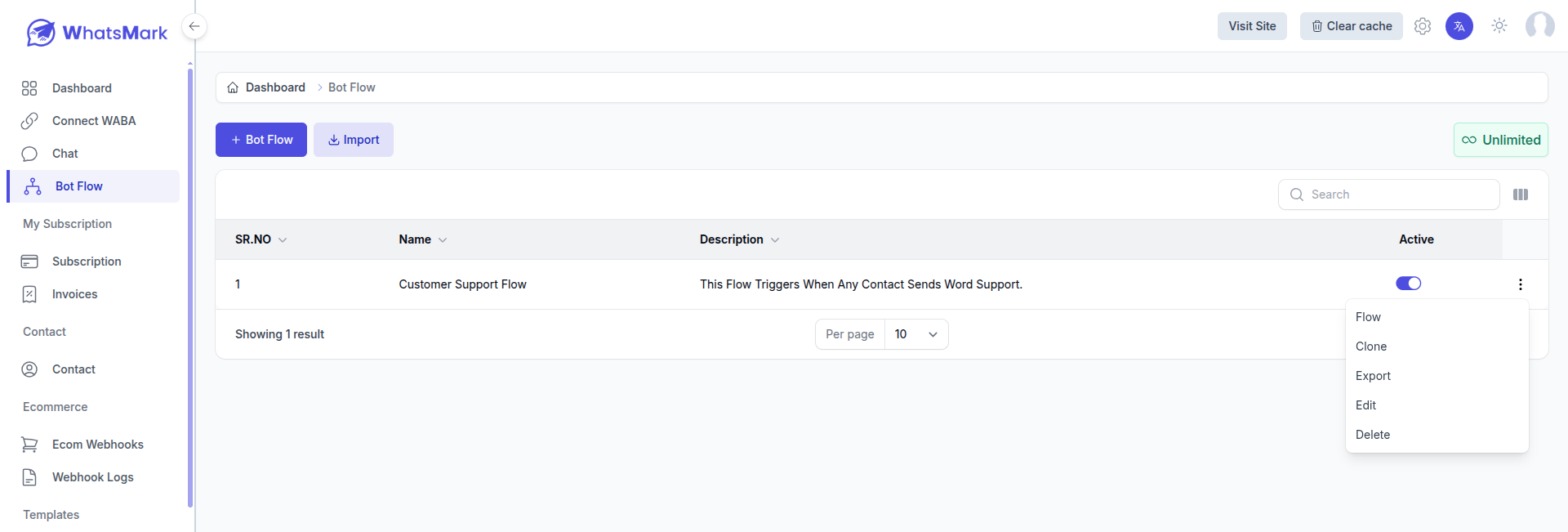
The Bot Flow List page is where you can see all your existing bot flows. From here, you can:
- Create a new bot flow by clicking the + Bot Flow button.
- View existing flows with details like name, description, and activation status.
- Activate or deactivate flows using the toggle in the "Is active" column.
- Edit or delete existing flows with the Edit and Delete buttons.
- Enter a flow to see or modify it by clicking the green Flow button.
2. Creating A New Bot
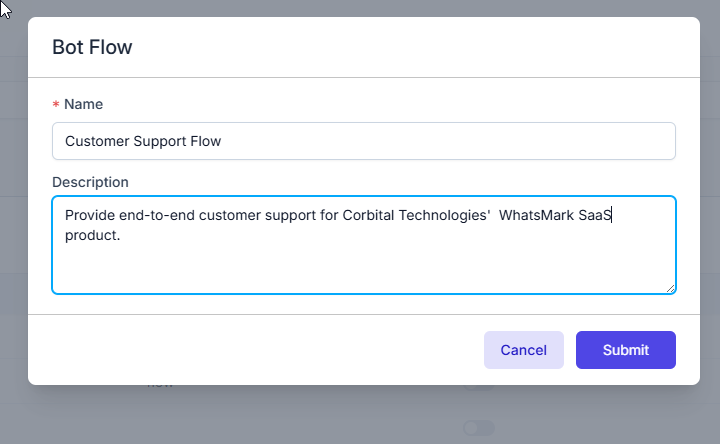
After clicking the + Bot Flow button on the Bot Flow List page, a popup appears prompting you to enter details for the new flow.
Bot Flow Creation Popup
- Name: Enter the name of your bot flow. For example,
Customer Support Flow. - Description: Provide a brief description of the flow. Example: "Provide end-to-end customer support for Corbital Technologies' WhatsMark SaaS product."
Click Submit to create the flow and move to the flow builder interface.
3. Creating Flow
Clicking the + Bot Flow button takes you to the bot flow creation interface.
Interface Overview
Available Components (Left Panel): Components you can add to your flow include:
- Text Message
- Button Message
- Call To Action
- List Message
- Media Message
- Location
- Contact Card
- API Request
- Delay Node
- Update Contact
- Template Message v3.0.0
Start Trigger (Center Block): This is the flow's entry point. You must configure:
- Contact Type: Type of contact who will trigger the flow (e.g., Lead, Customer)
- Trigger Type: Trigger condition — see options below
- Trigger Keywords: Keywords users send to start this flow
Save Flow Button: Located at the top right, it activates once mandatory fields are filled.
Trigger Type Options
When configuring the Start Trigger, you must select a Trigger Type that defines when the flow starts. The available options are:
| Trigger Type | Description |
|---|---|
| On exact match | Flow triggers only when the user sends a keyword that exactly matches one of your configured trigger keywords |
| When lead or client sends the first message | Flow triggers based on the Welcome Message Frequency configured in Bot Settings — no keyword required |
| If any keyword does not match | Flow triggers when the user sends a message that does not match any configured keyword across all active bot flows — reply is controlled by Default Reply Frequency in Bot Settings |
Welcome Message Frequency (First Message Trigger) v3.1.0
When you select "When lead or client send the first message" as the Trigger Type, the flow does not use keywords. Instead, it sends the welcome message automatically based on the frequency set in Application Settings → Bot Settings → Welcome Message Frequency.

How frequency works
The welcome message will be sent according to the selected frequency:
| Frequency | Welcome Message Sends |
|---|---|
| Every Time | Sends every time the contact messages — if the chat already exists, will not run again |
| Once Per Session | Once per conversation session — if the session already exists, will not run again |
| Once Per Day | Once per day — if already sent today, will not run again |
| Once Per Week | Once per week — if already sent this week, will not run again |
| Once Per Month | Once per month — if already sent this month, will not run again |
| Once Per Year | Once per year — if already sent this year, will not run again |
Configure Frequency First
Before using this trigger type, make sure you have set your preferred Welcome Message Frequency in:
Application Settings → Bot Settings → Welcome Message Frequency
Default Reply Frequency (Keyword Not Matched Trigger) v3.1.0
When you select "If any keyword does not match" as the Trigger Type, the flow triggers automatically whenever a contact sends a message that does not match any keyword in any active bot flow. How often the default reply is sent is controlled by the Default Reply Frequency setting in Application Settings → Bot Settings.

How frequency works
| Frequency | When Default Reply Sends | Extra Configuration Required |
|---|---|---|
| Once Per Session | Once per 24-hour session. If already sent in this session, will not send again | None |
| Once in Every X Min/Hours | Once every specified time interval — e.g. every 30 minutes or every 2 hours | Set Interval Value and Unit (Minutes or Hours) in Bot Settings |
| Session Wise Maximum Attempts | Sends up to a maximum number of times within a 24-hour session | Set Maximum Attempts allowed per session in Bot Settings |
| Before Agent Assignment | Sends on every unmatched message as long as no agent is assigned to the chat. Once an agent is assigned, default reply stops | None |
| After Agent Reply | Sends on every unmatched message only after an agent has already replied in the chat | None |
Configure Frequency First
Before using this trigger type, make sure you have set your preferred Default Reply Frequency in:
Application Settings → Bot Settings → Default Reply Frequency
4. Bot Flow Components Overview
Each component can be added to the flow canvas to build your conversation. Below is a summary of the key components:
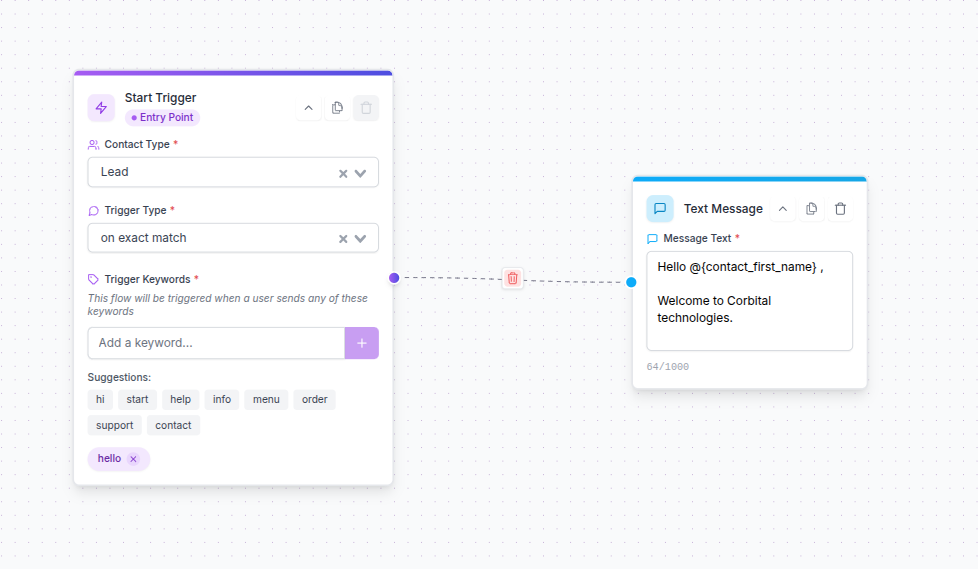
4.1 Text Message
Used to send plain text messages.
4.2 Button Message
Sends a message with interactive buttons for users to choose from.

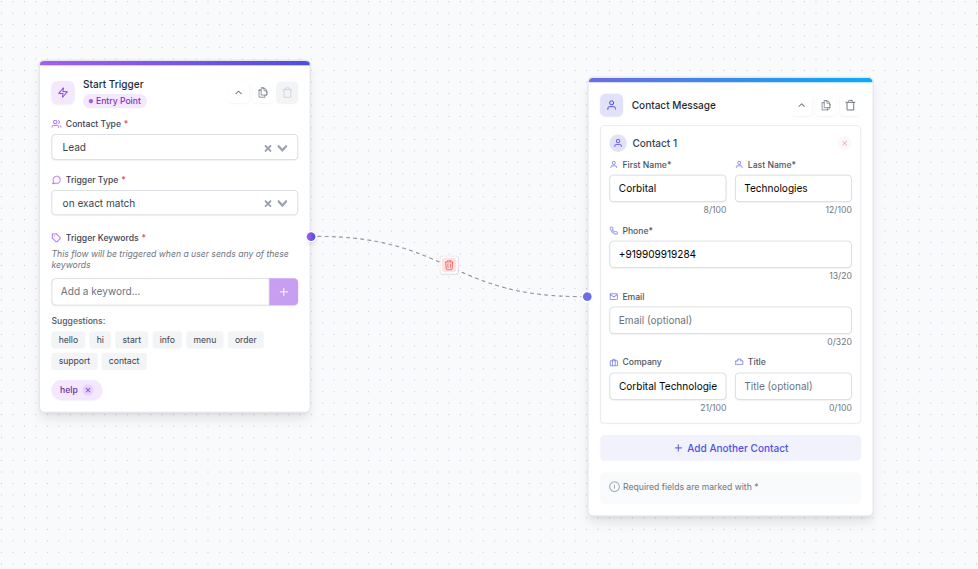
4.3 Contact Card
Shares contact information with the user.
4.4 Call To Action (CTA)
Sends a clickable button with a link for the user to take an action.
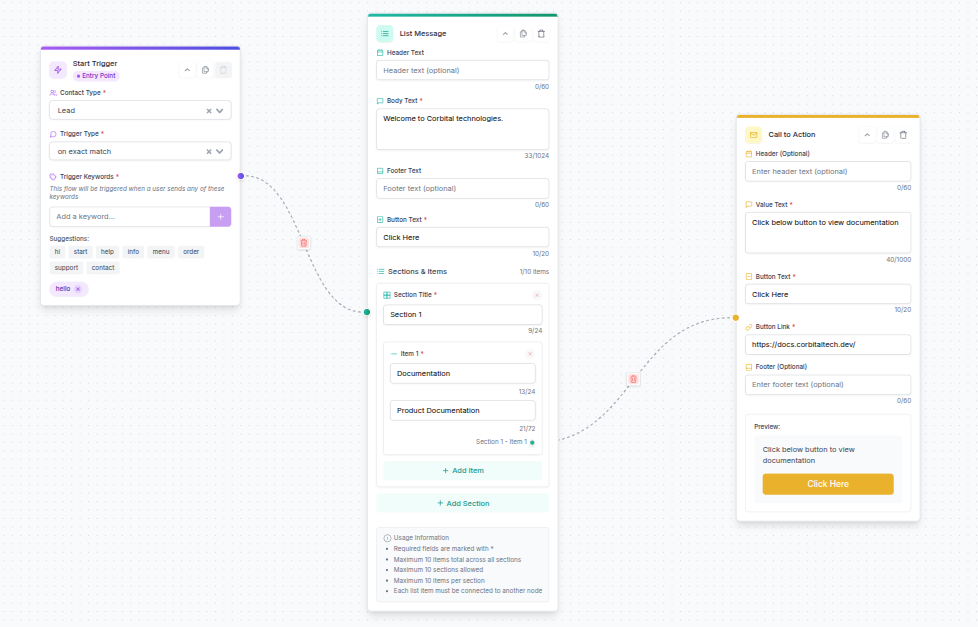
4.5 List Message
Sends a list with header, body, footer, and selectable options.
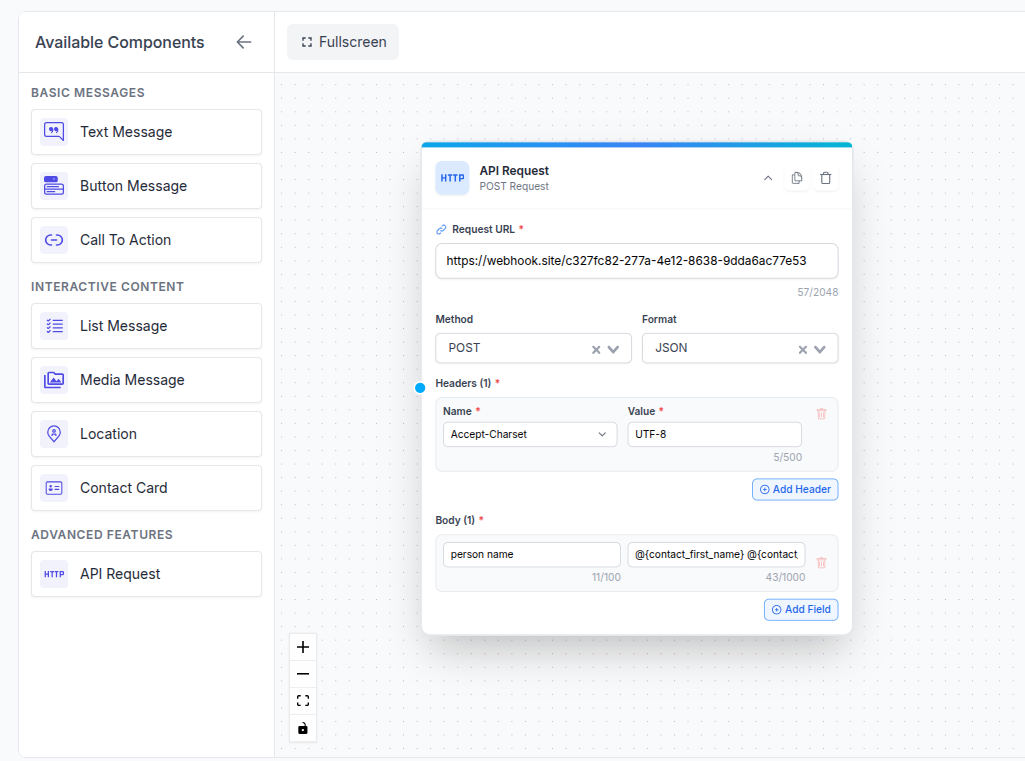
4.6 API Request
Sends data from your bot flow to external sources and automation platforms. This component enables you to push conversation data, user responses, and flow variables to external systems like n8n or any other software that can process and utilize the flow data.
Key Features:
- Request URL: Specify the webhook or API endpoint URL of your external system
- HTTP Method: Support for POST, PUT, PATCH methods for sending data
- Headers: Add custom headers (Accept-Charset, Authorization, Content-Type, etc.)
- Request Body: Send JSON data with dynamic variables from the conversation flow
- Data Integration: Pass user responses, contact information, and flow context to external systems
Common Use Cases:
- Send conversation data to n8n workflows for automation
- Push lead information to CRM systems
- Trigger external workflows based on user interactions
- Submit form data collected during the bot conversation
- Integrate with zapier, make.com, or custom automation platforms
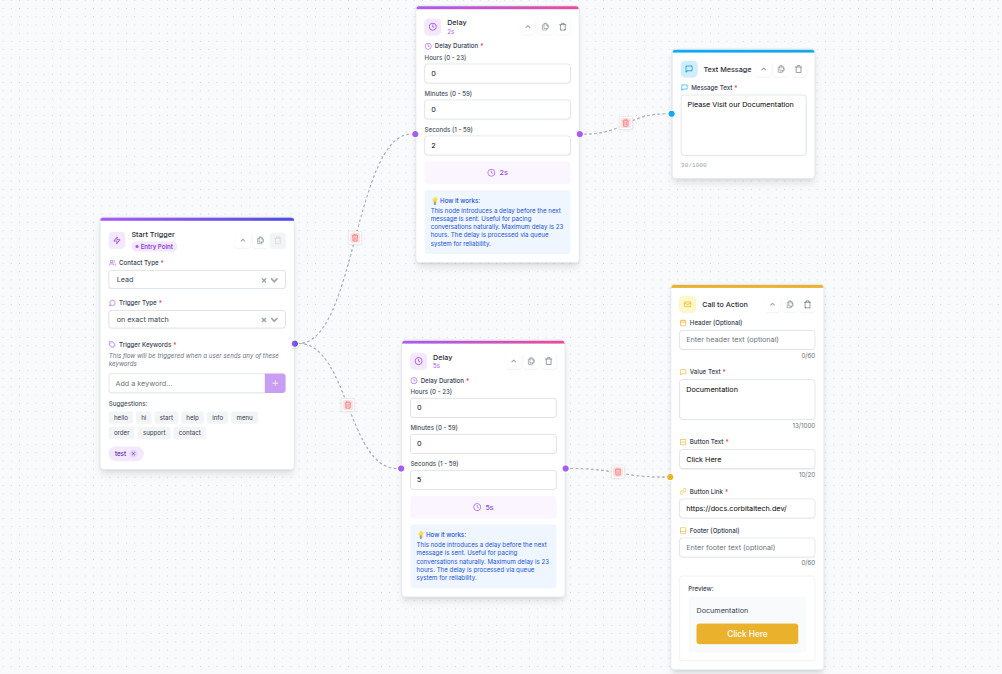
4.7 Delay Node
The Delay Node is a powerful feature that allows you to add time intervals between messages in your automation flow. This helps create more natural conversation patterns and prevents overwhelming users with multiple messages at once.
When to Use Delay Node:
- Add pauses between consecutive messages for better user experience
- Create timed sequences for drip campaigns
- Allow processing time between automated responses
How to Connect Delay Node:
Important Connection Rules
The Delay Node can only be connected after:
- Start Trigger Node
- Button Response Nodes
- List Selection Nodes
These nodes support back connections, which are required for the delay functionality to work properly.
Performance Requirements:
The Delay Node operates using cron jobs and queue management, which requires proper server configuration:
Cron Job Setup:
- Set up a cron job to run every minute for optimal performance
- This ensures delays are processed accurately and messages are sent on time
Queue Management (Optional but Recommended):
- Configure Laravel Horizon for Redis-based queue management
- This provides better performance, monitoring, and reliability
- Horizon dashboard allows you to track delayed jobs in real-time
Best Practice
For production environments, we strongly recommend using Redis with Horizon for queue management. This ensures reliable message delivery and provides visibility into your automation performance.
Setup Guides:
4.8 Update Contact Node v3.1.0
The Update Contact Node allows you to automatically update contact information during flow interactions. This is useful for maintaining accurate customer data and segmenting contacts based on their interactions.

What Can Be Updated:
Using the Update Contact Node, you can modify:
- Relation Type: Change contact classification (e.g., Lead, Customer, Guest)
- Status: Update contact status (e.g., Contacted, Qualified, Converted)
- Source: Track where the contact came from (e.g., WhatsApp, Website, Campaign)
- Groups: Add contacts to specific groups for segmentation
- Tags: Add tags to the contact for categorization
- Labels: Assign labels to the contact's chat
- Assign Chat To: Assign the contact's chat to a specific agent
Configuration Requirements:
Minimum Selection Required
When adding an Update Contact Node to your flow, you must select at least one field to update. You cannot add an empty Update Contact Node.
Choose at least one of the following:
- Status update
- Relation Type update
- Source update
- Group assignment
- Tag assignment
- Label assignment
- Agent assignment
How It Works:
Field Behaviour
- Fields left as "No Change" will not be modified.
- Groups, Tags & Labels — selected values will be added as new to the contact's existing ones. Existing values will not be removed or replaced.
- Assign Chat To — the selected agent will be assigned to the contact's chat when this node triggers.
- Relation Type, Status & Source will replace the existing value if a new one is selected.
Group Management Behavior:
When updating contact groups through this node:
- Adding Groups: Contacts will be added to the specified groups
- Preserving Existing Groups: If a group doesn't exist, the node will skip it without errors
- No Removal: This node will not remove contacts from existing groups
- Multi-select Supported: You can add a contact to multiple groups simultaneously
Use Cases:
Example 1: Lead Qualification Flow
Start Trigger → User responds → Update Contact Node
  - Status: "Contacted"
  - Relation Type: "Lead"
  - Source: "WhatsApp"
4.9 Template Message Node v3.0.0
The Template Message Node sends an approved WhatsApp Message Template to the contact who is currently going through the flow — automatically, when they reach this step.

Unlike a free-text message, a template can include a media header (image, video, document), dynamic body parameters, a footer, URL / phone / quick-reply buttons, and even carousel cards. Once you select a template inside the node, the form changes to show exactly the inputs that template needs — nothing more, nothing less.
Every input field in the node is mention-aware — type @ to insert merge fields like {contact_first_name} or {contact_id}. At runtime, those merge fields are replaced with the real data of the contact going through the flow, so each customer gets a personalized message automatically.
Selected template:        order_confirmation
Body param 1:             {contact_first_name}
Body param 2:             {contact_id}
Sent to John (ID 42):     "Hi John, your order #42 is confirmed."
Sent to Sarah (ID 91):    "Hi Sarah, your order #91 is confirmed."
Key Features:
- Auto Template Loading: All approved WhatsApp templates from your account are loaded into a searchable dropdown
- Smart Parameter Fields: The node detects each template's structure and shows only the inputs you need — header, body, footer, buttons, carousel
- Header Media Upload: Templates with IMAGE, VIDEO, or DOCUMENT headers get a built-in upload zone with live preview
- Carousel Card Support: For carousel templates, each card is rendered with its own media uploader and body inputs — all in one node
- @-Mention Merge Fields: Type
@in any input to pick a contact, lead, or company merge field — auto-resolved at send time per contact - Dynamic Button URLs: Templates with
1in a Website URL button get a dedicated input — see Dynamic Button URL Variables - Live WhatsApp Preview: A built-in preview bubble shows exactly how the message will look on WhatsApp as you fill in the parameters
- Required-field Validation: Every required field is highlighted, errors are summarized at the top of the node, and the flow can't be saved until everything is filled
How to Add and Configure:
Connect a Trigger upstream first
The node automatically reads merge fields from the trigger's relation type (Contact, Lead, etc.). Without a trigger node connected, the @-mention picker may show no options.
- Drag the Template Message node onto the canvas and connect it to the previous step in your flow
- Pick a template from the dropdown — the form expands to show exactly the inputs that template needs
- Fill header, body, footer, button URL — or upload media — type a static value, or press
@to insert a merge field - Watch the live preview update as you type — the WhatsApp-style preview bubble updates in real time
- Save the flow — the node turns green when valid; if any required field is missing, the node header turns red and lists the issues
Header Media Upload Limits:
| Type | Allowed formats | Max size |
|---|---|---|
| Images | PNG, JPEG, WebP | 5 MB |
| Videos | MP4, 3GPP | 16 MB |
| Documents | PDF, DOC, DOCX | 100 MB |
Mix static text with merge fields
Example: typing Order #{contact_id} in a body parameter will resolve to Order #42 for John and Order #91 for Sarah at send time. Custom fields are also supported as merge fields.
Field Reference:
| Field | Required? | Purpose |
|---|---|---|
| WhatsApp Template | Yes | The approved Meta template that will be sent. Determines which other fields appear |
| Header Media (IMAGE / VIDEO / DOCUMENT) | Yes (if header has media) | File upload zone. The uploaded media URL is stored on the node and reused at send time |
| Header Parameters | Yes (if header text uses | One input per placeholder in the header text. Supports static text and merge fields |
| Body Parameters | Yes (if body uses | Numbered inputs corresponding to each placeholder in the template body |
| Footer Parameters | Yes (if footer uses | Numbered inputs for the footer placeholders, when present |
| Button URL Parameters | Yes (if a URL button has 1) | One input per dynamic-URL button. Resolves into the personalized link sent to WhatsApp |
| Card Media (per card) | Yes | Uploads the IMAGE or VIDEO for each carousel card |
| Card Body Parameters (per card) | Yes (if card body uses | Numbered inputs per card, mirroring the regular body parameter behaviour |
Authentication templates
Authentication templates are special: their parameters are filled by WhatsApp itself, so most parameter inputs are hidden — you only see the template selection.
Validation Rules:
The output handle and gradient bar are green only when all of the following are true:
- A template is selected from the dropdown
- If the template has a media header (non-carousel) — a file is successfully uploaded
- Every header / body / footer parameter is non-empty
- Every button URL parameter is non-empty (when applicable)
- For carousel templates: every card has its media uploaded and every card body parameter is non-empty
Use Cases:
Example 1: Welcome New Lead
Trigger: New contact created → Template Message Node
  - Template: welcome
  - Body parameter 1: {contact_first_name}
  - Result: "Hi John, welcome to Acme!"
Example 2: Order Confirmation with Invoice Link
Trigger: Keyword "ORDER" → Template Message Node
  - Template: order_confirmation (image header + URL button)
  - Header: uploaded order banner
  - Body param 1: {contact_first_name}
  - Button URL param: {contact_id}
  - Result: personalized order confirmation with a button to billing.site.com/invoice/42
Example 3: Product Catalog Carousel
Trigger: Quick-reply "Show products" → Template Message Node
  - Template: carousel (4 cards)
  - Each card: uploaded product image + body parameter for the price
  - Result: a scrollable WhatsApp carousel personalized with current prices
Best Practices
- Only approved templates appear. If a template is missing from the dropdown, check that it has been approved in Meta and synced into WhatsMark
- Connect a Trigger first — the merge-field picker reads its options from the upstream trigger's relation type
- Watch the live preview to catch mistakes before saving the flow
- Duplicate to reuse — if two flow branches need to send the same template, duplicate the configured node instead of rebuilding it
- Test with a real contact — trigger the flow against a test contact and verify the message arrives with all merge fields resolved correctly
5. Example: Complete Bot Flow
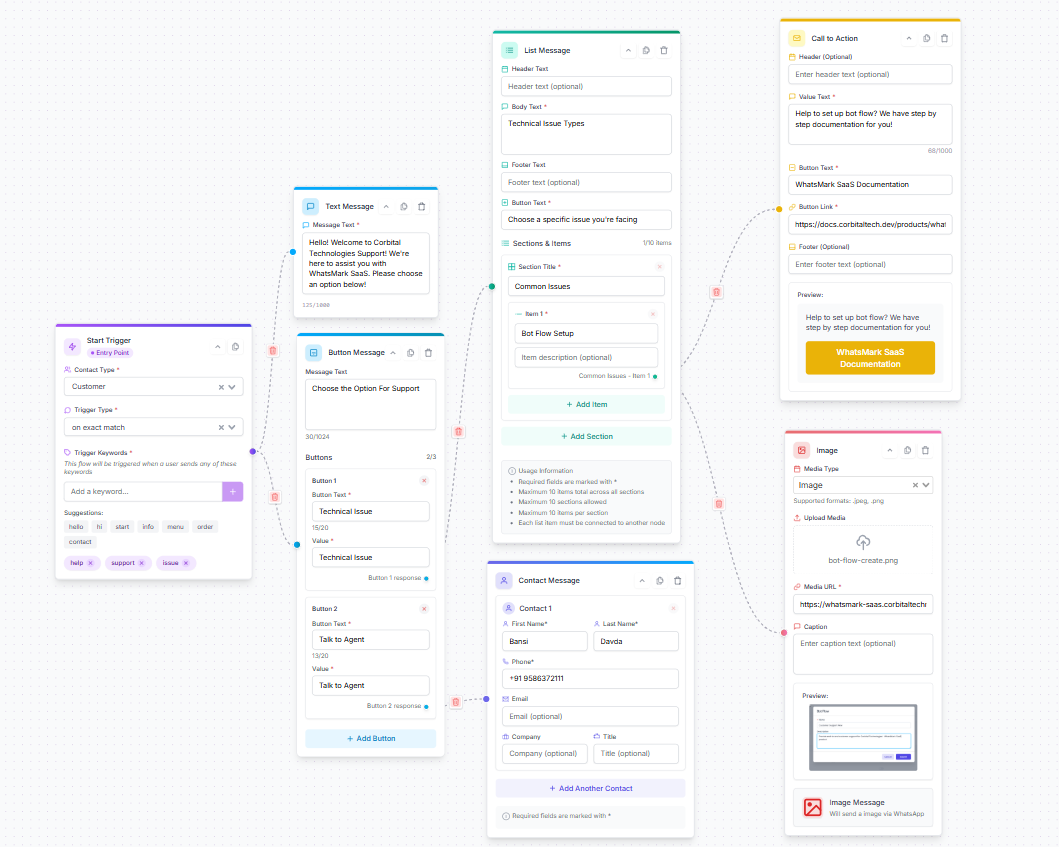
This is an example flow where:
- The start trigger listens for keywords from Customers.
- A welcome text message is sent.
- A button message allows users to choose between "Technical Issue" or "Talk to Agent."
- If "Technical Issue" is selected, a list message with common issues appears.
- A call to action directs users to SaaS documentation.
- An image message shows a bot flow creation screenshot.
- A contact card shares an agent's contact info.
6. Activating Your Bot Flow
After creating and saving your flow, you return to the Bot Flow List page.
- Activate your flow by toggling the Is active switch to ON.
- This enables the flow so it can start responding to user messages based on your triggers.
7. Import & Export Bot Flows
The Import and Export functionality allows you to migrate bot flows between different tenants or WhatsMark SaaS installations. This is useful for:
- Transferring flows from development to production environments
- Sharing flows between different tenant accounts
- Backing up your bot flow configurations
- Replicating flows across multiple WhatsMark SaaS setups
7.1 Exporting a Flow
To export a bot flow:
- Navigate to the Bot Flow List page
- Click the three-dot menu (⋮) next to the flow you want to export
- Select Export from the dropdown menu
- The flow configuration will be downloaded as a JSON file to your computer
This exported file contains all the flow structure, components, settings, and configurations.
7.2 Importing a Flow
To import a bot flow:
- Navigate to the Bot Flow List page
- Click the Import button at the top of the page
- Select the exported JSON file from your computer
- The flow will be imported and added to your bot flow list
Verify After Import
After importing a flow, always verify all configurations before activating it. Some dynamic parameters may differ between installations, including:
- Contact Types: May have different IDs in the new installation
- Groups: Group IDs and names might not match
- Custom Fields: Custom field mappings may differ
- API Endpoints: External URLs or webhook endpoints need updating
- Phone Numbers: Contact card numbers may need adjustment
- Media Files: Images and media will need to be re-uploaded if paths differ
Important: Review each node carefully and update any installation-specific parameters before activating the imported flow.
7.3 Best Practices for Import/Export
- Test First: Always import flows to a test tenant or environment first
- Document Changes: Keep notes on what needs to be updated after import
- Update Variables: Check all dynamic variables and placeholders
- Verify Connections: Ensure all node connections are intact after import
- Test Thoroughly: Run complete tests before activating imported flows in production
7.4 Clone Bot Flow
Use the Clone feature to quickly duplicate an existing flow within the same tenant. Click the three-dot menu (⋮) next to any flow and select Clone to create an exact copy, which you can then modify as needed without affecting the original flow.
8. Bot Flow Library Bundle-v1.1.0
The Bot Flow Library is a shared collection of ready-to-use, pre-built bot flows made available to your account. Instead of building a chatbot from scratch, you can add one and edit it to fit your business.
8.1 Adding a Flow to Your Account
- On the Bot Flow List page, click Flow Library.
- Browse the available flows, or open the My Favourites tab to see the ones you saved.
- Click Use This on the flow you want.

The flow is copied into your account and appears in your bot flow list straight away. From there you can edit it, connect it to a WhatsApp number, and activate it.
Duplicate flow names
If you already have a flow with the same name, a timestamp is added to the new one so nothing is overwritten.
8.2 Favourites
Click the star icon on any flow card to save it as a favourite. Saved flows are listed under the My Favourites tab, which gives you quick access to the ones you use most often. Your favourites are private to your account and are not visible to other users.
Summary
- Start at Bot Flow List: Create or manage flows.
- Create New Flow: Configure start trigger and add message components.
- Design Flow: Use text, buttons, lists, CTAs, images, and contact cards.
- Save Flow: Make sure all required fields are completed.
- Activate Flow: Toggle the active switch to enable.