Chat
WhatsMark’s Chat feature provides a unified inbox for both WhatsApp and Facebook Messenger conversations. All messages from both channels are displayed in the same chat page, allowing your team to manage customer conversations from a single interface.

Unified Inbox
Starting from version 2.2.0, WhatsApp and Facebook Messenger chats are combined into a single chat view. Each contact shows their source (WhatsApp or Facebook) and contact type (guest, lead, etc.) as badges in the contact list.
Pusher Required
For real-time message updates in the chat, Pusher must be configured in the Super Admin System Settings. Contact your admin if live messages are not reflecting in the chat.
WhatsMark Chat Interface
Main Interface
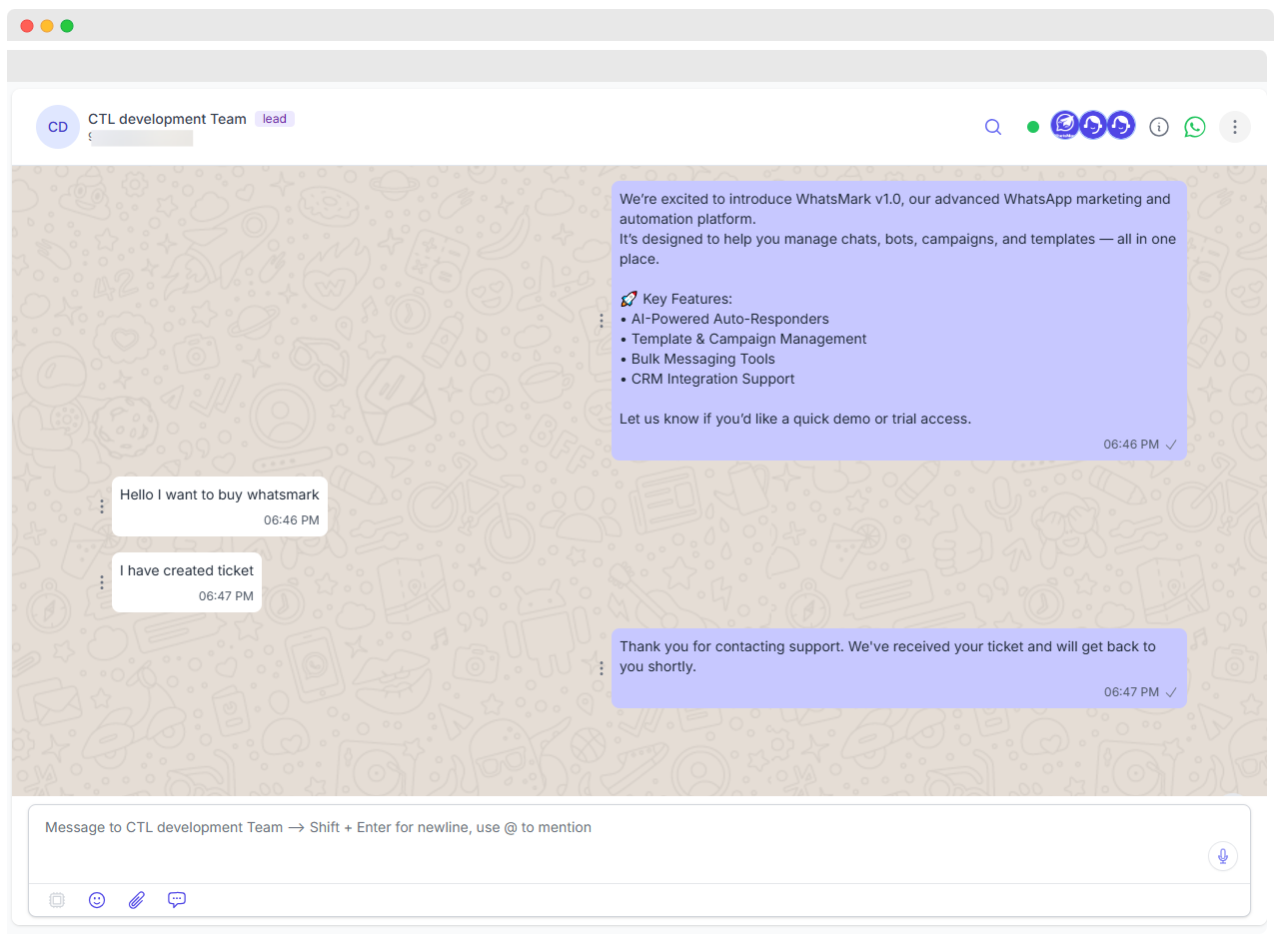
Here’s a breakdown of the main chat screen:
1. Sender Phone Number
Shows the phone number used for the current chat session.
2. Contact Dropdown
Select between multiple WhatsApp numbers (if configured).
3. Search Bar
Quickly find contacts or specific messages.
4. Contact List
Displays recent contacts and latest messages for fast access.
5. Contact Details
See the contact’s name and phone number at the top of the chat.
6. Messaging Policy
WhatsApp vs Facebook Messenger
- WhatsApp: You must reply within the 24-hour messaging window. After that, only approved template messages can be sent. Learn More
- Facebook Messenger: There is no 24-hour restriction. You can send messages to contacts at any time without limitations.
User Info Panel
Click on a contact in the chat list to open the conversation, then click the ℹ icon to open the User Info Panel on the right side.

The User Info panel displays the following details:
| Field | Description |
|---|---|
| Name | Contact name and type badge (guest, lead, etc.) |
| Status | Current contact status (e.g., In Progress, Contacted) — can be changed directly from the panel |
| Source | Channel source — facebook or whatsapp — can be changed directly from the panel |
| Groups | Assigned groups — select or change groups directly from the panel |
| Tags | Assigned tags — select or add tags directly from the panel |
| Labels | Assigned labels — select or add labels directly from the panel |
| Creation Time | When the contact was first created |
| Last Activity | Timestamp of the most recent interaction |
| Phone | Contact's phone number (if available) |
Notes
Add internal notes directly from the chat by clicking the + (add_note) icon in the User Info panel. Notes are useful for:
- Recording lead sources and follow-up summaries
- Leaving context for other team members
- Tracking important details about the conversation
Search Chat History

- Click the search icon to open search box.
- Results highlight matched terms.
- Scroll to load and search historical messages.
More Options
1. Delete Chat (Role-Based)
Only users with Delete Chat permission can remove chat records.
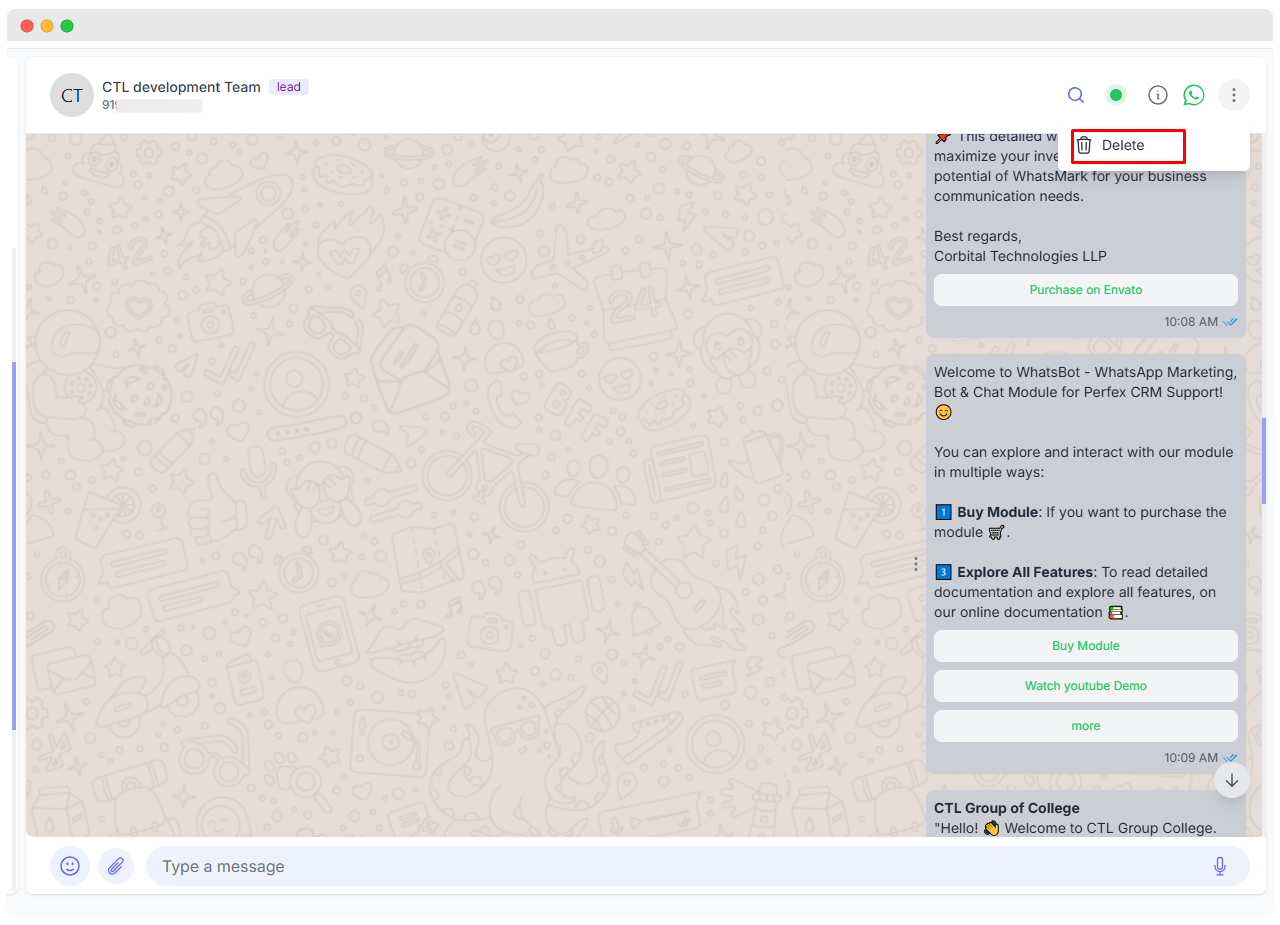
How to Enable This
Create Role with Delete Permission
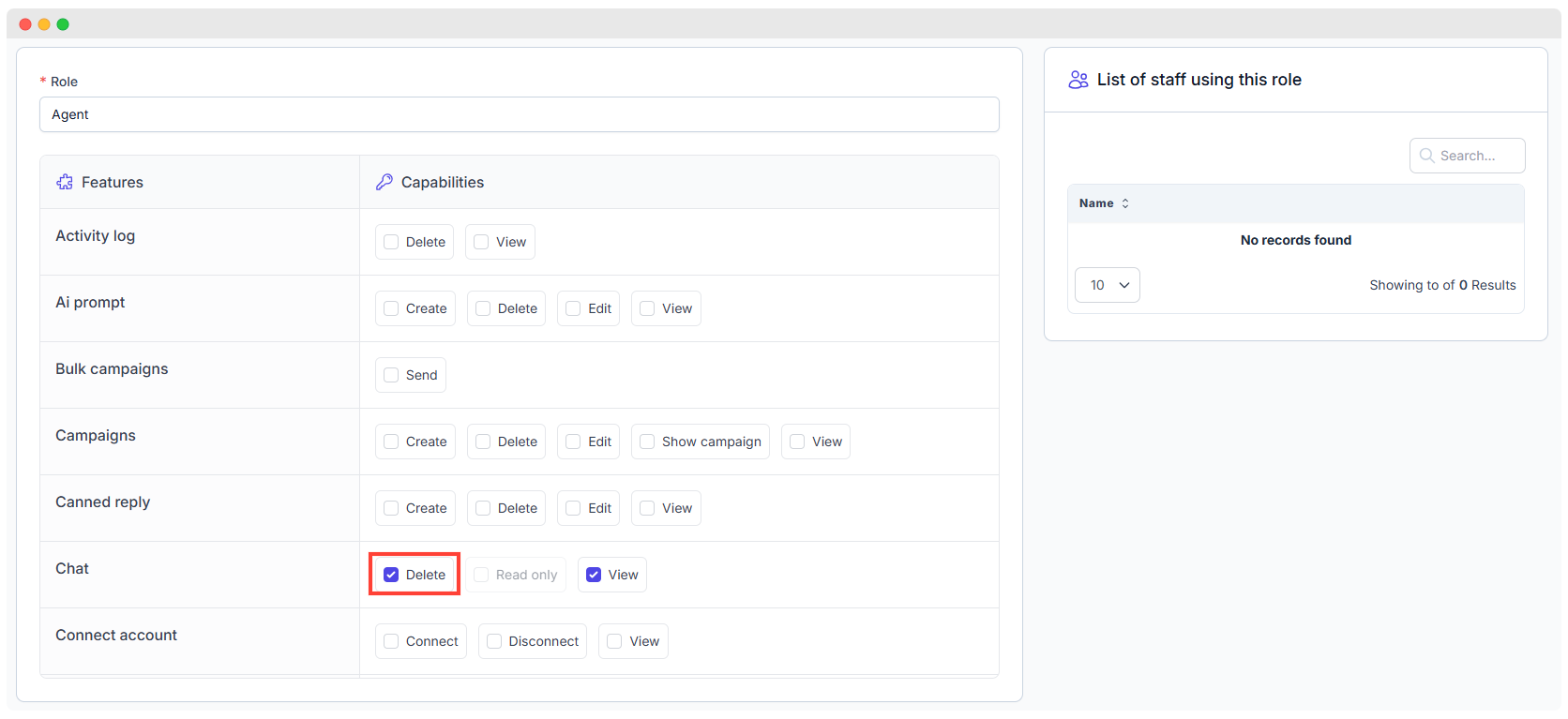
- Go to
Setup → Roles - Create or edit a role.
- Enable the Delete checkbox under the Chat section.
Deleting a Chat
- Log in as a user with delete permissions.
- Navigate to the chat section.
- Click delete icon to remove the conversation.
NOTE
Only authorized users with Delete Chat permission can perform this action.
2. Assign to Support Agent
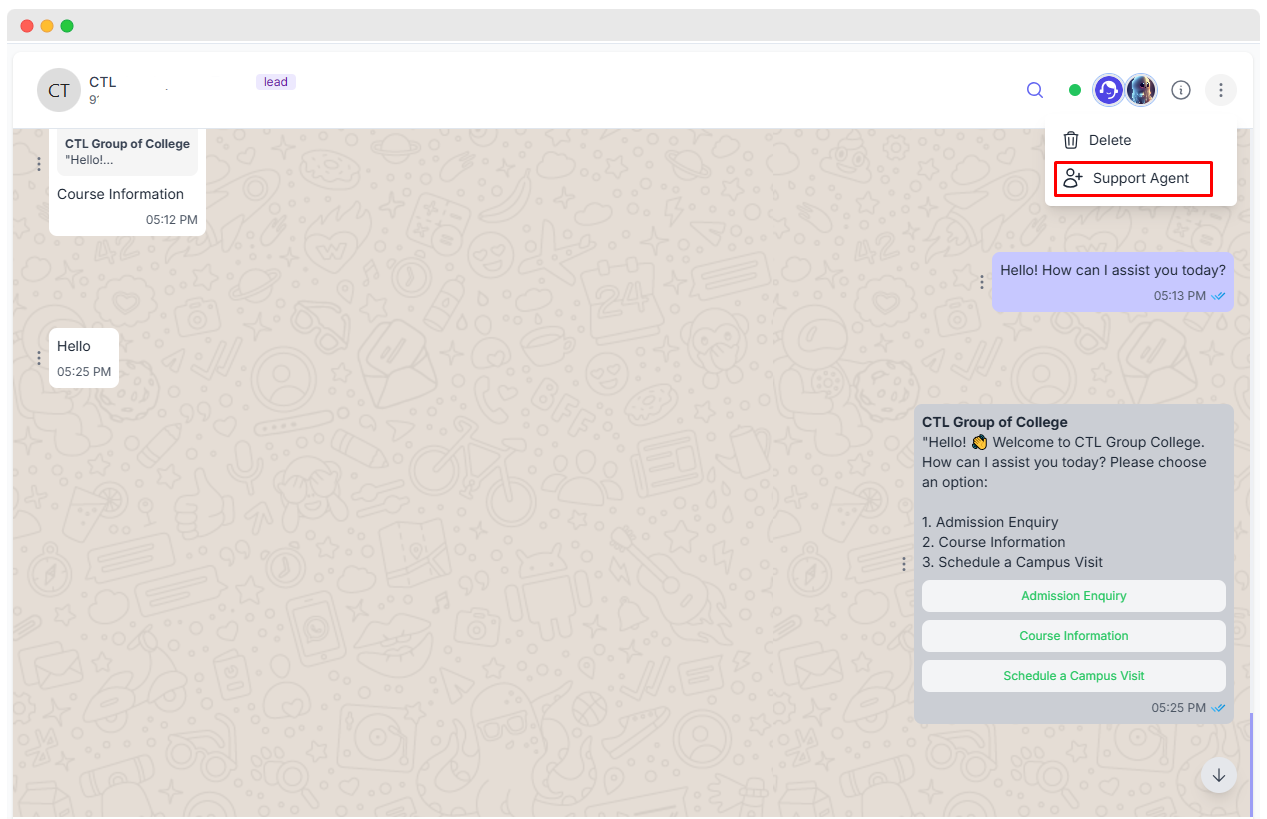
Assign chats to specific team members:
- Promotes accountability.
- Prevents duplicate replies.
- Great for multi-agent customer support.
Assign Role to User
- Go to
Application Setings → Support Agent - Enable the support agent feature, the staff will automatically be assigned to the chat. Admins can also assign a new agent from the chat page.
For futher information please refer: Support Agent
AI Tools in Chat

Click the AI icon to enhance your message using AI tools:
- Grammar Correction
- Translation
- Tone Adjustment
- Custom Prompts
Use these features to communicate more effectively and professionally.
Emojis
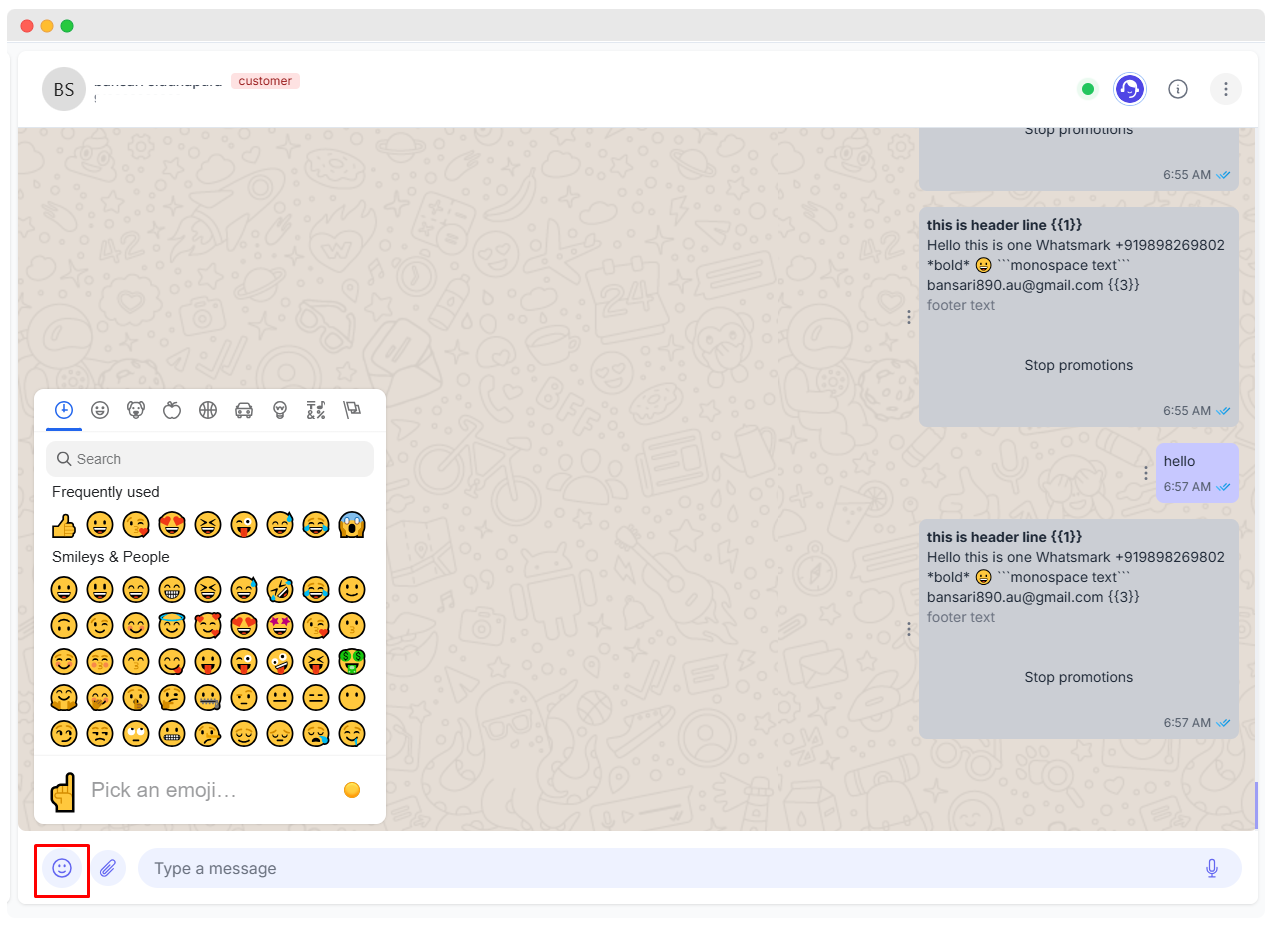
- Select emojis to personalize messages.
- Helps set a friendly, engaging tone.
Attachments in Chat

Available Options
Attach Image
Send product shots, documents, or screenshots.
Attach Video
Useful for demonstrations, walkthroughs, or tutorials.
Attach Document
Send PDFs, Word files, invoices, or brochures.
Send Location v3.0.0
Share a location directly in the chat via an interactive map picker.
Click the paperclip (📎) icon → Location to open the Send Location dialog.
You have three ways to pick a location:
| Method | How |
|---|---|
| Search | Type a place name in the Search for a place field and press the search icon |
| Drag the map pin | Pan and drag the blue marker on the map to any point |
| Use My Current Location | Click the button to auto-fill your device's GPS coordinates |
Once a location is selected, the Address, Latitude, and Longitude fields fill in automatically. Click Send Location to share it with the customer.


Send Contact v3.0.0
Share one or more contacts directly in the chat. Click the paperclip (📎) icon → Contact to open the Send Contact dialog.
There are two modes:
Sync Contact — search and pick from your existing WhatsMark contacts.
- Use the search bar to find a contact by name or number.
- Contacts that have a WhatsApp number show a WhatsApp flag icon next to their entry, indicating they are reachable on WhatsApp.
- Select the contact and click Send Contact.

Manual Fill — enter contact details by hand.
- Fill in First Name, Last Name (both required), Phone (required), and optionally Email, Company, and Title.
- Click + Add Another Contact to include multiple contacts in a single send.
- Click Send Contact when done.

WhatsApp flag on contacts
In the Sync Contact list, contacts whose phone number is registered on WhatsApp display a WhatsApp (flag) icon. This helps you quickly identify which contacts can receive WhatsApp messages directly.
TIP
Check Media Guidelines for size and format limits.
WhatsApp Typing Indicator v3.0.0
Customers now see a real "typing…" bubble on their phone while WhatsMark generates a reply — exactly the same animation that appears when a real person on the other end is composing a message. The result is a much more natural, human-like conversation experience.
Without this indicator, a customer who sends a question sees nothing for a few seconds while WhatsMark calls an LLM, looks up a contact, or assembles a template. With the indicator on, the chat feels alive — they instantly see "typing…" and know a response is coming. 
Where the Indicator Fires
The typing indicator is wired into every place WhatsMark generates an outbound reply on WhatsApp. As long as the feature is enabled on the tenant's plan, customers see it automatically — no extra configuration needed.
| Surface | When the indicator fires |
|---|---|
| 🤖 AI Assistant Replies | While the LLM generates a response. Re-armed automatically for slow providers |
| 💬 Message Bots | Before keyword-triggered text bots send their configured reply |
| 📋 Template Bots | Before a keyword-triggered WhatsApp template is delivered |
| 🌊 Bot Flows | On each step in a bot flow that sends a message (text, template, media) |
| 🟢 Opt-in / Opt-out Replies | Before the auto-reply is sent in response to an opt-in/out keyword |
| 🧑💼 Agent Inbox AI Suggestions | When an agent uses AI to draft a response from the chat panel |
| ⚙️ Webhook Auto-handlers | Any handler that fires from the WhatsApp webhook in response to an inbound message |
Smart firing
WhatsMark only shows the indicator when a reply is actually about to be sent — never speculatively. This avoids the frustrating "typing…" with no follow-up message.
How It Works (End to End)
| Step | What happens |
|---|---|
| 1. Customer sends an inbound message | WhatsApp delivers the message to WhatsMark via webhook with a unique message ID |
| 2. WhatsMark checks the plan-feature gate | If disabled for this tenant's plan, the rest is skipped — the reply still goes out normally, just without the indicator |
| 3. Indicator is fired right before the reply | The customer instantly sees "typing…" in their chat. Failures are logged and never block the reply |
| 4. WhatsMark generates / assembles the reply | For long-running operations the indicator is re-armed periodically because Meta's ~25 s cap may otherwise expire it |
| 5. Reply is delivered — indicator clears | As soon as the actual outbound message lands, WhatsApp removes the typing bubble automatically |
Per-Plan Feature Toggle
The typing indicator is implemented as a per-plan boolean feature. Admins can switch it on or off per subscription plan from the admin panel.
- Default state: Enabled by default on every plan, including the Free plan
- Where to toggle: Admin → Plans → Edit Plan → Typing Indicator
- Type: Boolean —
1(enabled) or0(disabled) - Applies immediately: No cache to clear — the next inbound message reflects the new setting

When would you disable it?
Some businesses prefer the previous behavior where customers do not see any pre-reply indicator — for example, if their replies are usually instant and the indicator feels superfluous. Toggle it off on those plans and the entire feature becomes a no-op for those tenants.
Meta's Rules to Be Aware Of
Important constraints
- The indicator must reference an inbound message ID — you cannot show "typing…" out of the blue
- WhatsApp displays the indicator for roughly ~25 seconds maximum per arm. WhatsMark re-arms it automatically for long operations
- The indicator only works in the 24-hour customer service window after a customer message
- Marketing-initiated outbound messages (like campaigns) cannot show the indicator — only replies to incoming messages
- WhatsApp only — Facebook Messenger uses its own native typing API and is unaffected by this toggle
Troubleshooting
If customers don't see the typing bubble:
- Plan feature off? Check Admin → Plans → Edit Plan → Typing Indicator is set to enabled for the tenant's plan
- Outside the 24-hour window? If the customer hasn't messaged in over 24 hours, Meta blocks the indicator. The customer must send a new inbound message first
- WhatsApp Business API number live? The phone number must be active and verified in Meta Business Manager
- Check the logs. WhatsMark logs any indicator failure with the message "WhatsApp typing indicator failed" in
storage/logs/whatsapp.log
Reminder
The indicator is a UX polish layer — never a critical path. If something goes wrong with it, the reply itself is always delivered as a first priority.
Canned Replies
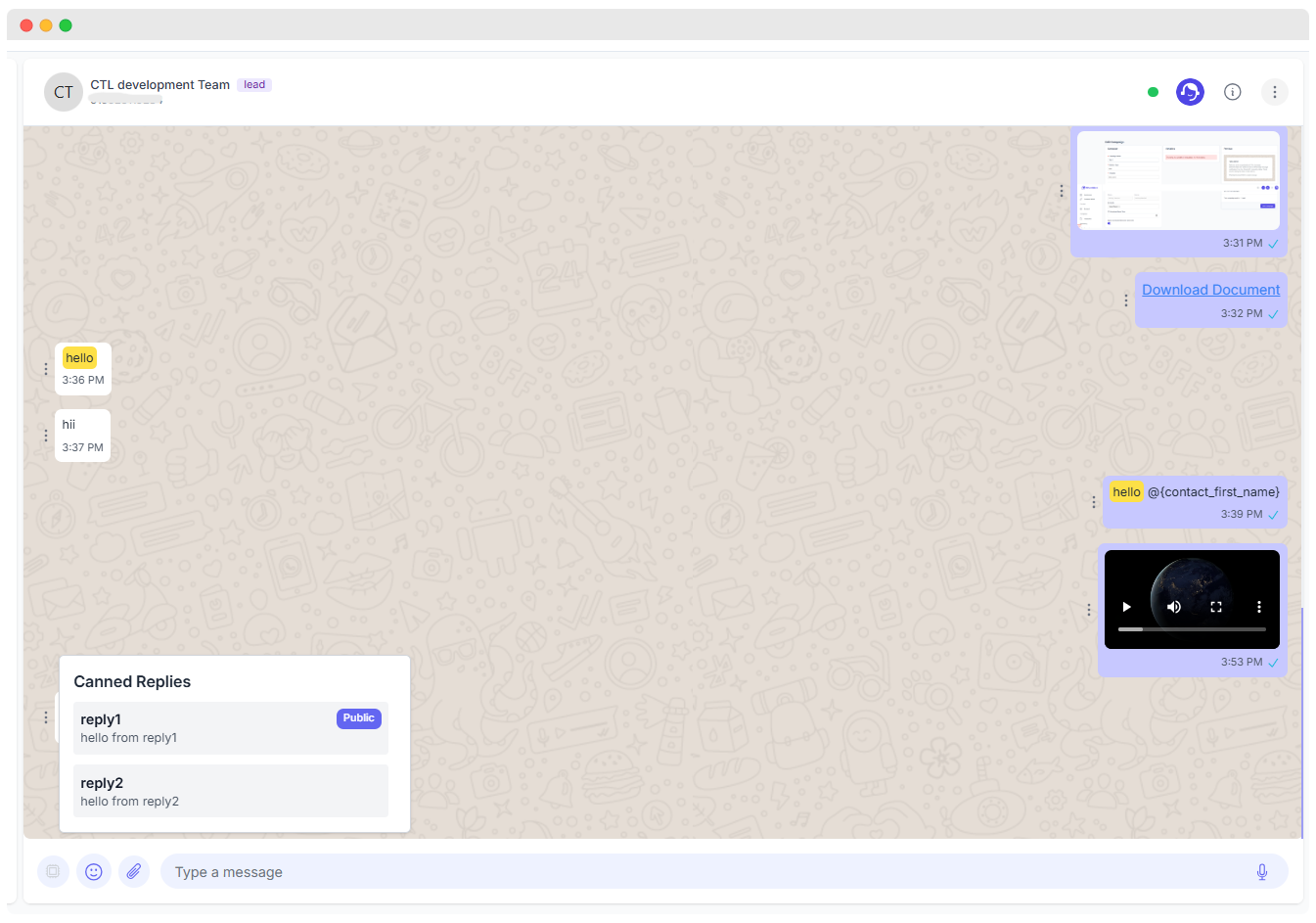
Pre-configured message templates that agents can quickly insert into a chat.
Use for:
- Frequently asked questions
- Standard greetings
- Company policies
Send Voice Message
- Record and send voice notes directly from the interface.
- Good for quick updates or multilingual support.
Message Input Box
- Type your message here.
- Supports merge fields using
@(e.g.,@staff_firstname) - Use
Shift + Enterfor a new line.
Preview – Full Chat Flow
Watch this video for a complete overview of the WhatsMark Chat Interface—from sending messages, using AI tools, adding notes, to deleting chats.
Summary of Features
| Feature | Description |
|---|---|
| Unified Inbox | WhatsApp and Facebook Messenger chats in one view |
| Real-time Messaging | Enabled via Pusher integration |
| AI Chat Tools | Grammar fixes, tone adjustments, translation |
| Canned Replies | Quick templates for FAQ-style responses |
| Chat Search | Search entire message history with highlighting |
| Multi-Agent Assignment | Assign chats to team members |
| Attachments | Images, Videos, PDFs, and more |
| Send Location | Share a map pin via search, drag, or GPS — auto-fills address and coordinates |
| Send Contact | Share existing contacts (with WhatsApp flag indicator) or fill details manually |
| WhatsApp Typing Indicator | "typing…" bubble while WhatsMark generates a reply — gated per plan, on by default |
| Delete Permission | Role-based access to chat deletion |
| User Info & Notes | View contact details and add notes via + icon |