Message Bot
A message bot is an automated tool that communicates with users via messaging platforms. It is designed to:
- Answer frequently asked questions
- Provide product or service information
- Send real-time notifications
- Handle repetitive queries 24/7
How to Create a Message Bot
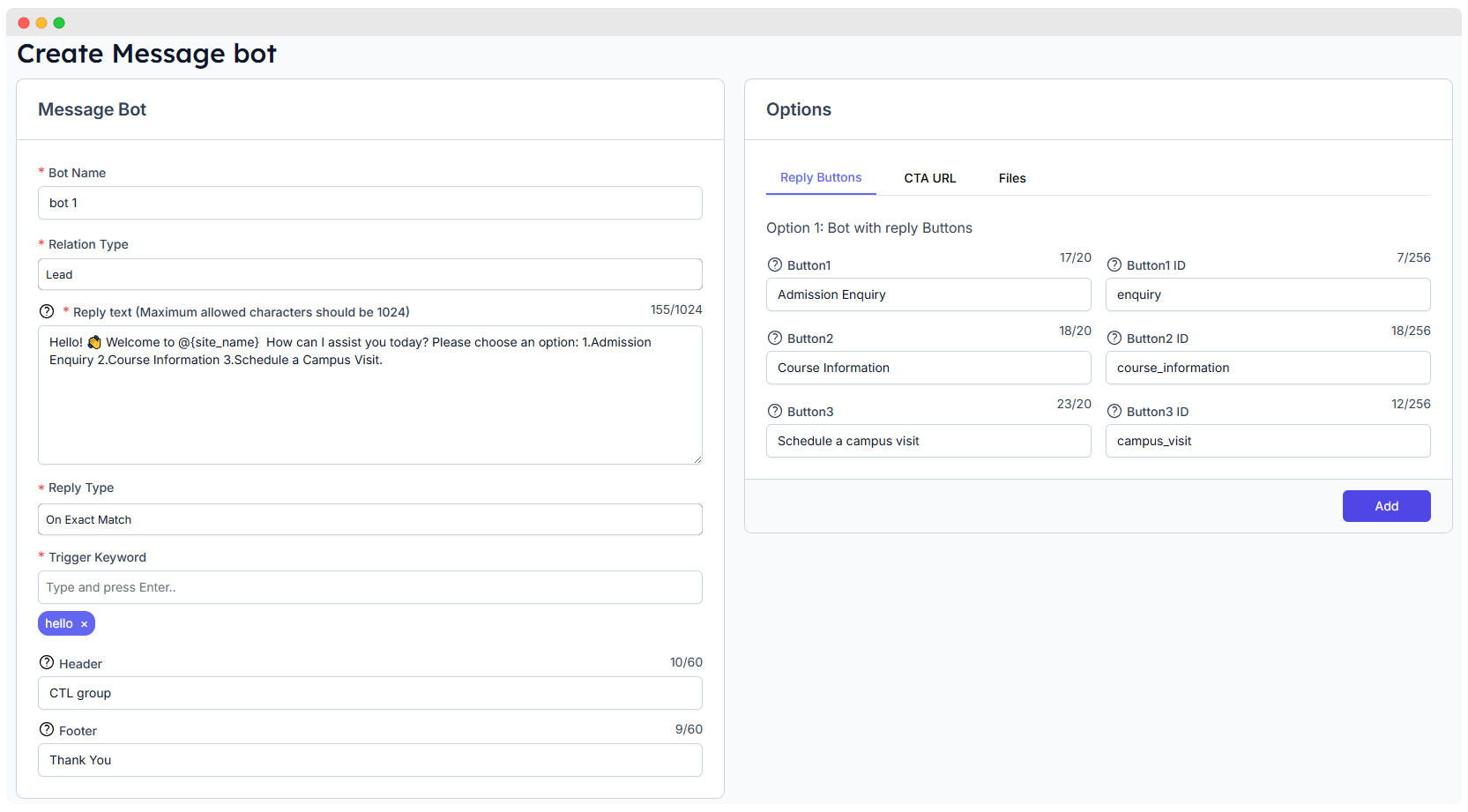
Follow these simple steps to create a bot in WhatsMark:
Step 1: Bot Name
- Field:
Bot Name - Purpose: Assign a name to your bot for easy identification.
- Example:
bot 1
Step 2: Relation Type
- Field:
Relation Type - Options:
Customer,Lead, orGuest - Explanation:
- Select
Customerif the bot will interact with existing customers. - Choose
Leadif the bot is for potential customers or prospects. - Select
Guestif the bot should respond to users who haven't been converted to leads or customers yet.
- Select
Important: The contact must already exist in WhatsMark. You need to send the trigger word from their WhatsApp number to initiate the bot.
Step 3: Reply Text
- Field:
Reply Text - Max Characters: 1024
- Usage: This is the message the bot will send in response.
- Example: Hello! Welcome… How can I assist you today? Please choose an option:
- Admission Enquiry
- Course Information
- Schedule a Campus Visit.
You can use @ to insert dynamic fields like the user’s name or your organization’s name.
Step 4: Reply Type
- Field:
Reply Type - Options:
Reply bot: On Exact MatchWhen Message ContainsWhen Lead or Client Sends First MessageDefault Reply
| Reply Type | Description |
|---|---|
| On Exact Match | Bot replies only when the message exactly matches the trigger |
| Message Contains | Bot responds if the message includes the trigger word |
| When Lead or Client Sends First Message | Triggers reply when someone messages your number based on Welcome Message Frequency configured in Application Settings → Bot Settings |
| Default Reply | Sent when no other trigger matches, based on Default Reply Frequency configured in Application Settings → Bot Settings |
Frequency Control v3.1.0
Two reply types are now controlled by frequency settings in Application Settings → Bot Settings:
- When Lead or Client Sends First Message — controlled by Welcome Message Frequency
| Frequency | Sends |
|---|---|
| Every Time | Every time contact messages — if chat already exists, will not run again |
| Once Per Session | Once per conversation session — if session already exists, will not run again |
| Once Per Day | Once per day — if already sent today, will not run again |
| Once Per Week | Once per week — if already sent this week, will not run again |
| Once Per Month | Once per month — if already sent this month, will not run again |
| Once Per Year | Once per year — if already sent this year, will not run again |
- Default Reply — controlled by Default Reply Frequency
| Frequency | When Sends | Extra Configuration |
|---|---|---|
| Once Per Session | Once per 24-hour session — if already sent, will not send again | None |
| Once in Every X Min/Hours | Once every specified time interval | Set Interval Value and Unit in Bot Settings |
| Session Wise Maximum Attempts | Up to maximum number of times within a 24-hour session | Set Maximum Attempts in Bot Settings |
| Before Agent Assignment | Every unmatched message until an agent is assigned to the chat | None |
| After Agent Reply | Every unmatched message after an agent has already replied | None |
Configure Bot Settings First
Before using "When Lead or Client Sends First Message" or "Default Reply" types, configure their frequencies in:
Application Settings → Bot Settings
Step 5: Trigger Keyword
- Field:
Trigger - Purpose: Keyword that activates the bot's response.
- Example:
hello
Send this keyword from the user’s WhatsApp to start the bot conversation.
Step 6: Header (Optional)
- Field:
Header - Usage: Displayed above the main reply text.
- Example:
CTL Group of Colleges
Step 7: Footer (Optional)
- Field:
Footer - Usage: Additional info or closing note.
- Example:
Thank you.
Interactive Reply Options
Option 1: Reply Buttons
- Fields:
Button1,Button2,Button3Button1 ID,Button2 ID,Button3 ID- Usage: Add clickable buttons for easier responses.
- Example: Button Texts: Admission Enquiry, Courses Information, Schedule a campus visits Button IDs: enquiry, course information, campus visit
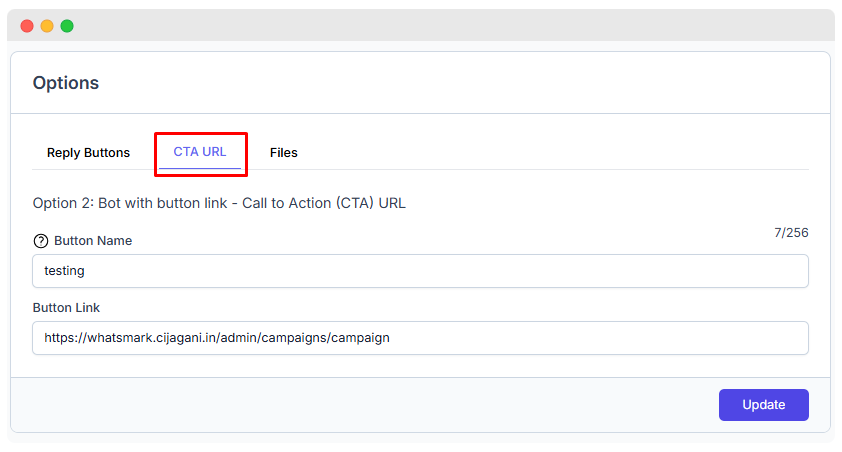
Option 2: Call to Action (CTA) URL
- Fields:
- Button Name: Name shown on the button (e.g.,
View Details) - Button Link: Destination URL (e.g.,
https://example.com/page)
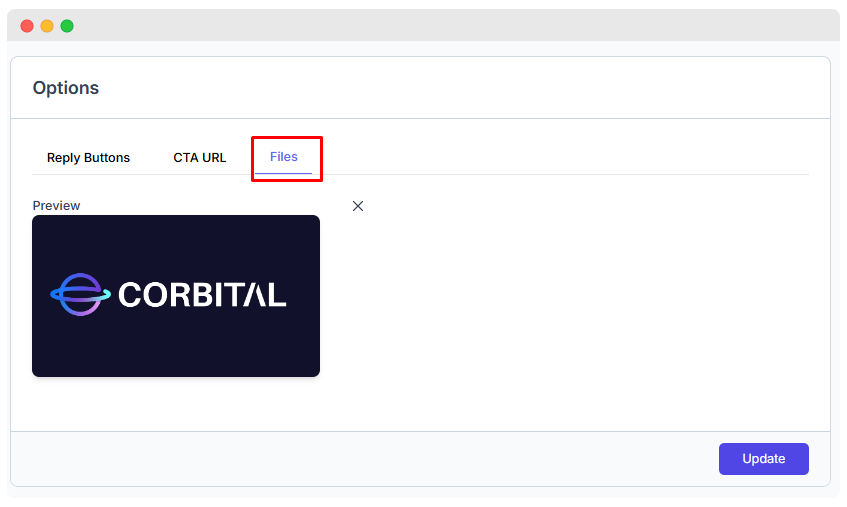
Option 3: Attach Image/File/Audio
- Field:
Choose File - Example: Click
Choose Fileand upload a file from your computer.
The bot supports the following file types:
| Type | Supported Formats | Max Size |
|---|---|---|
| Image | .jpg, .jpeg, .png | 5 MB |
| Video | .mp4 | 16 MB |
| Document | .pdf, .docx, .xlsx and others | 100 MB |
| Audio | .mp3, .m4a, .amr | 16 MB |
Audio messages v3.0.0
Upload an .mp3, .m4a, or .amr file (up to 16 MB) and the bot will send it as a WhatsApp audio message. Customers can play it directly in the chat — useful for voice instructions, greetings, or announcements.
NOTE
Only one of the following options will be shown in the bot's final message:
- Reply Buttons
- CTA URL
- File Attachment (Image / Video / Document / Audio)
Whichever comes first in the form will be used.
Manage Message Bots
This section provides an overview of all created Message Bots in the system, helping you manage and monitor bot configurations efficiently.
Once created, you can see a list of all your bots:
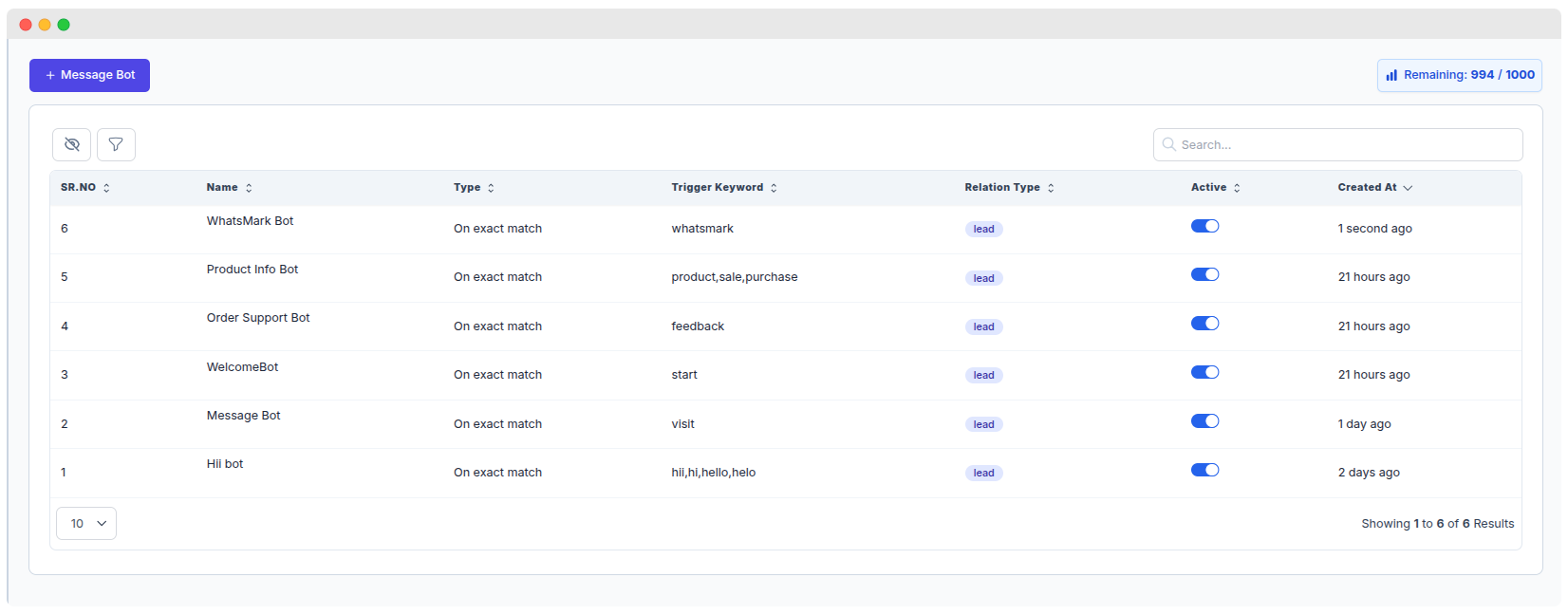
List Table Explanation
The list contains the following columns:
| Column Name | Description |
|---|---|
| SR. NO | Serial number for the bot (descending by creation time). |
| Name | The custom name you assigned to the message bot. |
| Type | Defines how the bot triggers – e.g., "On exact match" means exact keyword match. |
| Trigger Keyword | Words or phrases that will activate the bot’s response. |
| Relation Type | Indicates if the bot targets Leads, Customers, or Guests. |
| Active | A toggle switch to enable or disable the bot. |
| Created At | Shows when the bot was created (e.g., "1 second ago", "2 days ago"). |
How to Use This Preview
- You can search bots using the search bar in the top-right.
- Sort columns by clicking the arrow icons beside headers.
- Use the filter or hide columns button to customize your view.
- Use the toggle under Active to quickly enable or disable a bot.
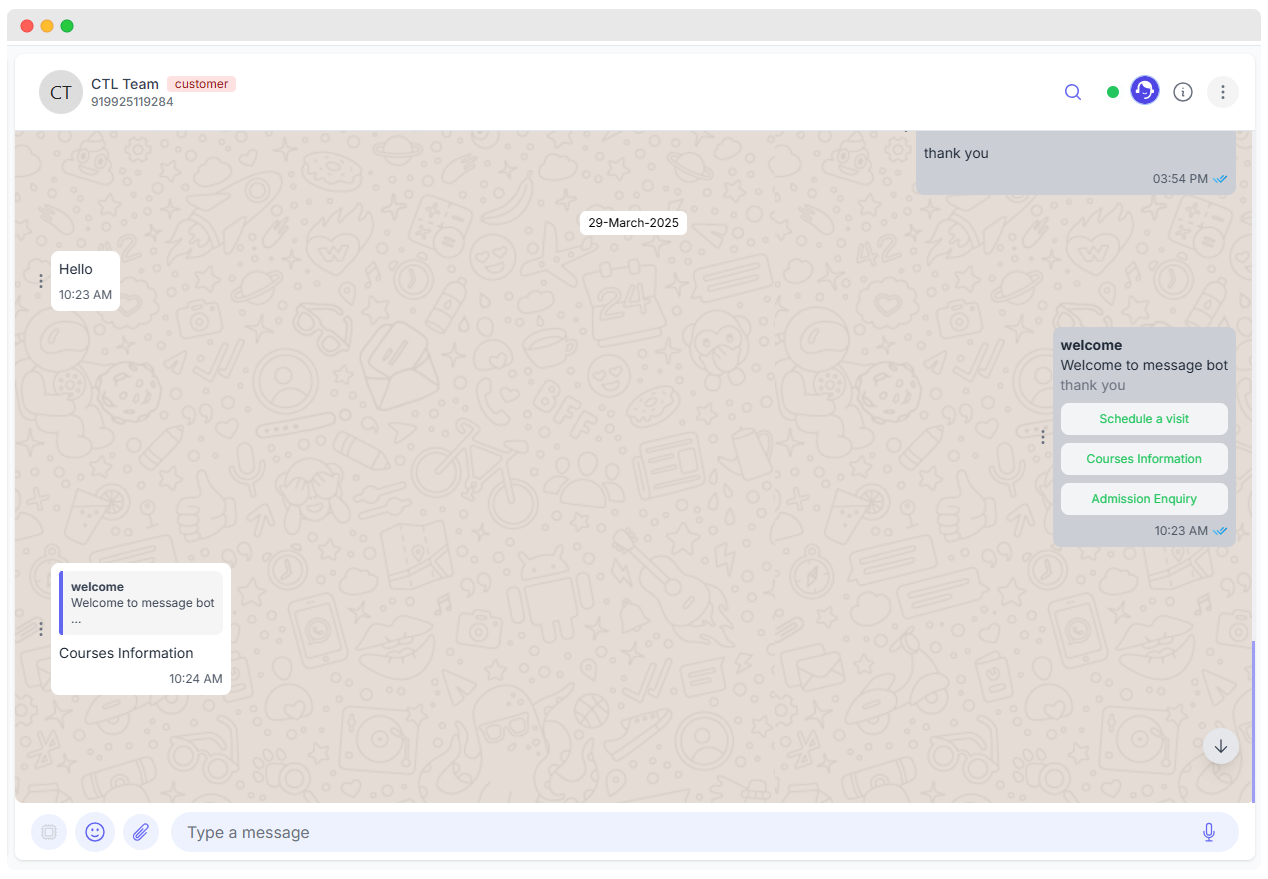
Final Preview – How It Looks
Understanding Contact Types
| Type | Description |
|---|---|
| Leads | Potential customers who have shown interest |
| Customers | Existing clients who are actively doing business |
| Guests | New message senders not yet converted to leads or customers |
- All three types are stored in your CRM as Contacts
- Bots can be tailored to each type:
- Bots for Leads trigger from prospecting inquiries.
- Bots for Customers trigger based on existing relationships.
- Bots for Guests trigger for first-time or unconverted contacts.
Guest Auto-Creation
When a new user sends a message to your WhatsApp Business number, they are automatically stored as a Guest type if the WhatsApp Auto Lead setting is disabled. You can then manually convert them to leads or customers as needed.
More advanced setup or troubleshooting, refer to the official WhatsApp Cloud API Media Reference.